273
Chapter 14: File Menu – Multitrack View
he File menu in the Multitrack View offers functions relating to opening, saving, and otherwise manipulating
session files.
About Sessions
An Adobe Audition “session” uses session (*.ses) files and their specific structure to save all of the information that relates
to a current multitrack project. This information includes audio file placement, mix/pan parameters, mute/solo settings,
and more. All of your multitrack masterpieces are saved to and recalled from disk as a session file. Only one session can
be active at a time.
Note: Keep in mind that your session files save just the information that relates to a current multitrack project. Session files
don’t contain their associated waveforms. It’s important to keep your waveforms intact and within their original folder.
New Session
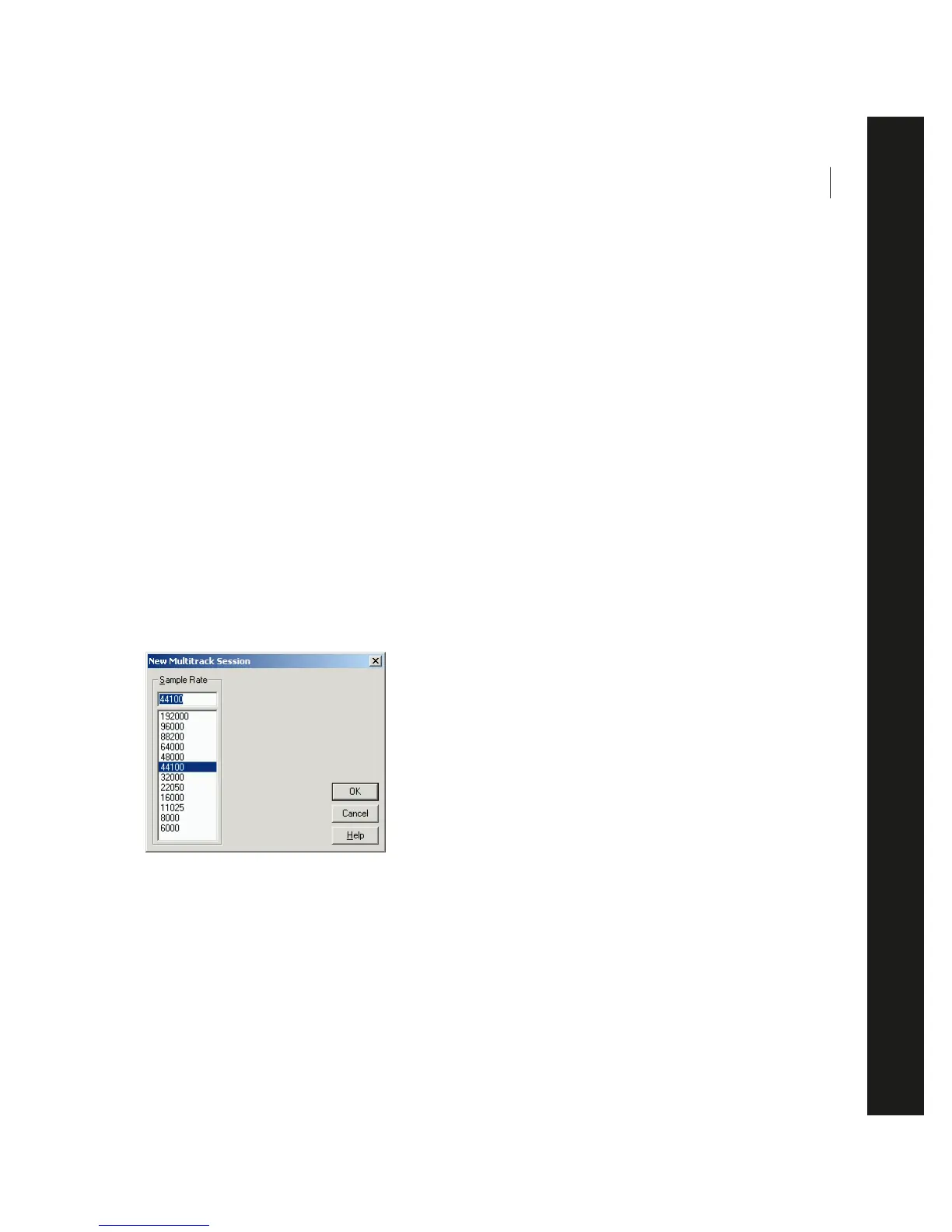
This command creates a new, empty session, where you record or insert audio into multiple tracks. When creating a new
session, you’ll be prompted to specify its sample rate. Any audio files to be used in a session must share these properties,
or be converted upon inserting them.
New Multitrack Session dialog
Sample Rate This value determines how many frequencies can be encoded in the audio signal. Higher sampling rates
mean a wider bandwidth. Popular sample rates are already listed; just click on one to select it. Or, enter a custom number
in the Sample Rate box to specify a different rate from those provided. However, keep in mind that most sound cards
only support certain sample rates.
T



 To Next Page