370
USING ACROBAT X PRO
Multimedia and 3D models
Last updated 10/11/2011
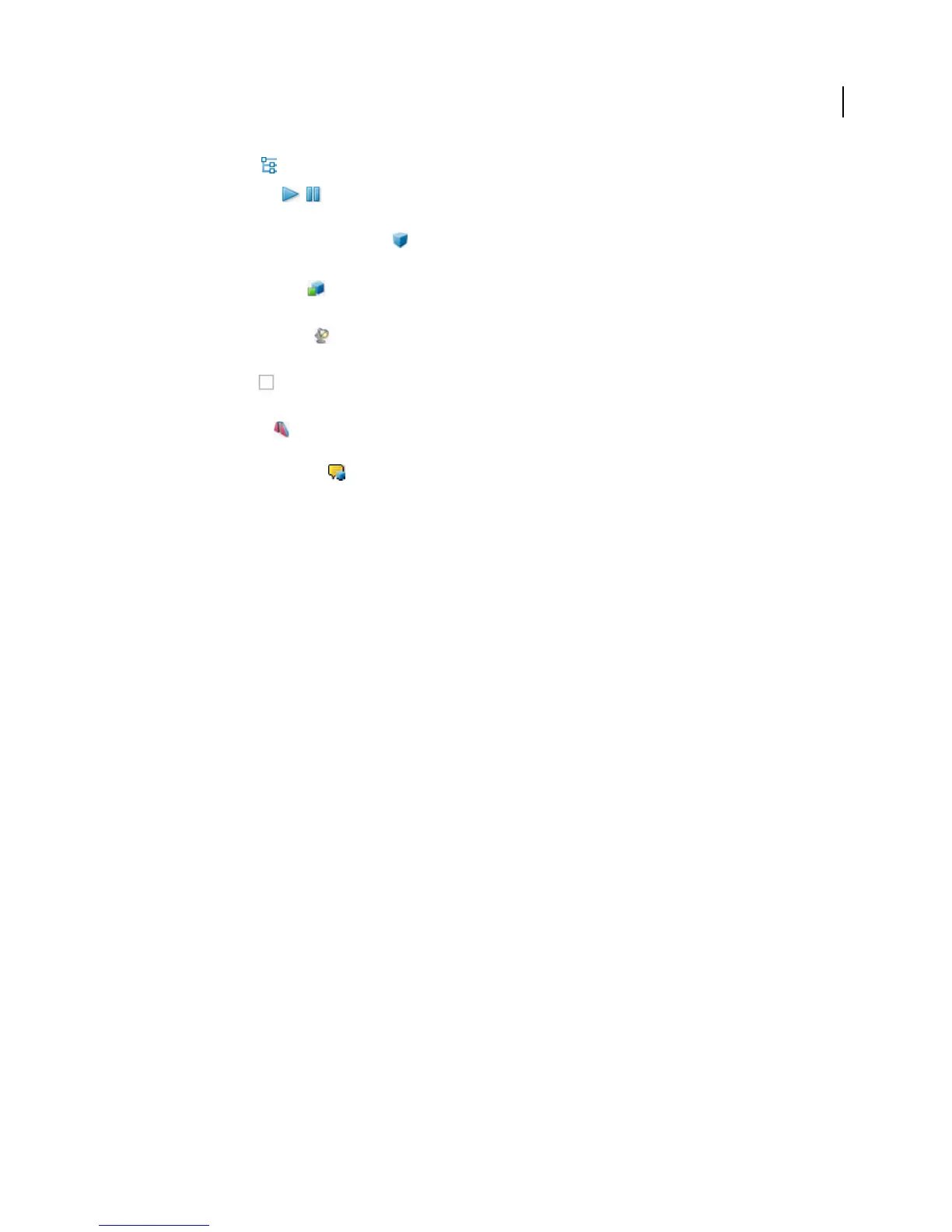
Toggle Model Tree Opens and hides the Model Tree.
Play/Pause Animation Plays or pauses any JavaScript-enabled animation. The Play/Pause Animation pop-up
menu opens a slider that you can drag back and forth to move to different times in the animation sequence.
Use Orthographic/Perspective Projection Toggles between displaying perspective and orthographic projection of
the 3D object.
Model Render Mode menu Determines how the 3D shape appears. For an illustrated guide, see “Examples of
model rendering modes” on page 370.
Enable Extra Lighting menu Lists the different lighting effects that are available to enhance the illumination of the
3D object. Experiment to get the visual effects you want.
Background Color Opens the color picker, which you can use to select a different color for the space surrounding
the 3D object.
Toggle Cross Section Shows and hides cross sections of the object. Click the pop-up menu to open the Cross
Section Properties dialog box. For more information, see
“Create cross sections” on page 375.
Add Multimedia/3D Comment Enables you to add a sticky note to any part of the 3D model. The note stays with
the view. See
“Comment on 3D designs” on page 382.
Examples of model rendering modes
The model rendering modes include combinations of factors that affect the appearance of the 3D object. The
illustration below shows a simple object rendered in each of the available modes.



 To Next Page