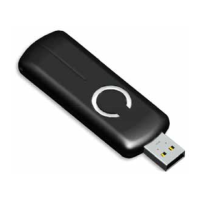
4.4 Installation and Maintenance Application (IMA) feature
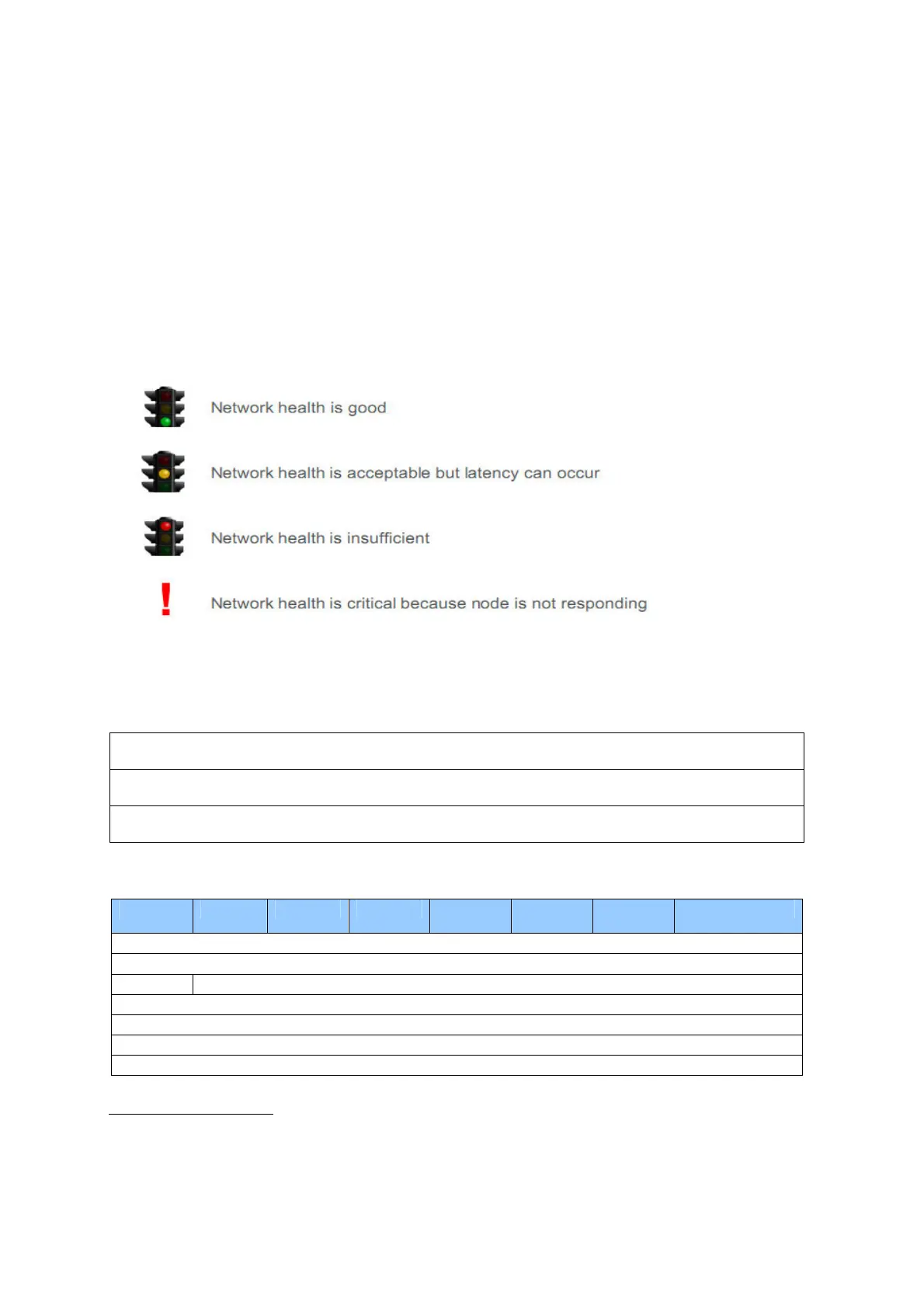
When the Z-Stick is in Serial API-Mode and acts a primary controller, it can measure the network health
for each device in the network. The different colour of LED indicates the communication quality between
the Z-Stick Controller and devices in the network.
Install the IMA tool software first (note: the IMA tool can be downloaded from here:
http://www.aeotec.com/support). Select the node device and then click the IMA test button to start the
IMA test between the Central Controller and the node devices. Your IMA tool client will receive the test
result and use different colour of LED icon to indicate the network health level, its colour will be changed
follow with the change of network health level.
4.5 Configuration
4.4.1 Set Command
The Set Command used to set the value of configuration parameter(s), command format:
REQUEST:
Parameter Number (8 bits)
Serial API: (refer to the below form)
HOST->ZW: REQ | 0xf2 | Parameter Number | size | Value
ZW->HOST: RES | 0xf2 | RetVal


 To Next Page
 Loading...