28
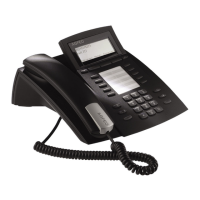
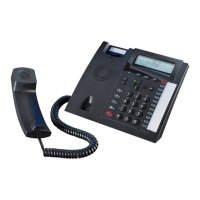
AGFEO T 18
Setting the PABX Prefix
– Press the “Menu” button ( ).
– Use the navigation buttons (
) to scroll to the outside line code setting.
– Change the number(s) for the outside line by pressing the appropriate number button(s).
– Confirm by pressing the "Ok" button (
).
– Exit the menu by pressing the “Esc” button (
).
Setting the Ringer Melody
– Press the “Menu” button ( ).
– Use the navigation buttons (
) to scroll to the ringtone setting.
– The ringtone currently set will play.
– Change the tone using the up/down navigation buttons (
) and confirm by pressing the
"Ok" button (
).
– Exit the menu by pressing the “Esc” button (
).
Setting the Ringer Volume
– Press the “Menu” button ( ).
– Use the navigation buttons (
) to scroll to the ringtone volume setting.
– The ringtone currently set will play at the ringtone volume currently set.
– Change the volume level using the up/down navigation buttons (
) and confirm by
pressing the "Ok" (
).
– Exit the menu by pressing the “Esc” button (
).
Setting the Flash Time
– Press the “Menu” button ( ).
– Use the navigation buttons (
) to scroll to the flash time setting.
– Change the flash time (short: approx. 100 ms; long: approx. 240 ms) using the up/down
navigation buttons (
) and confirm by pressing the "Ok" button ( ).
– Exit the menu by pressing the “Esc” button (
).
Setting Time Durations T1, T2 and T3
To set the times for MWI using special ringtones (see page 7),
– Press the “Menu” button (
).
– Use the navigation buttons (
) to scroll to T1.
– Change the duration by using the up/down navigation buttons (
) and confirm by
pressing the "Ok" button (
).
– Change the duration of T2 by using the up/down navigation buttons (
) and confirm by
pressing the "Ok" button (
).
– Change the duration of T3 by using the up/down navigation buttons (
) and confirm by
pressing the "Ok" button (
).
– Exit the menu by pressing the “Esc” button (
).


 To Next Page