aigo A396+
| 36 |
Copying File:
- Press
▲ or ▼ Joystick button to scroll to the target source file (file to
be copied) followed by
► Joystick button and the symbol will be
displayed.
- Select the file, press
◄ Joystick button or ESC button to exit current
folder and navigate to the destination folder (file to be copied to).
- Press & hold ENTER button to open File Operation menu and select
icon
. The selected file will be copied to the destination folder(See
(Figure 6.19).
Note: When there is insufficient memory space or the same file is already
present, error information will be displayed, copy operation unsuccessful.
Figure 6.19
aigo A396+
| 37 |
In Function Select mode, use the
◄ or ► Joystick button to select
icon
followed by the ENTER button to enter the System Setup
mode. (See Figure 6.20).
Figure 6.20
- Press
▲ or ▼ Joystick button to scroll cursor. If an item has only
one sub-menu option, press to select option.
- When an item has a sub-menu option, press the ENTER button to
view available submenu options.
- Press
◄ or ► Joystick button to select an option followed by ▲ or
▼ Joystick button to change the settings.
- Press ESC button to exit the option.
aigo A396+
| 38 |
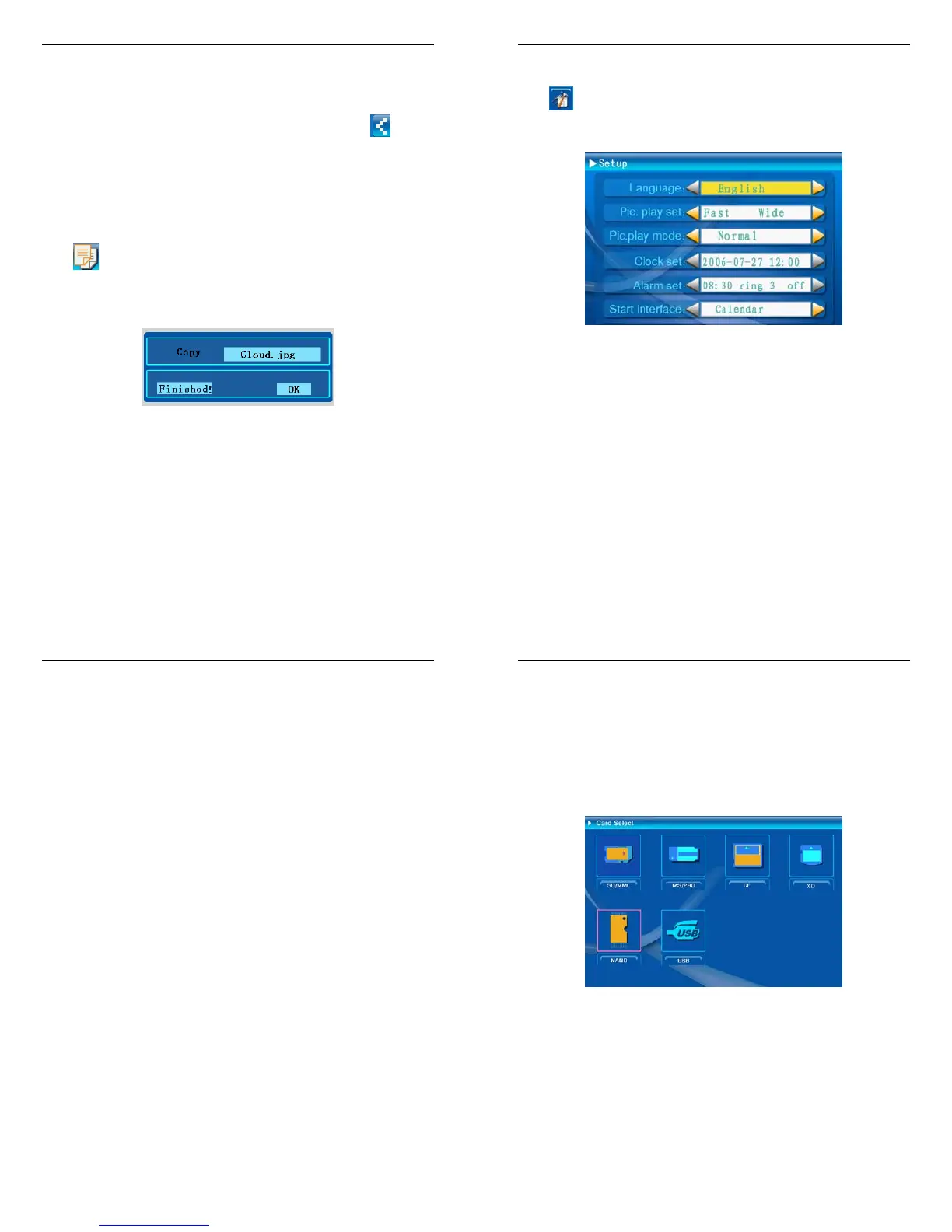
The settings are shown below:
Language: Menu language setup.
Pic. Play set: To set the speed of the slide show. (Fast / Middle / Slow).
In the other sub menu options, the following settings are available:
- Picture display normal or wide screen.
- Pic Play mode: To set the effect of the slideshow during photo
playback.
- Clock set: To change the date and time on the clock.
- Alarm set: To change the settings for the alarm. The photo frame has
3 built-in ring tones and two different modes available (Once / Every
Day).
Note: Personal ring tone can also be customized.
Start up screen: Calendar, Image, Music, Movie and File List mode can
be customized as the start up screen.
Note: The default setting is the Calendar mode.
aigo A396+
| 39 |
Card Select Mode
This mode is used for reading an external memory card.
- Insert external memory card and power ON the frame.
- The product logo will be displayed followed by the start up screen.
Note: The default startup screen is the Calendar mode. In Calendar mode,
press the ENTER button to go to Card Select Mode (See Figure 6.21).
Figure 6.21
When an external memory card is inserted, the relevant card icon in
Card Select mode turns Orange color. Use
◄ or ► Joystick button to
select a card type and press the ENTER button to go to Function
Select mode.



 To Next Page