aigo A396+
| 28 |
Video Playback
In Function Select mode, press the ◄ or ► Joystick button to select
icon followed by ENTER button to the movie mode.
System will begin searching for video files in the current directory
(built-in memory) and playback video automatically. During music
playback, press
▲ Joystick button to open Volume menu. Press the
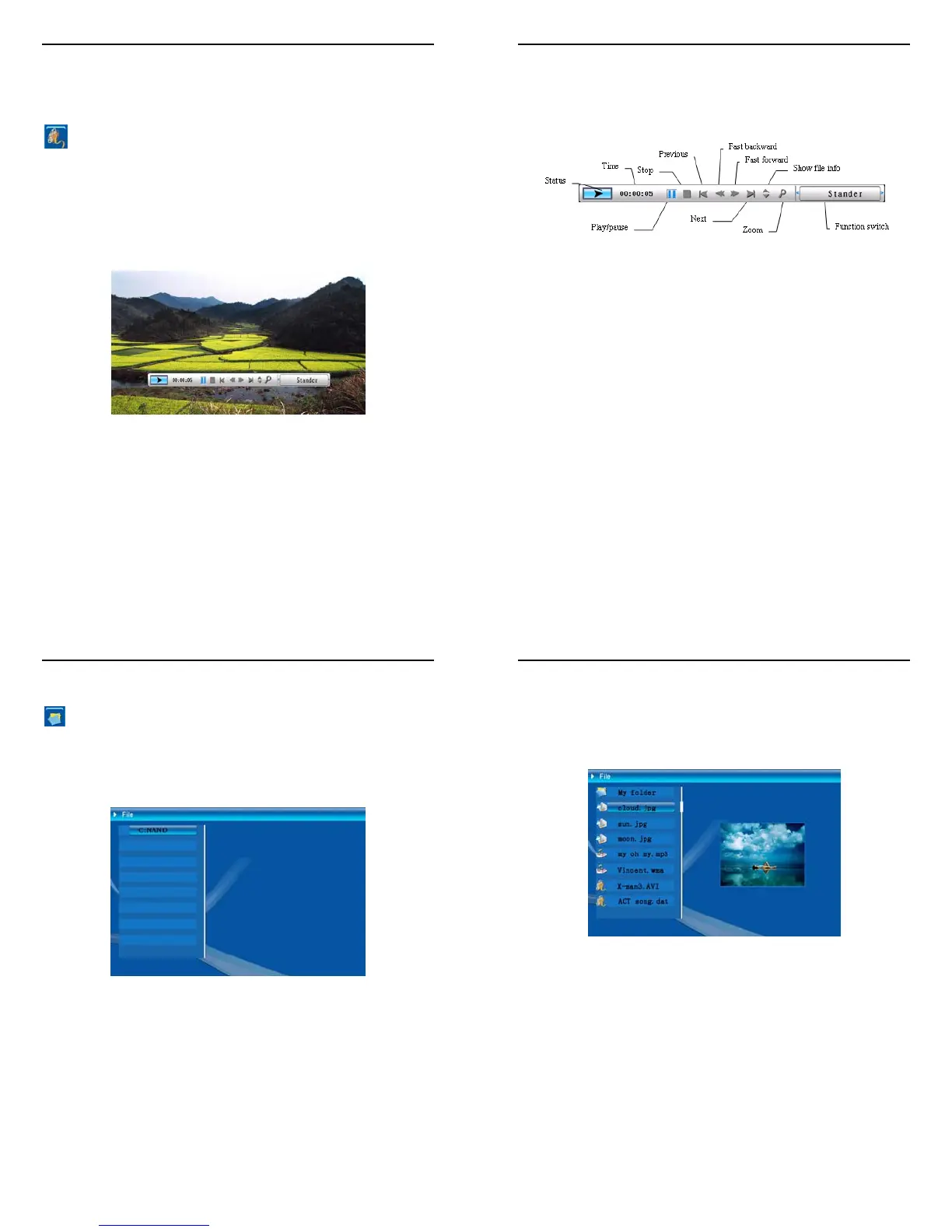
ENTER or ESC button to open or close Video Control Bar (see Figure
6.11).
Figure 6.11
The functions available in Video Control Bar are as shown in diagram
below (see Figure 6.12).
aigo A396+
| 29 |
Press
► Joystick button to switch to Audio Code Information or Play
Mode. In playback mode, there are three modes available in this option
- Standard, Repeat One and Dir Repeat. Press the ENTER button to
select one of the modes.
Figure 6.12
Press ESC or STOP button to return to Function Select mode.
Note: Please keep to the following requirements for video playback:
- Flash Disk or NAND: Maximum up to 7Mbps.
- Memory Card: Maximum up to 4Mbps.
The maximum resolution for video playback is 720x560.
aigo A396+
| 30 |
In Function Select mode, press the
◄ or ► Joystick button to select
icon followed by ENTER button to the File Management mode
(see Figure 6.13). This list shows the current memory, press ESC
button to return to Function Select mode.
Figure 6.13
aigo A396+
| 31 |
Press
▲ or ▼ Joystick button to select Memory followed by ENTER
button or
► Joystick button to enter directory (see Figure 6.14). The
picture file can be previewed on the right panel screen.
Note: The same function works for Picture, Music and Movie mode, ONLY the
select file will be displayed.
Figure 6.14



 To Next Page