aigo A396+
| 24 |
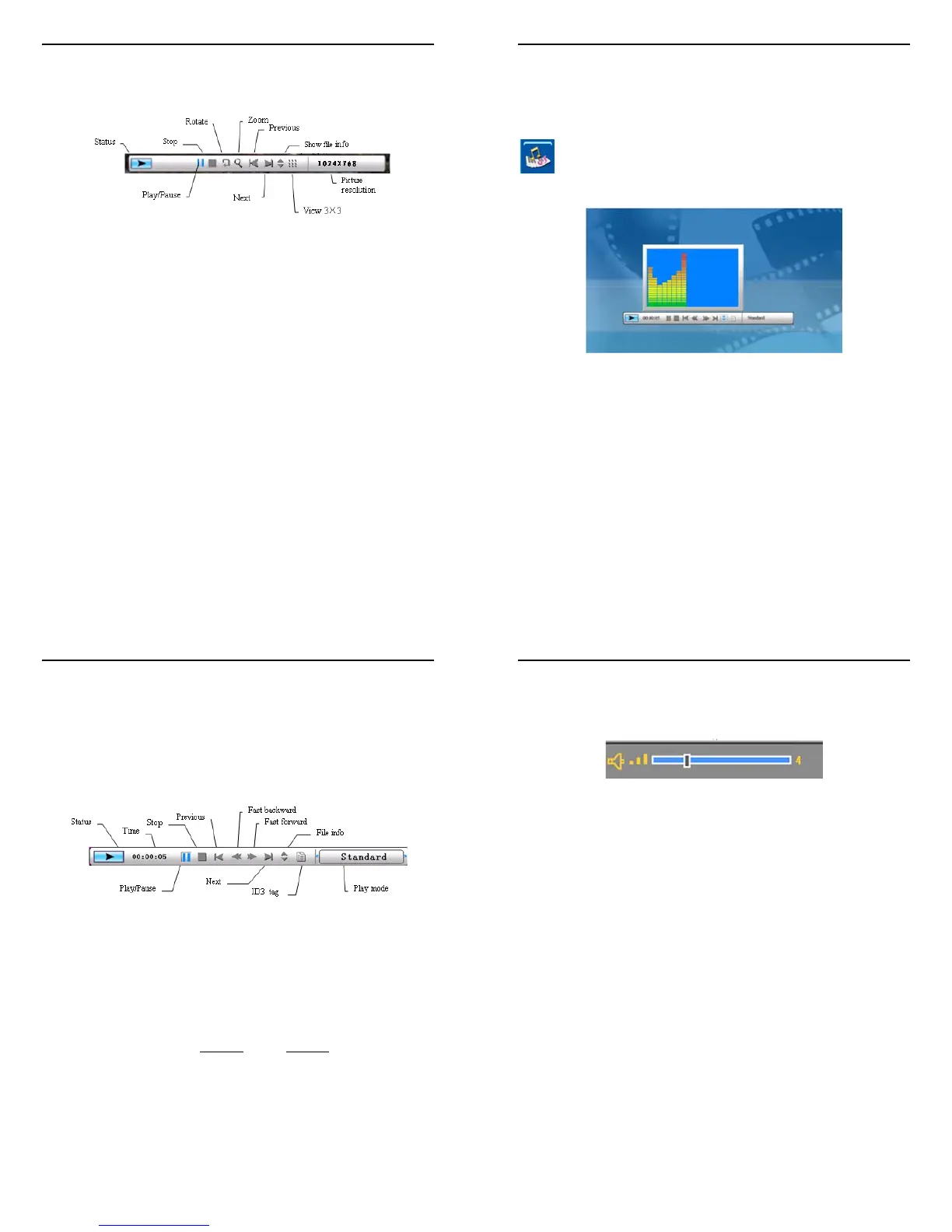
The functions available in Picture Control Bar are as shown in diagram
below (see Figure 6.7).
Figure 6.7
Press STOP button in Control Bar to return to Function Select mode;
Press ESC button in Picture view mode to return to 9-photo thumbnail
mode.
aigo A396+
| 25 |
Music Playback
- In Function Select mode, use ◄ or ► Joystick button to select
icon, followed by ENTER button to music mode(see Figure 6.8).
Figure 6.8
aigo A396+
| 26 |
System will begin searching for music files in the current directory
(built-in memory) and playback music automatically. During music
playback, use Control Bar to control the playback operation (see Figure
6.9). Press
► Joystick button to navigate to Play mode and there are
three modes available in this option - Standard, Repeat One and Dir
Repeat. Press the ENTER button to select one of the modes.
Figure 6.9
Press
▲ Joystick button to close Control Bar. Press ▲ Joystick
button or ENTER button to open Control Bar again.
This frame supports song lyric display during music playback in “.LRC”
file format. Both the Music file name and Song Lyric file name must
both be identical. (Example: MyLove
.mp3 + MyLove.lrc). Store these 2
files within the same folder and during music playback, the song lyrics
will be displayed automatically.
aigo A396+
| 27 |
Press
▼ Joystick button to activate Volume menu (see Figure 6.10),
use
◄ or ► Joystick button to adjust the volume and press ESC
button to close Volume menu.
Figure 6.10
Press ESC or STOP button to return to Function Select mode.



 To Next Page