General
The instrument has a comprehensive help system which allows easy access to any Help page. It is
possible to get help in two ways:
1. Help menu. Press the HELP key to access a list of help topics which give general
information about instrument operations. Dual channel instruments do not have a HELP key
so Help is accessed from a soft-key in the Utility menu.
2. Context sensitive help. Press and hold down any key, including soft-keys, for two seconds to
access the Help page for that key.
There are two types of help screen.
1. The Help menu. This is the screen that gives a list of general help topics.
2. The Help topic screen. This is the screen that displays actual help texts.
On a single channel instrument the HELP key glows yellow while any Help screen is shown.
Pressing the HELP key while it is glowing yellow will exit from the Help menu or topic and return to
the screen from which help was initiated. Press the
soft-key to exit from Help on a dual
channel instrument. The following sections discuss these two screen types.
Help menu
Pressing the HELP key will display the Help menu.
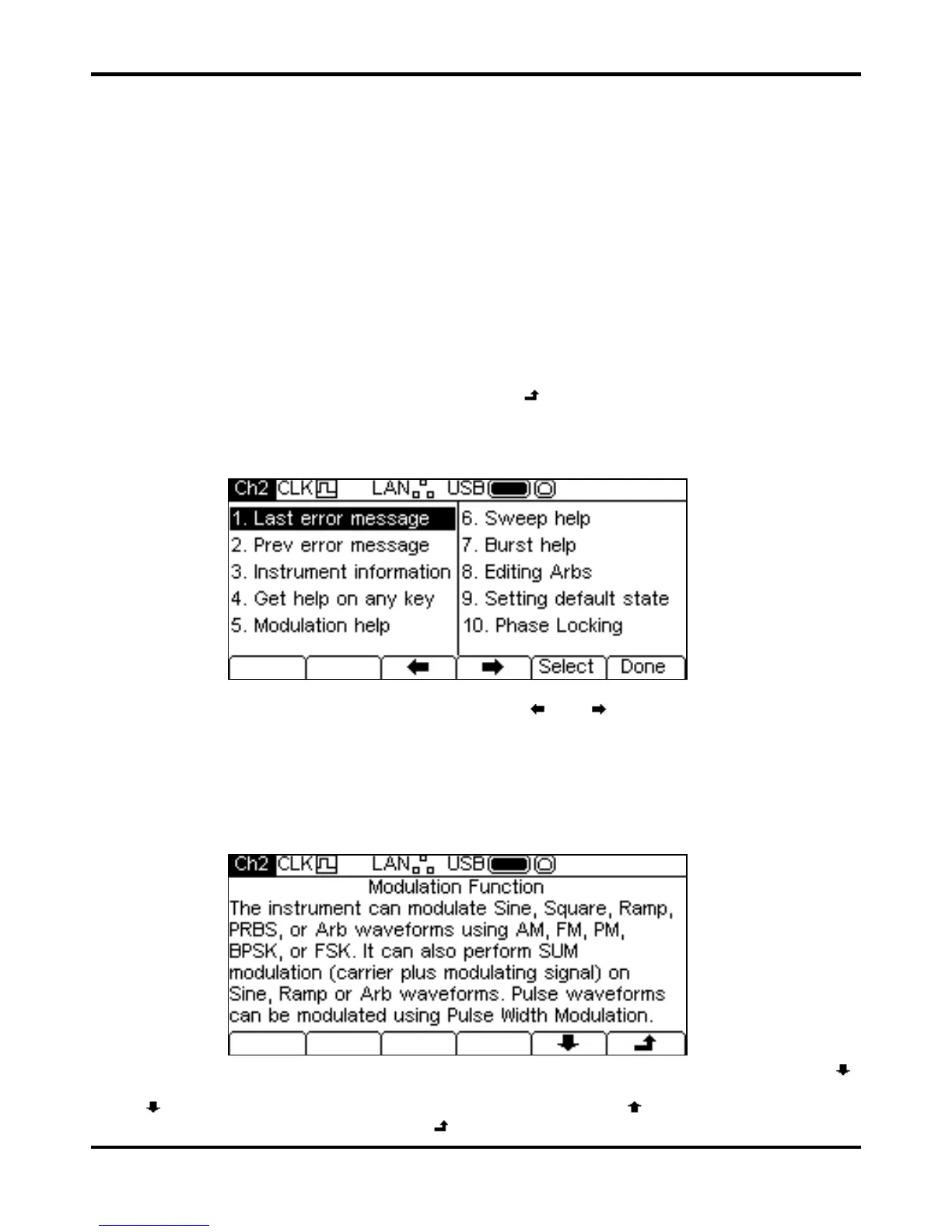
The Help menu uses all the screen space between the Status Line and the Soft-key Labels and
contains a list of help topics. To show a topic use the
and soft-keys to move the highlight
back or forward through the list to select the required topic, then press the
Select soft-key to
show the topic screen.
Press the
Done soft-key to exit from the Help menu.
Help Topics
Selecting a Help topic from the Help menu or initiating context sensitive help will show a Help topic
screen similar to that shown below.
Below the topic heading is the topic text. If there is more text than will fit on the screen press the
soft-key to scroll the text up one line. Continue scrolling until there is no more text indicated by the
soft-key label disappearing. Once the text has been scrolled the soft-key may be used to
scroll the text up one line. Pressing the
soft key will return to the previous screen.


 To Next Page