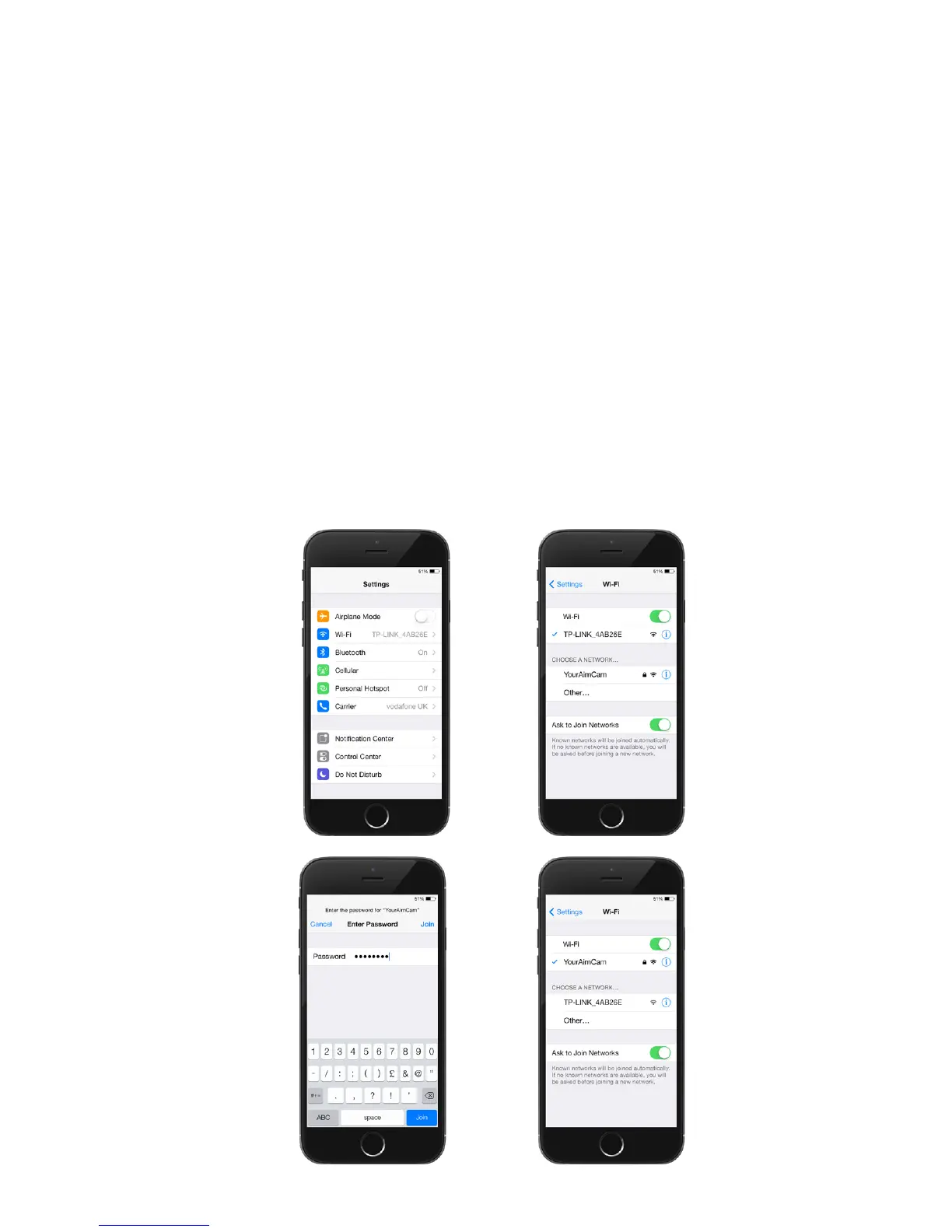
CONNECTING YOUR AIMCAM TO YOUR MOBILE
DEVICE.
Once you have installed the AimCam App on
your wireless enabled mobile device you can
then connect your AimCam to your mobile device
via WiFi.
Ensure your AimCam is ON and in standby
mode (see section 2). You can now turn on your
AimCam’s WiFi. To do this press the WiFi ON/OFF
button (2), with WiFi ON the blue WiFi LED indi-
cator (5) will illuminate. The AimCam will then be
visible within your mobile devices WiFi settings as
“AimCamXXXX (XXXX is the unique Identication
number of your AimCam). Link your AimCam to
your mobile device by selecting your AimCam as
the WiFi connection and then enter the default
password 12345678
4.
1A.
3A.
2A.
4A.
8


 To Next Page