Need help?
Do you have a question about the Aiyima T9 PRO and is the answer not in the manual?
Identifies key controls like the ON/OFF button, encoder knob, and display screen.
Details various input/output connections including speaker, power, RCA, coaxial, optical, and AUX.
Step-by-step guide for installing the BRAVO-HD driver software on a computer.
Guidance on how to handle security prompts during software installation.
Instructions for restarting the system after software installation is complete.
Troubleshooting steps for when no sound is produced after connecting cables.
Diagnosing and resolving sound distortion problems.
Explains why sound levels may differ when using various audio sources.
Addresses loud current or buzzing sounds from speakers.
Guides on finding Bluetooth pairing names and troubleshooting intermittent sound.
This document provides a comprehensive guide for the AIYIMA® AUDIO Bluetooth 5.1 JAN5725 Tube Amplifier, Model: T9 PRO. It covers the device's functions, operational steps, PC-USB instructions, remote control features, and a frequently asked questions (FQA) section to assist users with common issues.
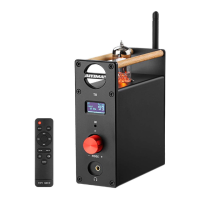
The T9 PRO is a versatile tube amplifier designed to enhance your audio experience with its Bluetooth 5.1 connectivity and JAN5725 tubes. It features a user-friendly interface with both front and rear panel controls, as well as a remote control for convenience.
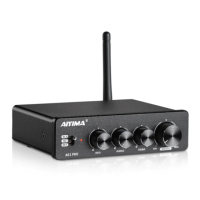
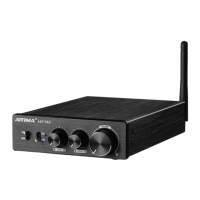
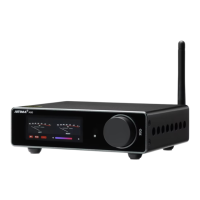
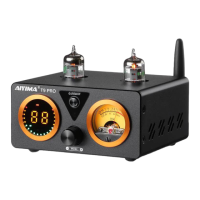
The front panel of the amplifier includes a segment code display screen that provides visual feedback on various settings such as sampling rate, volume, input channel, and bass/treble levels. A VU level meter is also present, offering a visual representation of the audio signal's intensity. The main control is an encoder knob, which allows for volume adjustment by turning it left or right. A short press of this knob mutes the audio, while a double click enables adjustment of treble and bass decibels (±9dB). An on/off/switch channel button is available for powering the device on/off and cycling through input channels. An infrared receiving window ensures compatibility with the included remote control.
The rear panel hosts a variety of input and output options. For audio input, it provides RCA, Coaxial, Optical, and PC-USB interfaces, allowing connection to a wide range of audio sources. A Bluetooth antenna base ensures stable wireless connectivity. For output, the amplifier features an AUX output and speaker interfaces (red/positive, black/negative) for connecting passive speakers. The speaker interfaces are clearly marked for left and right channels. A power interface is provided for connecting the DC power supply, which operates within a voltage range of 18-30V.
The remote control mirrors many of the front panel's functions, offering buttons for ON/OFF, input channel selection, mute, bass up/down, treble up/down, and volume up/down. It also includes a dedicated button to turn the display screen off or on, providing flexibility for users who prefer a darker listening environment.
Setting up the T9 PRO involves a few straightforward steps. First, the electronic tubes need to be installed into their respective bases, ensuring correct orientation and checking for any deformed pins. Next, passive speakers are connected to the designated speaker interfaces. The desired audio source is then connected to the corresponding input interface on the amplifier. After connecting the power supply (18-30V DC), the device can be started, and the appropriate input channel selected. The encoder knob is used to adjust the volume to a comfortable listening level. For fine-tuning, a double click on the encoder knob allows for treble and bass adjustments.
For PC-USB operation, the amplifier connects to a computer via a USB cable. After switching the input to PC-USB, a driver needs to be installed on the computer. The manual provides detailed instructions for driver installation, including screenshots of the process. This involves right-clicking the "SA9123L Driver" file, unzipping it, and then running the "Setup.exe" program. During installation, users are guided through prompts, including accepting security warnings and restarting the system upon completion. Once the driver is installed and the system restarted, the PC should recognize the amplifier as a USB audio device, which can then be set as the default playback device.
The amplifier's display provides clear indications of the current operational status. The sampling rate (e.g., 44.1K, 48K, 96K, 192K) is shown in a red box, the volume value in a blue box, and the active input channel (BT, AUX, USB, COA, OPT) in a yellow box. Green boxes indicate left bass and right treble levels, while a white circle lamp beats with the frequency of the music, adding a dynamic visual element.
The FQA section addresses several common issues and provides troubleshooting tips. If there is no sound output, users are advised to check if the screen lights up, the screen volume value, and if the playback device of the input sound source is paused, muted, or at minimum volume. For distorted sound, it's suggested that the input level might be too high, and users should try turning down the volume of either the source equipment or the amplifier.
Regarding differences in sound level when switching between audio sources, the manual explains that different playback devices output electrical signals at varying amplitudes (e.g., mobile phones at 0.35V vs. CDs at 1V), which naturally leads to different sound levels. If a loud current sound is heard from the horn, it's recommended to replace the power supply with the original standard one, as non-standard power supplies can introduce interference. A loud buzzing sound when the input cable is plugged in but not connected to a playback source indicates interference with an unshielded signal line, and replacing it with a shielded signal wire or unplugging the cable is advised.
For Bluetooth connectivity issues, such as not finding the pairing name, the manual clarifies that Bluetooth only works when its specific input channel is selected, as power consumption is optimized for other channels. It also notes that Bluetooth sound may be intermittent if there are obstacles or if the device is more than 10 meters away, and that routers can interfere with the Bluetooth signal.
A crucial maintenance point highlighted is that the tubes should not be changed directly without turning off the power. The amplifier operates under high voltage, and hot-swapping tubes can lead to damage or injury. This emphasizes the importance of safety and proper procedure when handling the tubes.
The T9 PRO is designed for ease of use and high-quality audio, with clear instructions and troubleshooting advice to ensure a smooth and enjoyable user experience.
 General
| Impedance | 4-8Ω |
|---|---|
| Op Amp Chip | NE5532 |
| Input Impedance | 47kΩ |
| Bluetooth Version | 5.0 |
| Bluetooth Range | Up to 10m |
| Frequency Response | 20Hz-20kHz |
| Bluetooth Chip | QCC3034 |
| Bluetooth Support | aptX, aptX HD, AAC, SBC |
| DAC Chip | ESS9018K2M |
| PC-USB Operating System Compatibility | Windows, macOS |
| Input Mode | Bluetooth, PC-USB |
| Output Mode | Speaker Out |

 To Next Page