EasyManua.ls Logo

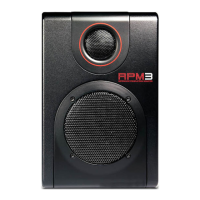
Akai RPM3 - User Manual

Akai RPM3
40 pages
Print Icon
To Next Page IconTo Next Page
Loading...
WWW.AKAIPRO.COM
QUICKSTART GUIDE
ENGLISH ( 1 – 7 )
GUÍA DE INICIO RÁPIDO
ESPAÑOL ( 8 – 14 )
GUIDE D’UTILISATION SIMPLIFIÉ
FRANÇAIS ( 15 – 21 )
KURZANLEITUNG
DEUTSCH ( 22 – 28 )
GUIDA RAPIDA
ITALIANO ( 29 – 35 )

Questions and Answers

  • R
    ryankimberlyAug 11, 2025
    Why Akai RPM3 are not working?
    • T
      Teresa LambertAug 11, 2025
      There could be several reasons why your Akai Speakers aren't working. First, ensure they are connected to a live power source and turned on (the blue LED should be illuminated). Also, verify they are properly connected to a functioning USB port on your computer, avoiding USB hubs if possible. Check that headphones aren't plugged in, as this will prevent audio output from the speakers. Finally, make sure the volume knob isn't set to the minimum level.
  • J
    jacob11Aug 16, 2025
    What to do if I am experiencing audio dropouts and glitches with Akai Speakers?
    • B
      Brenda BryanAug 16, 2025
      If you're experiencing audio dropouts and glitches with your Akai Speakers, it might be due to a too low buffer size in your software. Extremely low buffer sizes can cause your computer to work harder than it can, leading to these unwanted issues. Try selecting a higher buffer size in your software's audio settings or preferences to resolve this.
  • R
    Richard TapiaAug 23, 2025
    What to do if I am experiencing distortion when recording from external sources with Akai RPM3 Speakers?
    • W
      Whitney CampbellAug 23, 2025
      If you're experiencing distortion when recording from external sources with your Akai Speakers, it could be due to a couple of reasons. First, the gain levels of your input sources might be too high. Turn down the audio level of your input sources. This is especially important when using multiple sources, as the inputs on the rear panel of the speakers will be summed together before entering your computer. Also, make sure that your software monitoring is turned off when recording from external sources to avoid feedback and distortion.
  • J
    Julie SaundersAug 29, 2025
    What to do if my software DAW is not seeing the Akai Speakers?
    • D
      Donna AvilaAug 29, 2025
      If your software DAW isn't recognizing your Akai Speakers, it might be because the speakers were connected after the software was started. Some configurations require that audio and MIDI devices are connected prior to starting any software applications with which you may wish to use the devices. Try restarting the application with the speakers plugged in and powered on.
  • S
    Sandra PalmerSep 3, 2025
    Why am I only hearing audio from the left speaker on my Akai Speakers?
    • S
      Shelby FieldsSep 3, 2025
      If you're only hearing audio from the left speaker on your Akai Speakers, make sure that the right speaker is connected to the left speaker with the included 1/8“ cable.

Akai RPM3 Specifications

General IconGeneral
Configuration2-way
Tweeter Size1 inch
LF Driver TypeWoofer
Enclosure TypeBass reflex
TypeActive Studio Monitor
HF Driver TypeSilk Dome Tweeter
Input TypesRCA, TRS
Woofer Size3"
Frequency Response80 Hz to 20 kHz

Related product manuals