130
Professional working with RCP-2001
BPM Studio
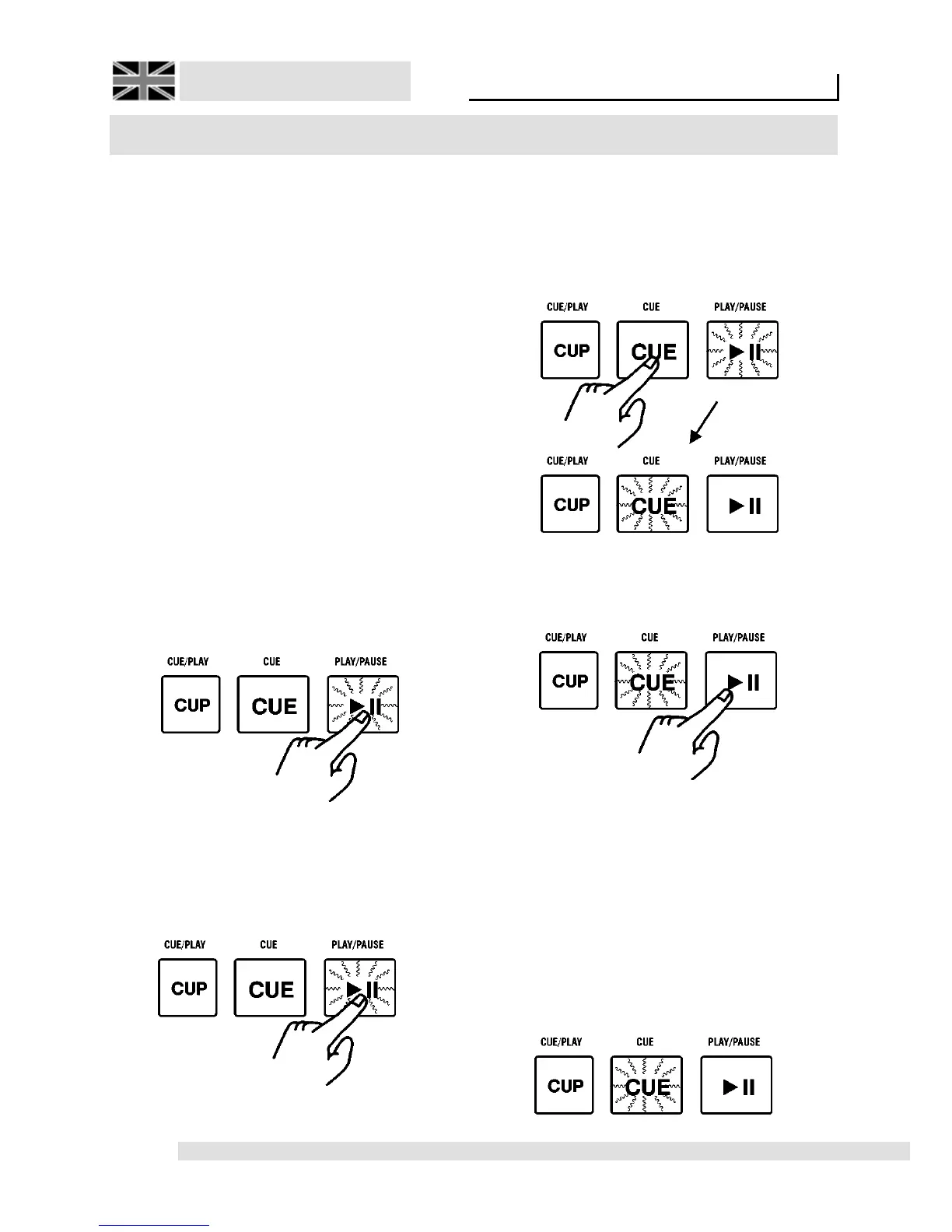
If you activate now the [CUE] key [4], then the
Play position is set on this CUE point and the
Player is switched to CUE. Now, the [CUE] key
[4] lights in red and indicates, that the current
Play position is at the CUE point.
By pressing the [PLAY/PAUSE] key [5] starts the
Player from the CUE point.
Now, you can stop the Player any time by pressing
the [CUE] key [4] and set it back to Cue-Point
position, in order to start it again by using the
[PLAY/PAUSE] key [5].
8.2.2. Editing of a Cue-Point
If the CUE point was not exactly hit by the [PLAY/
PAUSE] key [5], then it can be corrected later.
Therefore the Player has to be in CUE mode, the
([CUE] key [4] lights and in the display the current
CUE point appears(for example 01:22:43)).
8.2. Working with DirectCue buttons
(only Remote Control RCP-2001)
The BPM Studio offers beside the standard Cue
function additionally 6 Direct-Cue keys. Therefore
it is possible to store up to 6 favourite positions in
any title on-the-fly as Cue-Point. Then, these
points can be called up without delay by a single
press of a Direct Cue key. All the stored DirectCue
points are available after system restart and at
your disposal after the title is loaded again. With
the Remote Control Units RCP-2001 you have
comfortable access via the Direct-Cue keys 1 to
6 [15]. In the user interface of the software (only
the BPM Studio Pro from Version 4 on up) all
DirectCue points will be shown alternately in the
title display. Read first how to use the Standard
Cue-Funktion.
8.2.1. Define a Standard Cue-Point
The Player is in the Play mode, [PLAY/PAUSE]
key [5] enlights in green.
Press the [PLAY/PAUSE] key, then the Player is
in Pause mode, [PLAY/PAUSE] key blinks in
green and indicates that the Player is stopped at
the paused Play position.
A new pressing of the [PLAY/PAUSE] key [5]
allows you to continue the playing of the title.
Simultaneously, this PAUSE position will be stored
as Cue-Point.



 To Next Page