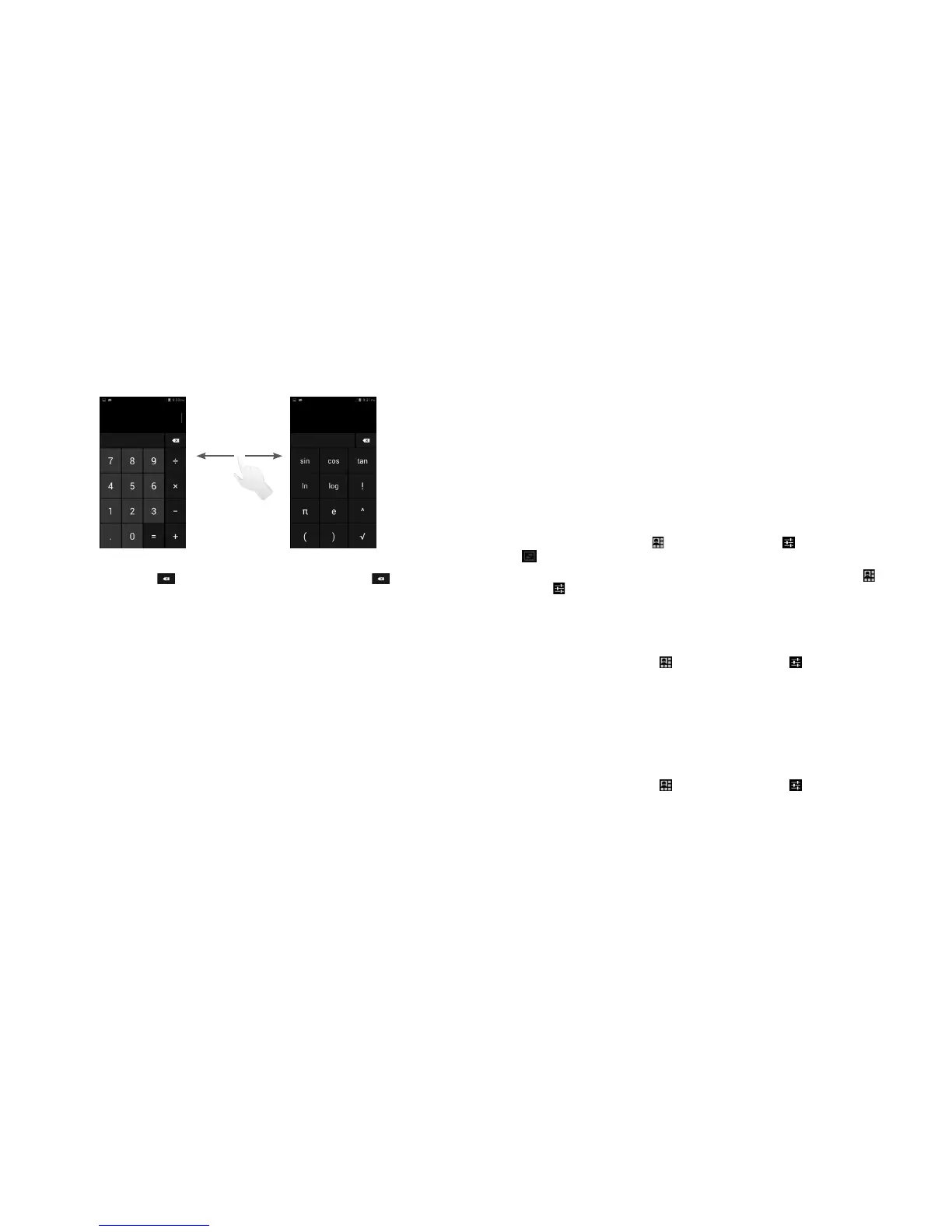
55 56
Enter a number and the arithmetic operation to be performed, enter the second number, then touch
“=” to display the result. Touch to delete digits one by one, touch and hold to delete all at
one time.
When some numbers or operations have been entered, touch and hold the entering bar to open a
menu offering these further operations:
• Cut To cut selected text
• Copy To copy selected text
• Paste
(1)
To paste what you have previously copied to the entering bar
6
Getting connected .....................................
To connect to the internet with this phone, you can use GPRS/3G networks or Wi-Fi, whichever is
most convenient.
6.1 Connecting to the Internet
6.1.1 GPRS/3G
Drag down notification panel, touch and then the Settings icon to access settings, here you can
touch to connect the network.
To check the network connection you are using, drag down notification panel, touch
and then the
Settings icon to access Settings, then touch More...\Mobile networks\Access Point Names
or Network operators.
To create a new access point
A new GPRS/3G network connection can be added to your phone with the following steps:
• Drag down notification panel, touch and then the Settings icon to access Settings.
• Touch More...\Mobile networks\Access Point Names
• Then touch and hold the Menu key again and touch New APN.
• Enter the required APN information.
• When finished, touch and hold the Menu key and touch Save.
To activate/deactivate Data roaming
When roaming, you can decide to connect/disconnect to a data service.
• Drag down notification panel, touch and then the Settings icon to access Settings.




 To Next Page