81 82
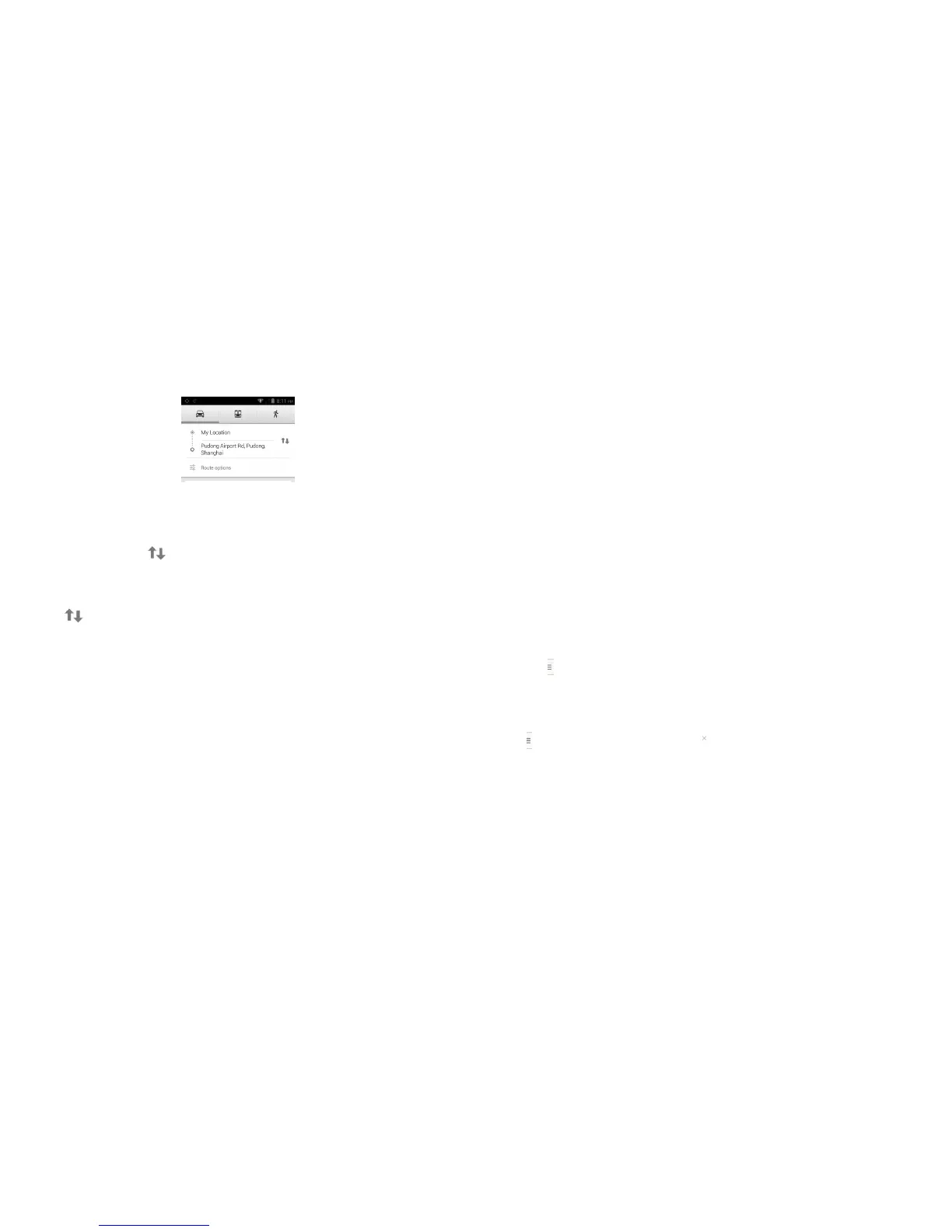
• Touch enter bar or the triangle to edit your start point by one of the following methods: entering
an address, using My Location, selecting a start point on a map, selecting a starred item, selecting an
address from your contacts or using search history.
• Do likewise for your end point.
• To reverse directions, touch .
• A couple of suggested routes will appear in a list. Touch any routes to view their respective detailed
directions.
To get reverse directions for a route you’ve already made, simply open that route’s directions window
and touch .No need to enter your start point and end point again.
9.4.2 Preview suggested routes and decide on a more preferable route
You can preview each turn in your route in Navigation, Satellite, and other views.
• Touch a left or right arrow to preview the next or previous leg of your route.
• You can view turn-by-turn directions, estimated distance and possible arrival time in a list by touching
DIRECTIONS LIST, touch Back key or MAP VIEW to return to previous view.
When selecting a more preferable route, distance and time will be the two most important factors
for your evaluation. Distance and estimated time will be displayed at the top of the directions screen.
9.4.3 Search for locations along your route
Please refer to “9.2 Search for a location” for detailed information.
9.5 Arrangement of Layers
Layers allow you to view locations and additional information overlaid on the map. You can add multiple
layers or remove only certain layers so you control exactly what information you want visible on the
map at one time.
9.5.1 To view multiple layers
Touch icon from Maps screen. All available layers are listed (like Traffic, Satellite, etc), select one to
view.
9.5.2 To clear the map
After you get directions or search on a map, you can clear the markers/layers that have been drawn:
touch and select Maps history, then touch .







 To Next Page