EasyManua.ls Logo

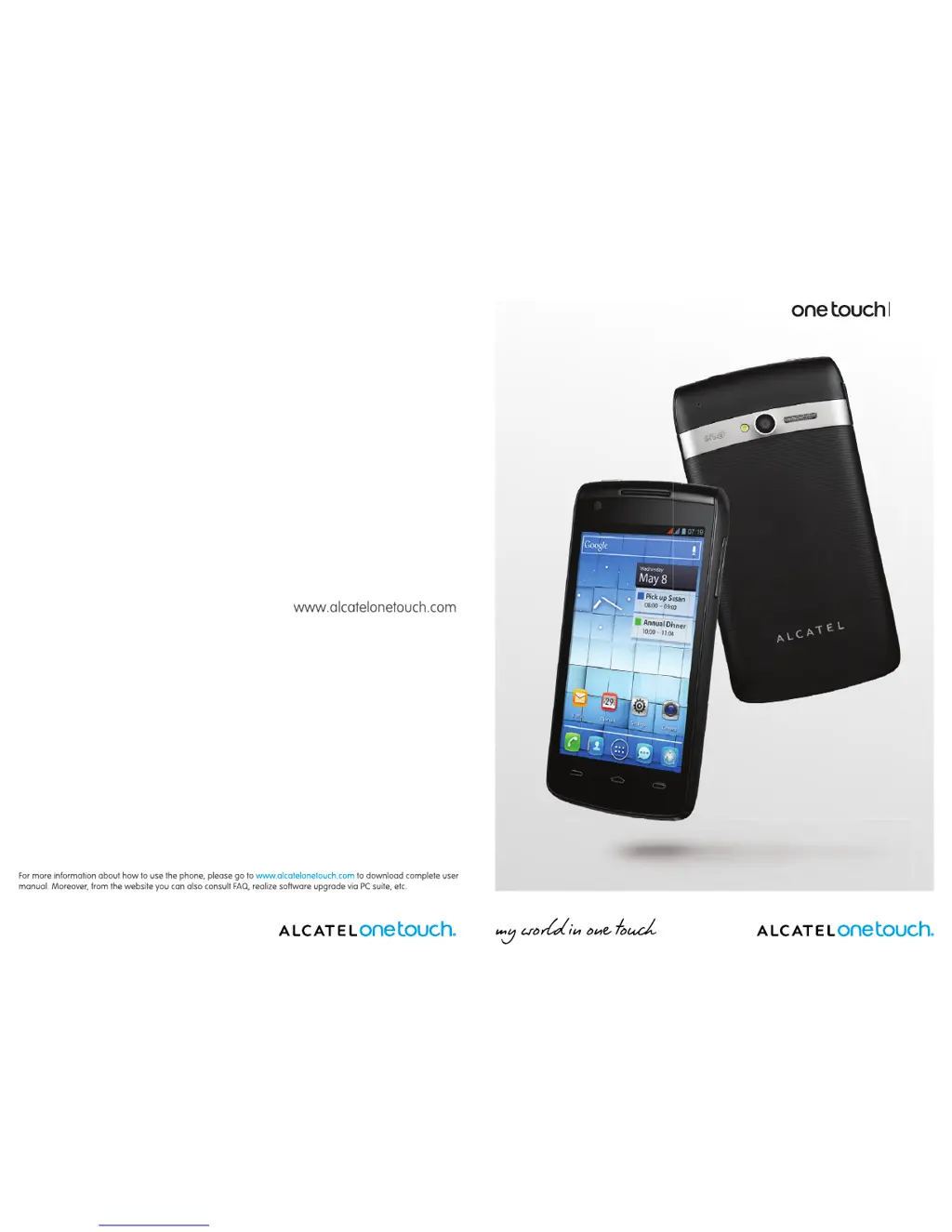
Alcatel One Touch 992D - User Manual

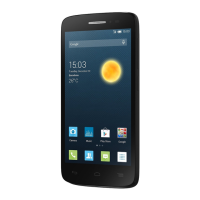
Alcatel One Touch 992D
72 pages
Print Icon
To Next Page IconTo Next Page
Loading...
992D

Questions and Answers

  • E
    Emily JuarezSep 23, 2025
    Why the Alcatel One Touch 992D cannot be detected by others via Bluetooth?
    • D
      Debra BradleySep 23, 2025
      If your Alcatel Cell Phone cannot be detected by others via Bluetooth, make sure that Bluetooth is turned on and your phone is visible to other users. Also, ensure that the two phones are within Bluetooth’s detection range.
  • S
    Sarah PatelAug 23, 2025
    What to do if my Alcatel One Touch 992D Cell Phone has not responded for several minutes?
    • W
      whitneyshepardAug 25, 2025
      If your Alcatel Cell Phone hasn't responded for several minutes, try restarting it by pressing and holding the Power key. Alternatively, remove and reinstall the battery, then restart the phone.
  • R
    Robert SweeneyAug 25, 2025
    What to do if my Alcatel Cell Phone cannot charge properly?
    • B
      Blake BradfordAug 26, 2025
      If your Alcatel Cell Phone isn't charging correctly, ensure you're using an ALCATEL ONE TOUCH battery and the charger that came in the box. Also, check that the battery is correctly inserted and clean the battery contacts if they're dirty. Make sure your battery isn't completely discharged (it may take about 20 minutes to show the charging indicator if it has been empty for a long time) and that charging is happening under normal conditions (0°C to +40°C). When you are abroad, verify the voltage input is compatible.
  • J
    Jodi SanchezAug 27, 2025
    Why does my Alcatel One Touch 992D Cell Phone turn off by itself?
    • R
      Ryan StantonAug 27, 2025
      Your Alcatel Cell Phone might be turning off by itself because the screen isn't locked when not in use, causing the Power key to be accidentally pressed. Ensure your screen is locked and the Power key isn't being contacted accidentally. Also, check the battery charge level.
  • C
    Chelsea CampbellAug 27, 2025
    What does 'Invalid SIM card' mean on my Alcatel One Touch 992D and how to fix it?
    • D
      David JuarezAug 27, 2025
      If your Alcatel Cell Phone displays 'Invalid SIM card', first ensure the SIM card is correctly inserted. Then, check that the chip on your SIM card is not damaged or scratched. Finally, confirm that the service for your SIM card is active.
  • S
    Sean BoydSep 17, 2025
    How to connect my Alcatel Cell Phone to my computer?
    • M
      Michelle HolmesSep 17, 2025
      To connect your Alcatel Cell Phone to your computer: 1. Install ALCATEL ONE TOUCH Android Manager. 2. Check that your USB driver is installed properly. 3. Open the Notification panel to check if the Android Manager Agent has activated. 4. Check that you have marked the checkbox of USB debugging in Settings\Development\USB debugging. 5. Check that your computer meets the requirements for ALCATEL ONE TOUCH Android Manager Installation. 6. Make sure that you’re using the right cable from the box.
  • N
    Nathan GrahamSep 14, 2025
    Why I am unable to send and receive MMS on my Alcatel One Touch 992D?
    • K
      Karen WilsonSep 14, 2025
      If you're unable to send and receive MMS on your Alcatel Cell Phone, check your phone memory availability as it might be full. Contact your network operator to check service availability and MMS parameters. Verify the server centre number or your MMS profile with your operator. The server centre may be swamped, so try again later.
  • D
    dakotapowellSep 15, 2025
    What to do if my Alcatel Cell Phone SIM card is PIN locked?
    • A
      Ashley SanfordSep 16, 2025
      If your Alcatel Cell Phone SIM card is PIN locked, contact your network operator to obtain the PUK code (Personal Unblocking Key).
  • C
    Crystal HancockSep 6, 2025
    Why is the sound quality of the calls poor on my Alcatel One Touch 992D?
    • C
      carrollcassandraSep 6, 2025
      If the sound quality of calls is poor on your Alcatel Cell Phone, you can adjust the volume during a call using the Volume Up/Down key. Also, check the network strength and ensure that the receiver, connector, or speaker on your phone is clean.
  • P
    Paul MartinSep 3, 2025
    Why does the caller’s name/number not appear when a call is received on my Alcatel One Touch 992D Cell Phone?
    • S
      Sheryl SuarezSep 3, 2025
      If the caller’s name/number does not appear when you receive a call on your Alcatel Cell Phone, check that you have subscribed to this service with your operator. Alternatively, the caller may have concealed their name or number.

Summary

Safety and Use

Traffic Safety

Safety precautions while driving a vehicle and potential interference with vehicle systems.

Conditions of Use

Guidelines for optimal phone performance and safety in various environments like aircraft, healthcare, etc.

Radio Wave Exposure

Compliance with international guidelines for radio wave exposure, SAR limits, and body-worn testing.

Your Mobile Device

Keys and Connectors

Identification and description of the phone's physical buttons and ports.

Getting Started

Initial setup procedures including SIM card and battery installation.

Charging the Battery

Instructions for connecting the charger and initial battery charging.

Powering On Your Phone

Steps to turn on the phone and initial setup process.

Search and Screen Lock

Lock and Unlock Screen

Methods to secure the phone screen with patterns, PIN, or password.

Text Input

Text Editing and Phone Calls

Placing a Call

Steps to make phone calls using the dialpad or contacts.

Call Management

Answering or Rejecting a Call

How to answer, reject, or send a message for incoming calls.

Managing Contacts

Consulting Your Contacts

How to view, search, and access contact details and groups.

Editing Your Contacts

Modifying contact information, setting default numbers, and changing ringtones.

Messaging and Email

Messaging

Creating, sending, and receiving SMS and MMS messages.

Sending Text Messages

Composing and sending SMS, including character limits.

Sending Multimedia Messages

Sending MMS with attachments like pictures, videos, and audio.

Gmail and Email Setup

Gmail Setup and Usage

Configuring Gmail account, synchronizing, and sending/receiving emails.

Creating and Sending Emails

Step-by-step guide to compose, attach files, and send emails.

Calendar Functions

Creating and Managing Events

Adding, inviting guests to, editing, and deleting calendar events.

Clock and Calculator

Setting Alarms

How to set, adjust, and manage alarms, including snooze and ringtone.

Getting Connected

Connecting to the Internet

Methods to connect to the internet using GPRS, EDGE, 3G, and Wi-Fi.

Wi-Fi Usage

Connecting to wireless networks, adding new networks, and forgetting networks.

Browser Operations

Browser Overview

Accessing the browser, going to web pages, and setting homepage.

Connectivity

Connecting to Bluetooth Devices

Pairing, connecting, and managing Bluetooth devices.

Connecting to a Computer

Transferring files between phone and computer via USB.

Sharing Mobile Data Connection

Sharing phone's data via USB tethering or Wi-Fi hotspot.

Google Play Store

Locating Items for Download

Browsing and searching for applications and games in the Play Store.

Downloading and Installing Applications

Steps to download, install, and manage applications from the Play Store.

Multimedia Applications

Camera Usage

Taking photos and shooting videos using the phone's camera.

Camera Settings and Operations

Adjusting camera settings like flash, white balance, exposure, and scene modes.

YouTube and Music Player

Playing Music

Playing music files, shuffle mode, repeat options, and sound effects.

Google Maps

Getting Your Location

Enabling location services and viewing current location on the map.

Searching and Starring Locations

Finding places on the map, starring them, and viewing starred items.

Getting Directions

Obtaining driving, public transport, or walking directions and previewing routes.

Settings

Wireless and Networks

Managing Wi-Fi, Bluetooth, and mobile data connections.

Tethering & Portable Hotspot

Sharing phone's data connection via USB or Wi-Fi hotspot.

Device Settings

Backup and Reset

Backing up data to Google, performing factory data reset, and system updates.

Making the Most of Your Phone

Upgrading Phone Software

Downloading and installing software upgrades using the ONE TOUCH Upgrade tool.

Troubleshooting

Phone Frozen or Not Switching On

Steps to resolve issues with a frozen phone or failure to power on.

Phone Not Responding or Turning Off

Troubleshooting steps for unresponsive phones or unexpected shutdowns.

Charging and Network Connection Issues

Solutions for phone charging problems and network connectivity errors.

SIM Card and Internet Connectivity Issues

Troubleshooting invalid SIM cards and internet connection problems.

Specifications

Alcatel One Touch 992D Specifications

General IconGeneral
BrandAlcatel
ModelOne Touch 992D
CategoryCell Phone
LanguageEnglish

Related product manuals