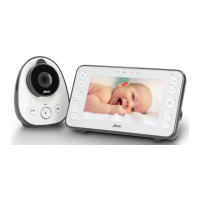
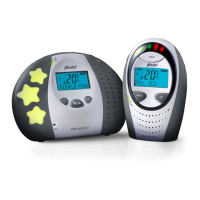
1 PRODUCT OVERVIEW
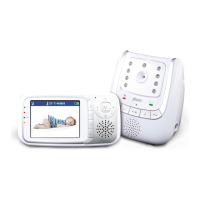
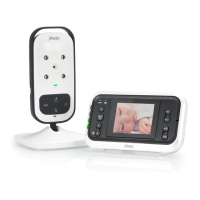
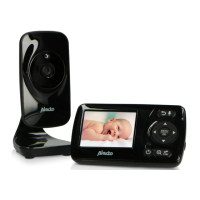
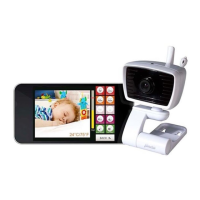
The Alecto Smart baby camera is a wireless audio/video baby monitor, suitable for indoor use in
conjunction with a tablet or a smart phone. The camera can be viewed and operated via the internet
or local (WI-FI) network. The camera is easy to connect through our Real Plug & Play system by
using a UID code (Unique IDentifi cation)
2 CAMERA INSTALLATION
2.1 DOWNLOADING THE CAMERA APP
1. Download the Alecto BabyCam APP. from the App Store.
2. Install the APP onto your smart phone or tablet.
3. Connect the camera to an electrical outlet using the AC adapter.
4. Turn the switch located at the back of the camera to pairing. The camera will now work
as a Wi-Fi access point. This will allow you to connect directly with your tablet or smart
phone.
5. Select the Alecto-IVM-180 as your Wi-Fi router on your tablet or smart phone. This can be
done in the confi guration settings for Wi-Fi connection. Enter the password: 12345678
6. Once you have an established Wi-Fi connection with the Alecto Camera start the
downloaded Alecto Baby Cam APP.
7. You will now see the camera image on the screen.
8. Now press the green “SETTING” button. A popup menu with “Camera password” will
appear. Enter the camera password “12345678” and press “ok”.
9. A new popup menu will now appear. Choose “Connect camera with Wi-Fi”. Wi-Fi access
points in your area will now appear. Choose your own router and Wi-Fi access point and
enter the password of your Wi-Fi network. Then press ok.
10. Now slide the switch located at the back of the camera to “LINK” and wait about 2 minutes
so that the camera has the time to connect.
11. Leave the APP and return to the Wi-Fi confi guration settings in the control panel of your
tablet or smart phone. Select you own Wi-Fi network again in order to access the internet.
12. Restart the Alecto CameraCam APP.
13. A list of registered cameras will appear. When registering the fi rst camera, only one
camera will be displayed on the screen. The unique UID code can be seen here.
14. Press on the Alecto Baby Cam icon to make an established connection with the camera.
You can also get connection with the camera now by using another Wi-Fi network or GSM data
network connection.
NL


 To Next Page