4
2.3 CONNECT CAMERA TO A SECOND SMART PHONE.
Download the app. from the App Store and install the app.
Start the app. and go to the opposite screen by pressing the
button.
Take the smart phone or tablet that is already connected to the camera.
Start the app. and go to the opposite screen by pressing the
button.
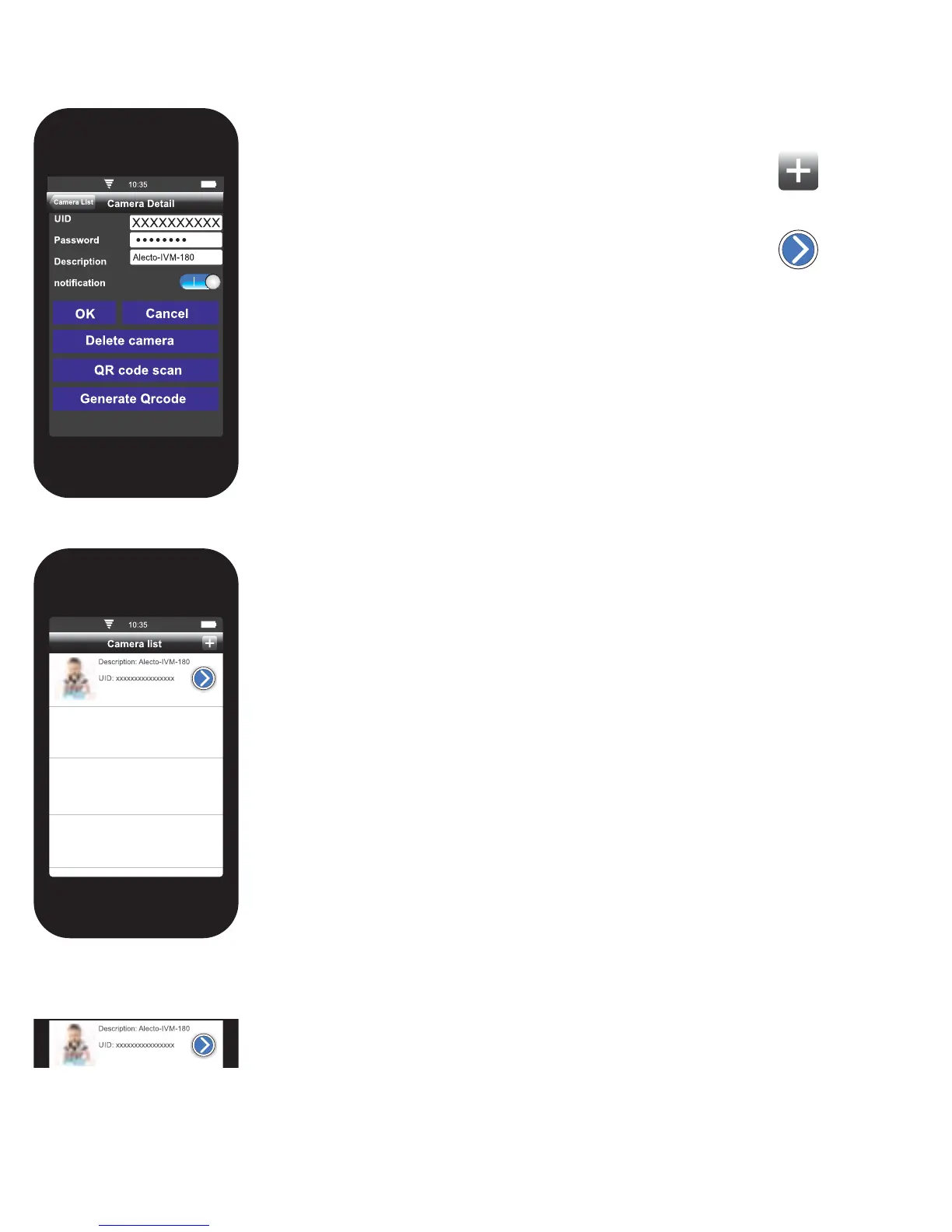
Now press the Generate QR code button. The QR code will now be given
with all the details of this camera. The QR code will appear at the bottom of
the screen. It is possible that you may need to scroll down.
Now take the second smart phone or tablet (This can be either an Android
or iOS). Press on the button QR code scan. The QR code can now be read
by using the built-in camera on the smart phone or tablet. Then press on the
ok button. The camera is now linked to a second device.
2.4 INSTALLING MULTIPLE CAMERAS TO THE APP.
Set the new camera to pairing mode, and connect the camera to an
electrical outlet. Ensure that the smart phone or tablet uses the same
Wi-Fi connection as the camera (SSID Alecto-IVM-180). Start the app and
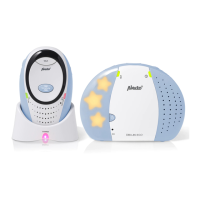
follow the outline given in paragraph 2.1. When the procedure is fi nished, a
second camera should appear in the camera list. The new camera is now
registered.
You can only look at one camera at a time. Alarm notifi cations will come
from both camera’s (if activated). It is advisable to change name and
password of the camera immediately.
2.5 VIEWING IMAGES FROM THE CAMERA.
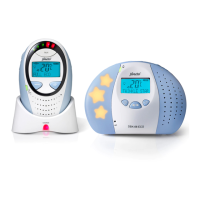
Press the icon button to view the camera image.
100%


 To Next Page