Need help?
Do you have a question about the Alienware 15 R4 and is the answer not in the manual?
Guide for setting up the optional VR headset.
Setup instructions for the HTC Vive VR headset.
Setup instructions for the Oculus Rift VR headset.
Lists and describes all external and internal ports and connectors.
Details battery type, dimensions, performance, and power adapter specs.
The Alienware 15 R4 is a high-performance gaming laptop designed for an immersive user experience, including support for Virtual Reality (VR) headsets and external graphics amplification. This setup and specifications guide provides essential information for setting up, using, and maintaining the device.
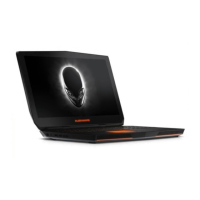
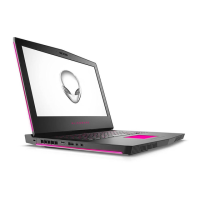
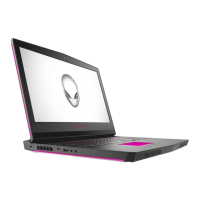
The Alienware 15 R4 serves as a powerful portable computing solution, primarily targeted at gaming enthusiasts and users requiring robust performance for demanding applications. Its core function is to provide a comprehensive computing platform with advanced graphics capabilities, high-speed processing, and a range of connectivity options. The laptop is designed to handle intensive tasks such as modern gaming, content creation, and VR experiences. It features an integrated keyboard with customizable RGB backlighting, a responsive touchpad, and a high-resolution display, ensuring an engaging user interface. The device also incorporates a camera and microphones for communication and multimedia functions.
Setting up the Alienware 15 R4 is straightforward, beginning with connecting the power adapter and pressing the power button. For an enhanced gaming experience, the laptop supports Virtual Reality (VR) headsets like the HTC Vive and Oculus Rift. To set up a VR headset, users typically download and run specific setup tools from Dell's VR support website. For HTC Vive, the HDMI cable connects to the back of the computer, and the USB cable from the Vive hub connects to a USB 3.1 Gen 1 port on the right side. Oculus Rift setup involves connecting the HDMI cable to the back, the headset's USB Type-A port to the right side, and the Oculus Rift tracker to a USB Type-A port on the left side. For Oculus Rift with Touch, a USB Type-C to Type-A dongle is connected to the Thunderbolt 3 (USB Type-C) port at the back, and the XBOX controller connects to a USB Type-A port on the USB dongle. The Oculus Rift tracker for Touch also connects to a USB Type-A port on the dongle. It's important to note that USB dongles for Oculus Rift are only shipped with Oculus-certified computers.
A significant feature of the Alienware 15 R4 is its compatibility with the Alienware Graphics Amplifier. This external device allows users to connect a discrete graphics card, significantly boosting the laptop's graphical performance. When using a VR headset with the Graphics Amplifier, the HDMI cable from the headset should connect to the graphics card installed in the amplifier. The USB cables from the VR headset can be connected to either the computer or the Graphics Amplifier. A key detail is that the USB dongle may not be required if the VR headset's USB 3.0 cables are connected to a USB 3.0 Type-A port on the Graphics Amplifier. More information on the Graphics Amplifier can be found in its dedicated User's Guide on Dell's support website.
The laptop's physical layout includes various ports and indicators. On the base, there's an Alienhead power button, which can be customized in Power Options for its behavior (e.g., sleep, hibernate, forced shutdown). Macro keys are also present, allowing users to run pre-defined macros, which can be configured using the Alienware Command Center. The display features a camera, camera-status light, and left/right microphones for video conferencing and audio input. A Service Tag label is located on the display, providing essential identification for Dell service technicians.
The back of the laptop houses a network port (RJ45) with connectivity status lights, a Mini DisplayPort, an HDMI port, and a Thunderbolt 3 (USB Type-C) port. The Thunderbolt 3 port supports USB 3.1 Gen 2, DisplayPort 1.2, and Thunderbolt 3, offering high data transfer rates and external display connectivity. An external graphics port is also available for the Alienware Graphics Amplifier, and a power-adapter port for charging.
On the left side, there's a security-cable slot (for Noble locks), a USB 3.1 Gen 2 (Type-C) port (which does not support video/audio streaming), and a USB 3.1 Gen 1 port with PowerShare. The PowerShare port allows charging of USB devices even when the computer is off, though it requires the power adapter to be connected if the laptop's battery is below 10 percent. On the right side, there's another USB 3.1 Gen 1 port and a configurable microphone/headphone port or a dedicated headset port.
The keyboard includes shortcut keys that combine the Fn key with function keys (F1-F12) to perform various actions. These include disconnecting the Graphics Amplifier, enabling/disabling wireless, muting audio, adjusting volume, switching to an external display, adjusting brightness, enabling/disabling the touchpad, and enabling/disabling AlienFX. The primary behavior of these function keys can be configured in the BIOS setup program. The touchpad supports various gestures for Windows 10, with detailed information available on Microsoft's support website.
The Alienware 15 R4 is designed with user convenience in mind for basic troubleshooting and support. Dell provides extensive self-help resources online, including information about Alienware products, Dell Help & Support app, tips, contact support options, online help for operating systems (Windows and Linux), troubleshooting guides, user manuals, setup instructions, product specifications, technical help blogs, drivers, and software updates. Specific VR support and step-by-step video instructions for servicing the computer are also available. For sales, technical support, or customer service issues, users can contact Alienware directly through their website. It's important to note that service availability may vary by country and product. If an internet connection is unavailable, contact information can typically be found on the purchase invoice, packing slip, bill, or Dell product catalog. These resources are crucial for maintaining the device and resolving any issues that may arise during its lifespan.
 General
| RAM | 16GB DDR4 2666MHz |
|---|---|
| Weight | 7.69 lbs (3.49 kg) |
| Wireless | Killer 1550 802.11ac 2x2 WiFi and Bluetooth 5.0 |
| Processor | 8th Generation Intel Core i7-8750H |
| Graphics | NVIDIA GeForce GTX 1060 with 6GB GDDR5 |
| Display | 15.6-inch FHD (1920 x 1080) |
| Storage | 256GB PCIe SSD + 1TB 7200RPM HDD |
| Operating System | Windows 10 Home |
| Ports | 1x Thunderbolt 3, 3x USB 3.0, HDMI 2.0, Mini DisplayPort 1.3, Alienware Graphics Amplifier Port, RJ-45 |

 To Next Page