80 | Using AlienFX application
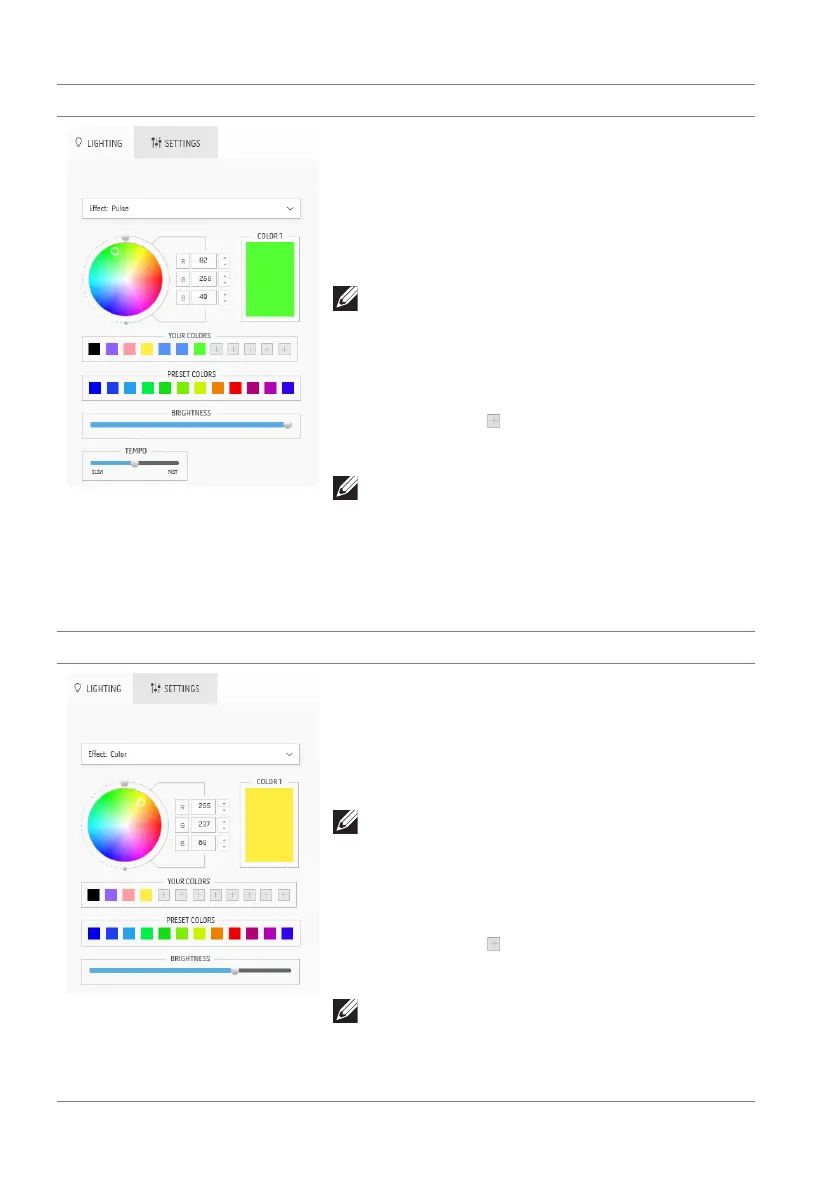
Pulse Description
The effect makes the light flash with a short
pause.
1. Pick
a preferred color from the color
palette or the list of PRESET COLORS.
The selected color and its RGB color codes
will be displayed on the right field.
NOTE: To change the color, use the up and
down arrow buttons beside the R/G/B
boxes to edit the color codes.
2. To add
the selected color to the list of
YOUR COLORS for quick access in the
future, click
. At most 12 colors can be
added to the list.
NOTE: To remove an existing color chip
from the list, right-click on it.
3. Dra
g the BRIGHTNESS slider to adjust
the brightness of the color.
4. Dra
g the TEMPO slider to adjust the
pulsing speed.
Color Description
The lights will light in a single static color.
1. Pick
a preferred color from the color
palette or the list of PRESET COLORS.
The selected color and its RGB color codes
will be displayed on the right field.
NOTE: To change the color, use the up and
down arrow buttons beside the R/G/B
boxes to edit the color codes.
2. To add
the selected color to the list of
YOUR COLORS for quick access in the
future, click
. At most 12 colors can be
added to the list.
NOTE: To remove an existing color chip
from the list, right-click on it.
3. Dra
g the BRIGHTNESS slider to adjust
the brightness of the color.












 To Next Page