Using AlienFX application | 79
Setting the lighting effects
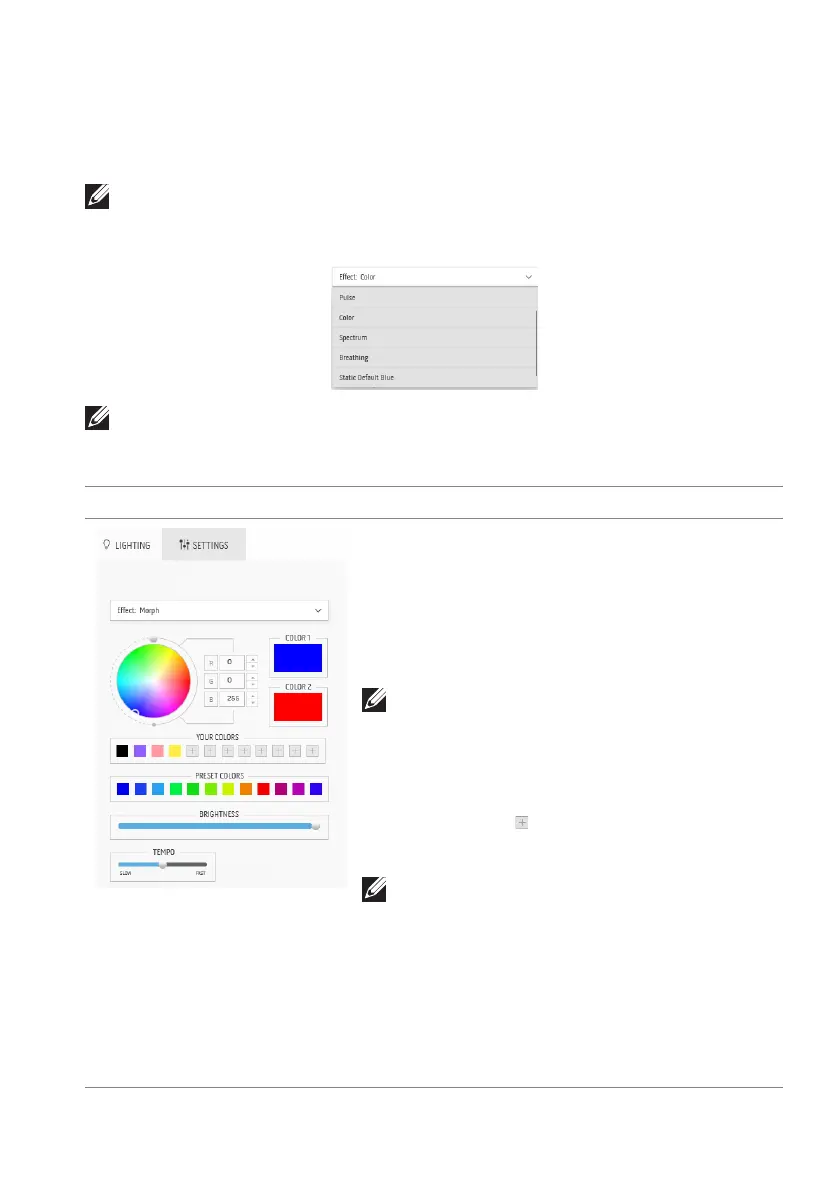
The LIGHTING panel provides various lighting effects. You may click Effect to
open a dropdown list with available options.
NOTE: The LIGHTING panel appears only when the supplied USB 3.2
Gen 1 (5 Gbps) upstream cable is connected
to your Alienware monitor
and computer.
NOTE: The options displayed may vary depending on the lighting zone(s)
you specified.
The following table provides an
overview of different options:
Morph Description
The effect changes the light color into another
through a seamless transition.
1. Pick a preferred color from
the color
palette or the list of PRESET COLORS.
The selected color and its RGB color codes
will be displayed on the right field.
NOTE: To change the color, use the up and
down arrow buttons beside the R/G/B
boxes to edit the color codes.
2. To add the
selected color to the list of
YOUR COLORS for quick access in the
future, click
. At most 12 colors can be
added to the list.
NOTE: To remove an existing color chip
from the list, right-click on it.
3. Rep
eat the previous steps to specify Color
2 to be the ending light color.
4. Drag the BR
IGHTNESS slider to adjust
the brightness of the color.
5. Drag the TEMP
O slider to adjust the
transition speed.












 To Next Page