Need help?
Do you have a question about the Alienware m18 R1 and is the answer not in the manual?
Lists the height, width, depth, and weight of the Alienware m18 R1.
Details the processor type, wattage, core count, thread counts, and speed.
Details the supported chipset, processor, DRAM bus width, Flash EPROM, and PCIe bus.
Details memory slots, type, speed, configuration limits, and supported configurations.
Lists and describes the network, USB, audio, video, media-card, power-adapter, and security-cable ports.
Lists the wired Ethernet LAN specifications, including model number and transfer rate.
Lists power adapter specifications: type, connector dimensions, adapter dimensions, input voltage/frequency/current, and temperature range.
Details battery type, voltage, weight, dimensions, temperature range, operating time, and charging time.
Lists display specifications: type, touch options, panel technology, native resolution, luminance, megapixels, gamut, PPI.
The Alienware m18 R1 is a high-performance gaming laptop designed to offer an immersive and customizable gaming experience. This document provides a comprehensive overview of its features, usage, and maintenance.
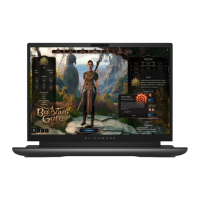
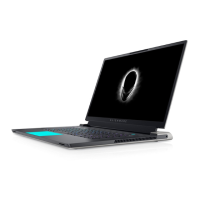
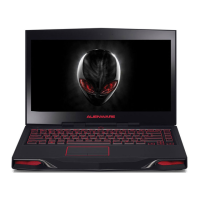
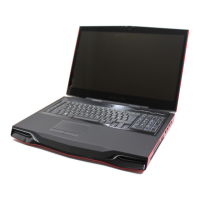
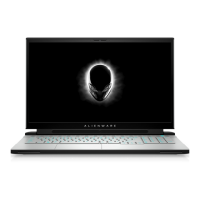
The Alienware m18 R1 serves as a powerful portable computing device, primarily geared towards gaming and demanding applications. It integrates advanced hardware components to deliver high-fidelity graphics and smooth performance. The laptop features a large display, a customizable keyboard, and a robust audio system, all designed to enhance user interaction and entertainment.
The m18 R1 is equipped with a variety of ports and input devices to facilitate diverse usage scenarios. On the right side, it includes a USB 3.2 Gen 1 (Type-C) port for connecting external storage devices, offering data transfer speeds of up to 5 Gbps. It's important to note that this port does not support video or audio streaming.
The left side of the laptop houses several essential ports. A Network port (RJ-45) allows for wired Ethernet connections to routers or broadband modems, ensuring stable network access. Two USB 3.2 Gen 1 ports are available for connecting external devices like storage drives and printers, also providing data transfer speeds of up to 5 Gbps. One of these USB 3.2 Gen 1 ports features PowerShare, enabling you to charge USB devices even when the computer is turned off. For PowerShare to function in off or hibernate states, the power adapter must be connected, and the feature enabled in the BIOS setup program. Some USB devices may not charge in sleep state, requiring the computer to be turned on. A Universal audio jack is also present for connecting headphones or a headset.
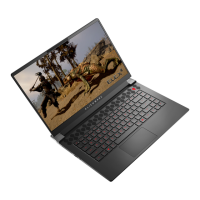
The top view of the laptop highlights its primary input devices. The touchpad allows for precise cursor control, with tapping for left-click and two-finger tapping for right-click. Dedicated left-click and right-click areas are also provided. The Power button, featuring the iconic Alien head, is used to turn the computer on from an off, sleep, or hibernate state, and to put it into sleep mode when already on. Holding the power button for four seconds forces a shut-down. The behavior of the power button can be customized within Windows settings.
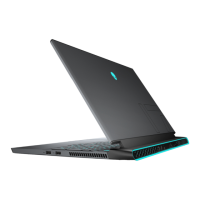
The back of the m18 R1 offers additional connectivity options. Two Thunderbolt 4.0 ports support USB4, DisplayPort 1.4, and Thunderbolt 4, providing data transfer rates of up to 40 Gbps. These ports also allow connection to external displays using a display adapter (a USB Type-C to DisplayPort adapter is sold separately). Thunderbolt 4 supports two 4K displays or one 8K display and is backward compatible with USB 3.2, USB 2.0, and Thunderbolt 3. A USB 3.2 Gen 1 port is available for external storage and printers. An HDMI 2.1 port and a Mini-DisplayPort enable connection to TVs, external displays, or other HDMI-in/DisplayPort-in enabled devices for video and audio output. An SD-card slot allows for reading and writing to SD cards. Finally, a Power-adapter port is used to connect the power adapter and supply power to the computer.
The display features a Left microphone and a Right microphone for digital sound input during audio recording and voice calls. An Infrared emitter and Infrared camera work together to enhance security through Windows Hello face authentication by sensing and tracking motion. A standard Camera enables video chat, photo capture, and video recording, with a Camera-status light indicating when the camera is in use.
The keyboard offers a range of shortcuts for quick access to various functions. Keys with two symbols can be used to type alternate characters by pressing Shift, or to perform secondary functions. The F1-F12 keys at the top row serve as function keys for multimedia control, indicated by their icons. Pressing a function key invokes its task (e.g., F1 for performance boost). To use F1-F12 for specific software applications, multimedia functionality can be disabled by pressing Fn + Esc, after which multimedia control requires pressing Fn with the respective function key. The primary behavior of function keys can be defined in the BIOS setup program. Dedicated macro keys (F2-F6) are pre-programmable, allowing users to perform multiple actions with a single key press. These macro keys can be configured in the Alienware Command Center. Additionally, dedicated keys are provided for audio control, including mute microphone, mute speakers, increase volume, and decrease volume.
The Alienware Command Center (AWCC) is a central interface for customizing and enhancing the gaming experience. It displays recently played or added games, game-specific information, themes, profiles, and provides access to computer settings like game-specific profiles, themes, lighting, macros, and audio. AWCC supports AlienFX 2.0, allowing users to create, assign, and share game-specific lighting maps, as well as individual lighting effects for the computer and attached peripherals. The m18 R1 features AlienFX lighting zones on the keyboard, stadium, AlienHead power button, and AlienHead LED on the back of the display. AWCC also includes Fusion for adjusting game-specific Power Management, Sound Management, and Thermal Management, and Peripheral Management to integrate and manage peripherals. It also monitors CPU, GPU, and Memory (RAM) performance.
The Alienware m18 R1 incorporates features and recommendations for optimal performance and longevity. The laptop is designed with low blue light emission, complying with TÜV Rheinland's requirements, to reduce eye strain and fatigue during prolonged use. Low blue light mode is enabled by default. To further minimize eye strain, users are advised to position the display at a comfortable distance (20-28 inches), blink frequently, and take regular breaks to look at distant objects.
For battery maintenance, Dell recommends regularly charging the battery for optimal power consumption. If the battery is completely depleted, connecting the power adapter, turning on the computer, and then restarting it is advised to reduce power consumption. The Dell Power Manager application allows users to control charging time, duration, and start/end times.
The Service Tag, a unique alphanumeric identifier located on the bottom of the device, is crucial for maintenance. It enables Dell service technicians to identify hardware components and access warranty information, streamlining support and repair processes.
The operating and storage environment specifications are provided to ensure the device is used within optimal conditions. Operating temperatures range from 0°C to 40°C (32°F to 104°F), and storage temperatures from -40°C to 70°C (-40°F to 158°F). Operating the device outside these ranges may impact the performance of specific components. Relative humidity should be between 10% and 90% (non-condensing) for operation and 5% to 95% (non-condensing) for storage. The device is designed to withstand certain levels of vibration and shock during operation and storage.
For assistance, users can access self-help resources online, including www.alienware.com for product information, www.dell.com/support/windows for operating system help, and www.youtube.com/alienwareservices for step-by-step service instructions. The "My Dell app" and "Tips" in Windows also provide useful information. For direct support, the "Contact Support" feature in Windows can be used. When contacting Alienware for sales, technical support, or customer service, users can visit www.alienware.com. The Service Tag or Express Service Code, found on the purchase invoice or packing slip, is essential for accessing relevant support resources.
 General
| Motherboard chipset | Intel HM770 |
|---|---|
| Memory slots | 2x SO-DIMM |
| Internal memory | 32 GB |
| Memory channels | Dual-channel |
| Memory form factor | SO-DIMM |
| Internal memory type | DDR5-SDRAM |
| Maximum internal memory | 64 GB |
| Panel type | WVA |
| Color gamut | 100 % |
| LED backlight | Yes |
| Pixel density | 126 ppi |
| RGB color space | DCI-P3 |
| Display diagonal | 18 \ |
| Anti-glare screen | Always gives an optimal view, even in direct sunlight. |
| Display brightness | 300 cd/m² |
| Display resolution | 1920 x 1200 pixels |
| Native aspect ratio | 16:10 |
| Maximum refresh rate | 480 Hz |
| Contrast ratio (typical) | 1000:1 |
| Audio chip | Realtek ALC3254 |
| Speaker power | 2 W |
| Number of built-in speakers | 2 |
| Charging port type | DC-in jack |
| USB 2.0 ports quantity | 0 |
| Ethernet LAN (RJ-45) ports | 1 |
| Power adapter barrel connector | 7.4 mm |
| USB 3.2 Gen 1 (3.1 Gen 1) Type-A ports quantity | 3 |
| AC adapter power | 330 W |
| AC adapter frequency | 50 - 60 Hz |
| AC adapter input voltage | 100 - 240 V |
| AC adapter output current | 4.4 A |
| AC adapter output voltage | 19.5 V |
| Operating shock | 140 G |
| Operating altitude | -15.2 - 3048 m |
| Operating vibration | 0.66 G |
| Non-operating altitude | -15.2 - 10668 m |
| Storage temperature (T-T) | -40 - 65 °C |
| Operating temperature (T-T) | 0 - 35 °C |
| Storage relative humidity (H-H) | 5 - 95 % |
| Operating relative humidity (H-H) | 10 - 90 % |
| Pointing device | Touchpad |
| Keyboard backlit color | RGB |
| Antenna type | 2x2 |
| Wi-Fi standards | 802.11a, 802.11b, 802.11g, Wi-Fi 4 (802.11n), Wi-Fi 5 (802.11ac), Wi-Fi 6E (802.11ax) |
| Top Wi-Fi standard | Wi-Fi 6E (802.11ax) |
| Ethernet LAN data rates | 10, 100, 1000, 2500 Mbit/s |
| WLAN controller manufacturer | Killer |
| SSD capacity | The Solid State Drive's storage capacity in Gigabytes. |
| SSD interface | PCI Express 4.0 |
| Storage media | SSD |
| SSD form factor | M.2 |
| Total storage capacity | 1000 GB |
| Compatible memory cards | SD, SDHC, SDXC |
| Front camera HD type | Full HD |
| Video capturing speed | 30 fps |
| Front camera resolution | 1920 x 1080 pixels |
| Front camera resolution (numeric) | 2.07 MP |
| Cables included | AC |
| Battery weight | 430 g |
| Battery voltage | 11.4 V |
| Battery capacity | 97 Wh |
| Battery recharge time | 3 h |
| Number of battery cells | 6 |
| Color name | Dark Metallic Moon |
| Form factor | Clamshell |
| Product type | Laptop |
| Product color | Black |
| Market positioning | Gaming |
| Operating system installed | Windows 11 Pro |
| Operating system architecture | 64-bit |
| Discrete graphics card model | NVIDIA GeForce RTX 4070 |
| On-board graphics card model | AMD Radeon 610M |
| Discrete graphics card memory | 8 GB |
| Discrete graphics memory type | GDDR6 |
| Processor cache | 64 MB |
| Processor cores | 12 |
| Processor model | 7845HX |
| Processor family | AMD Ryzen™ 9 |
| Processor frequency | 3 GHz |
| Processor cache type | L2 & L3 |
| Processor manufacturer | AMD |
| Processor boost frequency | 5.2 GHz |
 Weight and Dimensions
| Depth | 319.9 mm |
|---|---|
| Width | 410.3 mm |
| Weight | 4230 g |
| Height (rear) | 25.1 mm |
| Height (front) | 24.1 mm |

 To Next Page