Allworx Verge IP Phone Series User Guide
866.ALLWORX * +1 585 421 3850 Page 73
www.allworx.com
Version: T Revised: February 14, 2019
4.15 Push To Talk
A one-way, walkie-talkie-like capability programmable button to a specific phone extension. To use the
Push to Talk feature, press and hold the programmable button, and then begin speaking. To respond,
the recipient must place a call back to the originator.
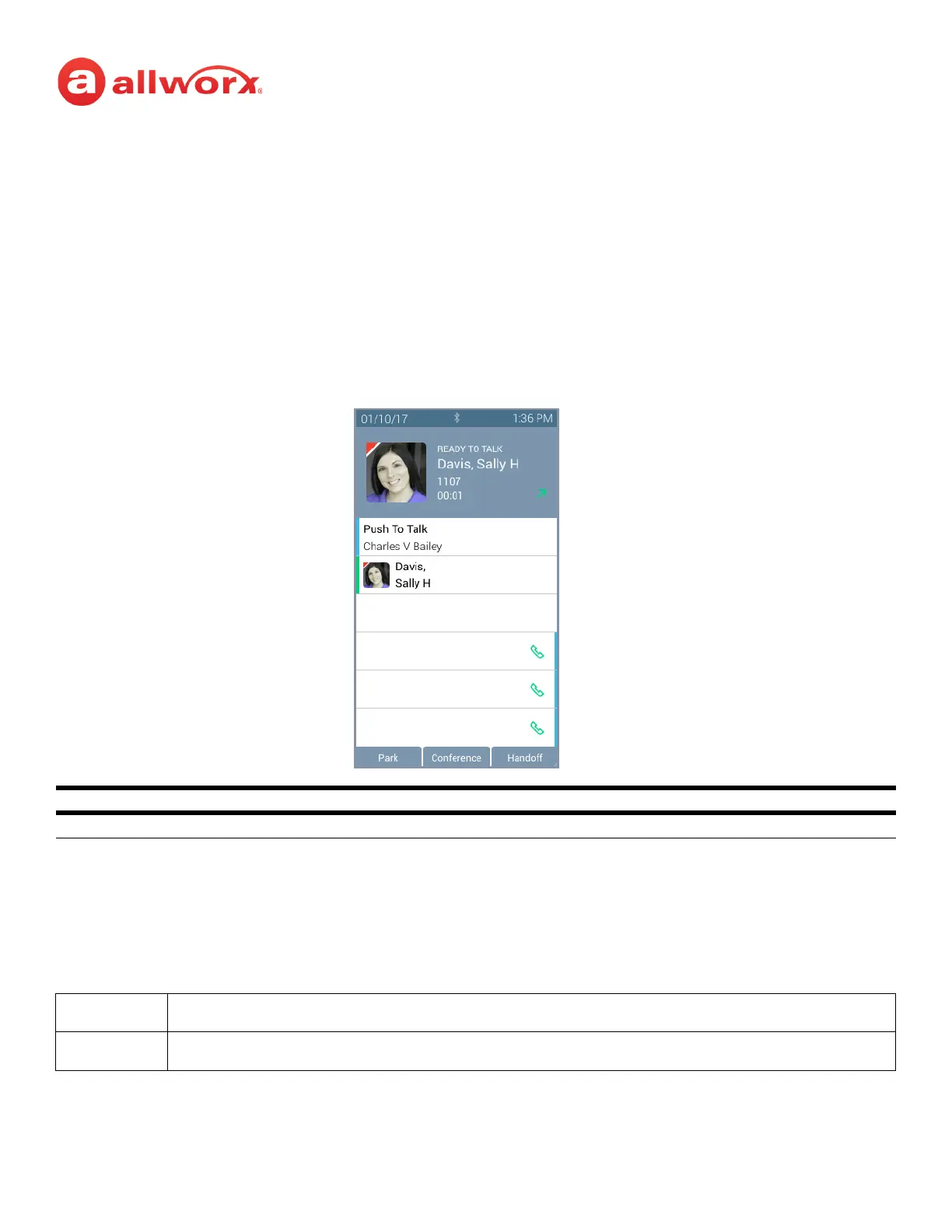
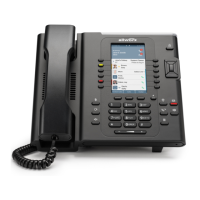
Verge IP phone Push to Talk Button example:
4.16 Hot Desk
Users can temporarily log in to another Allworx phone using a Hot Desk programmable button, if
available, or selecting the Hot Desk Login option from the Verge IP phone Settings menu. The Allworx
system directs the calls to the shared phone, and users place outgoing calls with the updated caller ID.
Push to Talk Programmable Button LED
Green Target phone extension is active during Push to Talk.
Note:
The Hot Desk feature only shares Personal Contacts when connected to an Allworx Connect server.
Note:
The buttons configured on the Verge IP phones do not change when a new user logs in.
Target Active
Target Idle
Push To Talk Active
Information area displays:
• the recipient of the Push To Talk
• contact image with Allworx badge
• status of the Push To Talk feature (READY TO TALK)
• contact name / number
• Push To Talk duration


 To Next Page