36-EN
vTuner is your guide to Internet streamed media. The vTuner platform
connects your Internet enabled iPhone to the wide world of streamed
music, talk, etc.
Notes
• Some of the vTuner application functionality for iPhone or iPod touch is
not available when using the CDE-135BT.
• vTuner is also usable from an iPod touch with Wi-Fi connection.
• Be aware that the vTuner function will consume your communication
fee.
Listening to vTuner
1
Launch the vTuner Application on the iPhone.
2
Press SOURCE/ to switch to the VTUNER mode.
Notes
• Depending on which USB Connector you used, press BAND/F/R to
switch vTuner source between FRONT and REAR.
• The vTuner source can be displayed only when VTUNER is set to ON.
For details, refer to “Setting the vTuner Source” on page 23.
• When VTUNER VL is set to other than 0 dB in “Setting the vTuner
Volume” (refer to “Setting the vTuner Volume” on page 23), vTuner
source volume may be higher (or lower) than other sources.
3
To pause playback, press .
Pressing again will resume playback.
If the broadcasting programme is not transmitted by streaming
media, when playback is continued, it will begin at the position
it was paused.
Note
• vTuner audio could drop out in areas with poor phone coverage.
Storing the desired station to Favourite List
You can store a station to the Favourite List by following steps.
Press when the station you want to store is
broadcasting.
The p indicator will light up after the station is added to
Favourite List successfully.
FAIL will be displayed if the station fails to be added to Favourite
List or while the Favourite List is full you want to add station to it.
Note
• The number of stations that can be added to the Favourite List depends
on the vTuner application.
Jumping to Favourite station
During vTuner source, press any one of preset buttons (1
through 6).
The relevant station (1 through 6) stored in Favourite List begins
to broadcast and p indicator lights up.
Notes
• Preset 1 to 6 are stations stored in the Favourite List in order of 1~6.
• You can also choose a stored station from FAVORITES search in search
mode.
Deleting stored station from Favourite List
1
Tune to a stored (favourite) station.
When a stored (favourite) station is broadcasting, p indicator
will light up.
2
Press .
The p indicator will go off after the station is deleted from
Favourite List.
FAIL will be displayed if the station fails to be deleted from
Favourite List.
Searching for a Desired Station
You can display your station list and select stations directly from the
CDE-135BT.
Search a station from Favourite list:
1
Press /ENTER to activate the Search mode.
2
Turn the Rotary encoder to select “FAVORITES”, and then
press /ENTER.
The “FAVORITES” search mode is activated and the stored station
names are listed. The indicator lights up at this time.
3
Turn the Rotary encoder to select the desired station, and
then press /ENTER.
vTuner will play that station and p indicator will light up.
Search by other modes:
vTuner provides you many ways to search a station, such as by Genre,
Location, etc. And some search categories may include many search
hierarchies. For details, please visit http://www.vtuner.com.
1
Press /ENTER to activate the search mode.
2
Turn the Rotary encoder to select the desired search
category, and then press /ENTER.
3
Turn the Rotary encoder to select the desired
subcategory/station within the selected category, and
then press/ENTER.
4
After step 3 if the indicator still lights up, repeat
step 3 until the desired station is searched.
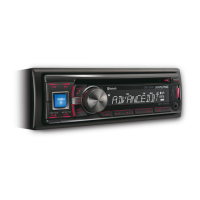
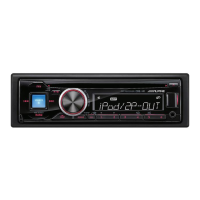
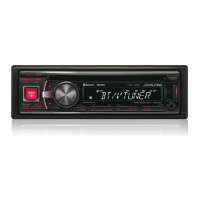
vTuner internet radio
(iPhone) (Optional)
SOURCE/
VIEW
BAND/F/R
Rotary encoder
Preset buttons
(1 through 6)


 To Next Page