12 13
Set up your eX-10
Tap the
button, and press “ENTER” to select
“Bluetooth”. Press “ENTER” again to select
“Pairing Mode”, and a four-digit pass code will be
displayed on the eX-10.
The eX-10 is now discoverable and ready to
connect to your Bluetooth phone.
Turn on Bluetooth in your phone’s menu. Your phone will
ask for a four-digit code to connect with the eX-10, so
enter the code shown on the eX-10’s screen.
You will now see a “Connected” message on the eX-10's
display to let you know that you’ve successfully paired
your phone with the eX-10*.
*Note: Turn “Auto Connect” on in the Bluetooth setup menu if you want your phone to automatically connect
to your eX-10 whenever you turn on your car’s ignition.
Step 3: Set up your Bluetooth phone to work with your eX-10
Now we’re all set up, so let’s use the eX-10
Use your eX-10
Here’s the basics on how to use your eX-10.
Use the button to exit the “SETUP” menu.
Press “SOURCE” to select “iPod”.
Press the “ENTER” button, then use the and
buttons to search by artist, album, song,
etc. Tap “ENTER” to choose any search method,
using the and buttons to select a song.
Pressing “ENTER” will begin song playback.
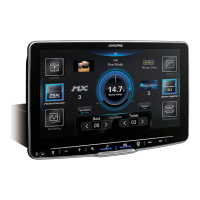
With the song playing, you should now see
the iPod’s album art displayed on the eX-10
screen.* Press the “VIEW” button to scroll
between the three different display modes.
You can also choose the display back-
ground that best matches your dash by
selecting “DISPLAY” in the “SETUP” menu,
then “BGV Select”.
Step 1: Playing songs from your iPod
*Note: Album Art must be stored on your iPod in order to be displayed on the eX-10.



 To Next Page