39
EN
How to change the setups
Customizing Setups
Press the MENU button to display
the main menu. Select "Set up" from
the main menu by tilting the joystick
and press ENTER.
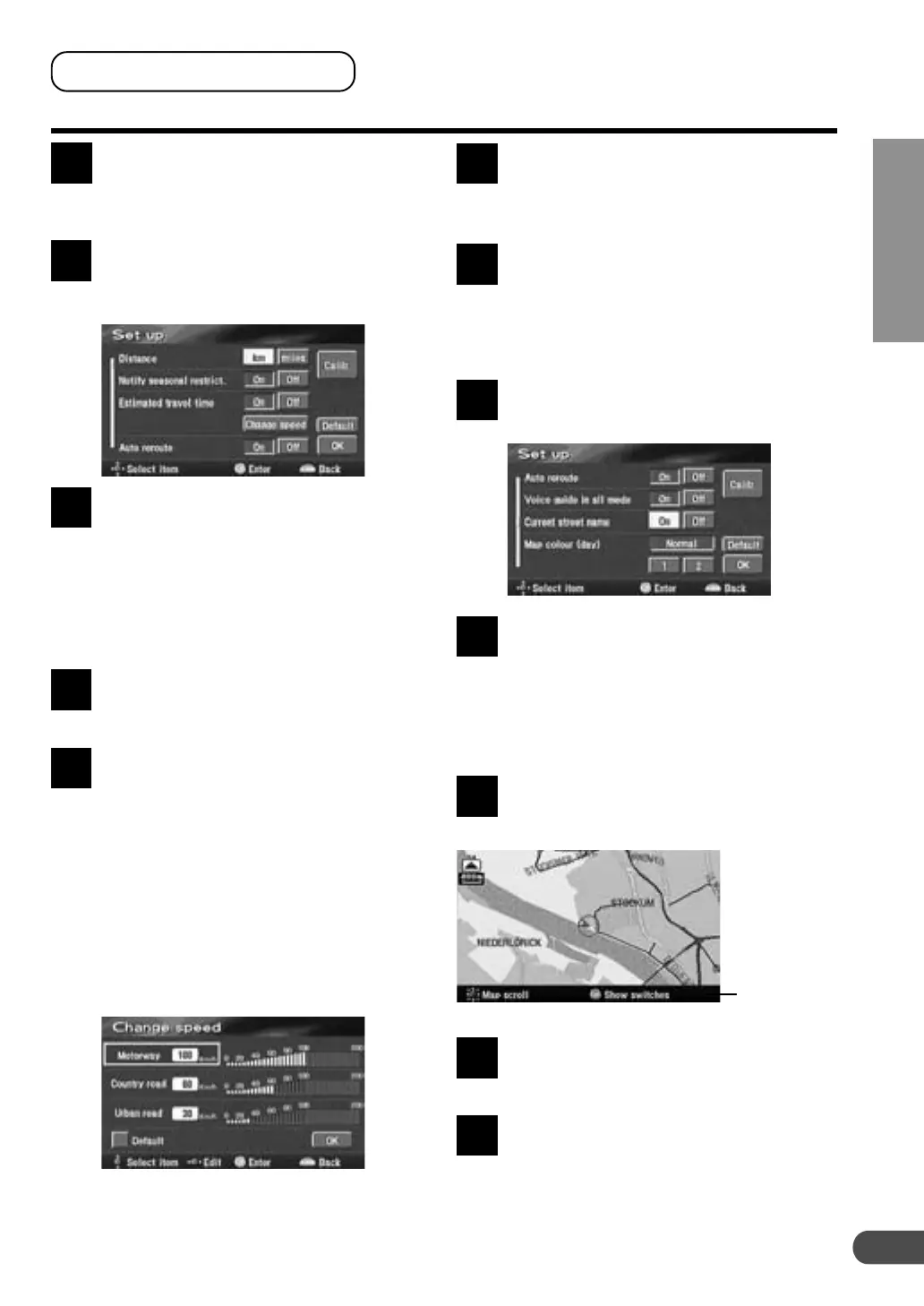
The Set up screen appears. Select
the desired item to be customized
by tilting the joystick and press
ENTER.
"Distance"
Selects km or miles.
Note:
For English, you can select the distance
indications in either miles or km.
For other languages, only kilometres are used
for the distance indications.
"Notify seasonal restrict."
Turns the display of the seasonal
restrictions on or off.
"Estimated travel time"
Turns on or off the estimated travel
time display.
When "Change speed" is selected,
the graphic screen appears in the
display. Select the desired menu
item and tilt the joystick to the right
or left to increase or decrease the
average speed respectively. When
settings have been finished, select
"OK" by tilting the joystick and
press ENTER to end the setting
procedure.
Note:
To go back to the original settings, select
"Default."
1
2
3a
3c
3i
3b
"Auto reroute"
Turns on or off the automatic
rerouting function when the vehicle
deviated from the original route.
"Voice guide in all mode"
Use this menu when a device having
voice interrupt function such as
CVA-1003 is connected to the
system. In this case, set to the ON
position.
"Current street name"
Turns the display of the current
street name on or off.
"Map colour (day), (night)"
Selects normal colour or special
colour.
Note:
"day" means when the head lamps are off and
"night" means the head lamps are on.
"Operation guide on map"
Turns the display of the operation
guide on or off.
"Screen adjust"
Use when you adjust the screen
position. For details, see next page.
When the settings have been
completed, select "OK" by tilting the
joystick and press ENTER.
Note:
To return to the initial settings, select "Default"
by tilting the joystick and press ENTER.
3
d
3
e
3
f
3
g
4
Operation guide
3
h


 To Next Page