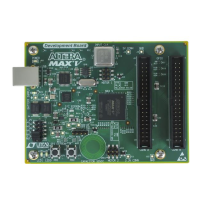
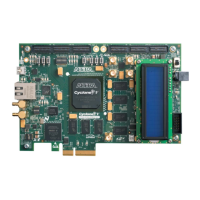
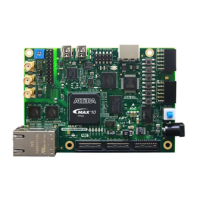
GE TTING STARTED WITH ALTERA’S DE-SERIES BOARDS For Quartus Prime 16.0
installation of the version called the Quartus Prime Lite Edition. Install this software on the computer, and ensure
that the type of Altera FPGA family that is used on the board is included in the installation (the DE-series boards
supported by the Quartus Prime Lite Edition software may use the Stratix IV, Stratix V, Cyclone IV, or Cyclone V
families). Plug in the power adapter that was included with the board. Use the provided USB cable to connect the
connector on the DE-series board labeled USB Blaster to a USB port on the computer.
Press the power button to turn on the DE-series board. The computer will recognize the new hardware connected to
its USB port, but it will be unable to proceed if it does not have the required driver already installed. The DE-series
board is programmed by using Altera’s USB-Blaster, or USB-Blaster II, driver software. If the driver software is not
already installed, then follow the steps below to install the required driver.
4.1 Installing the USB-Blaster or USB-Blaster II Driver
The instructions below apply to computers running the Microsoft Windows 7 operating system. If Microsoft Win-
dows 8 is being used, then the equivalent (similar) steps for that system should be followed.
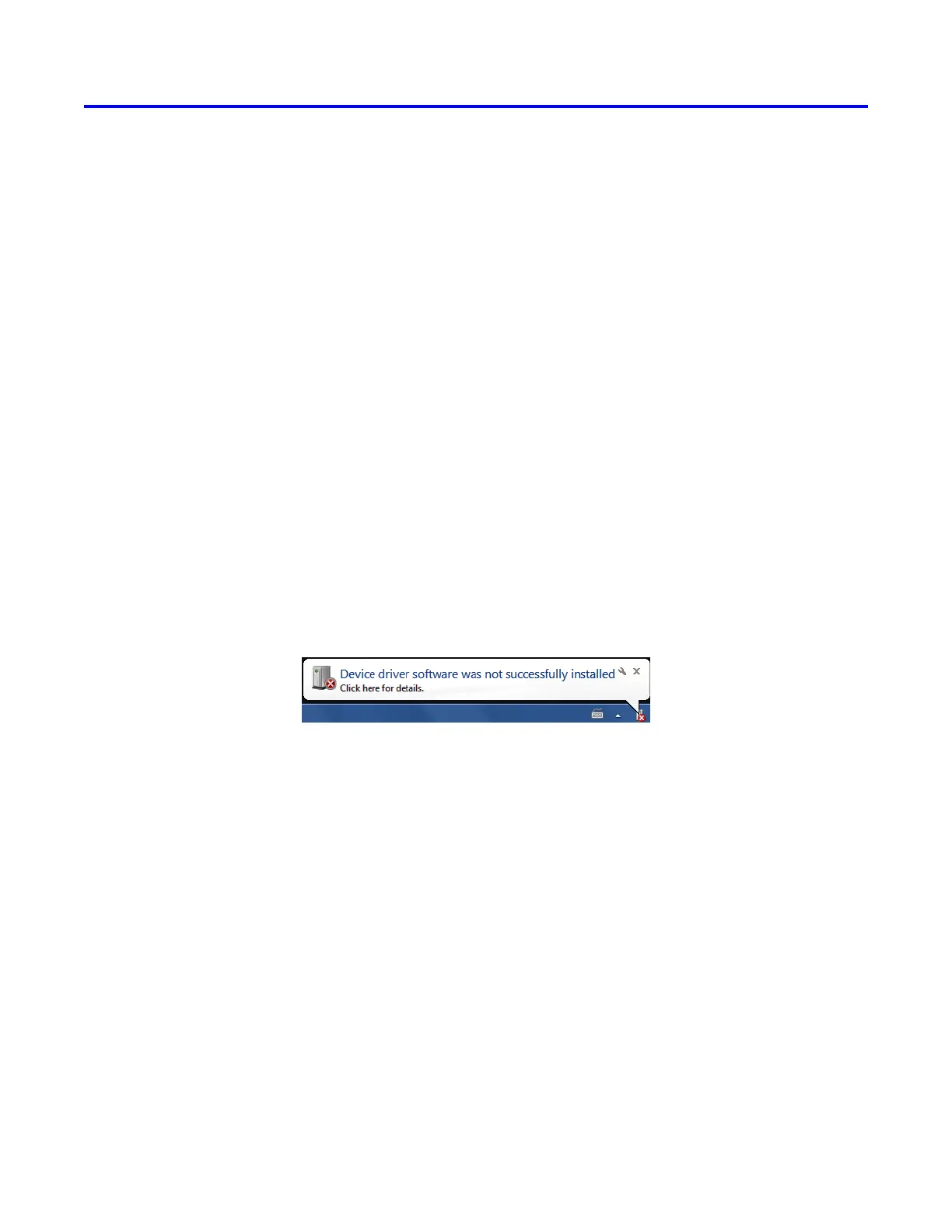
After connecting the board to the computer via USB, the notification in Figure 1 may appear. Ignore or close this
notification. If a different notification appears indicating that the driver is being searched for in the Windows Update
Web site, click the notification to open a window. Since the desired driver is not available on the Windows Update
Web site, select the option to stop the search.
Figure 1. Notification for unsuccessful device driver installation.
Select Start > Control Panel > Hardware and Sound and click Device Manager under Devices and Printers to
get the window in Figure 2. Expand the Other devices category and double-click the entry labeled USB-Blaster
to get the window in Figure 3. Note that if a DE-SoC board is being used, then the entry may be labeled as USB-
Blaster II or as DE-SoC.
Altera Corporation - University Program
May 2016
3


 To Next Page