Installation & Operation Guide Page 16 of 48
Punch Accepted
Note: An invalid password entry will flash the error message,
"Error Pwd.", and the voice prompt, "Incorrect password". The Red LED will stay on until the correct password
is entered or the password entry times out and the terminal returns to the Welcome screen.
Note: The user will be prompted to "Place Finger" if they do not have a password.
3. Upon verification, the screen will display your Name, User ID, and the confirmation "Verified." with the voice prompt
"Thank you".
If View Hours is enable: The display will momentarily show the "As of" date followed by the current pay period hours
worked for the user that just punched in (see figure for example).
Hours Worked for Pay Period
Note: When Recheck Min is set, if an employee punches more than once within the time setting [usually 1 – 2 mins.],
the voice prompt will be "Punch accepted…thank you" and no pay period hours will be displayed
Punching with a Fingerprint (FP) or Password (Pwd)
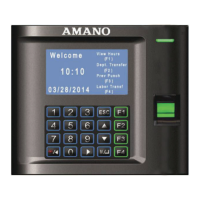
1. From the Welcome screen either place your finger on the sensor or enter your assigned User ID using the keypad.
2. Follow the on screen prompt to remove finger or input your password.
3. Upon verification, the screen will display your Name, User ID, and the confirmation "Verified." with the voice prompt
"Thank you" followed by the momentary display of your hours worked for the active pay period.
Note: The advantage of being enrolled as a user with a fingerprint template and password is that you can use either
method to punch. This provides an automatic backup should you encounter any problems with fingerprint
validation. Therefore, the first method used and accepted is the only method you need to validate a punch.
Punching with a Fingerprint (FP) and Password (Pwd)
1. From the Welcome screen either place your finger on the sensor or enter your assigned User ID using the keypad.
2. Follow the on screen prompt to Please Input Password and OK then Please Press Finger (if User ID and
Password was used).



 To Next Page
 Loading...