User Accounts
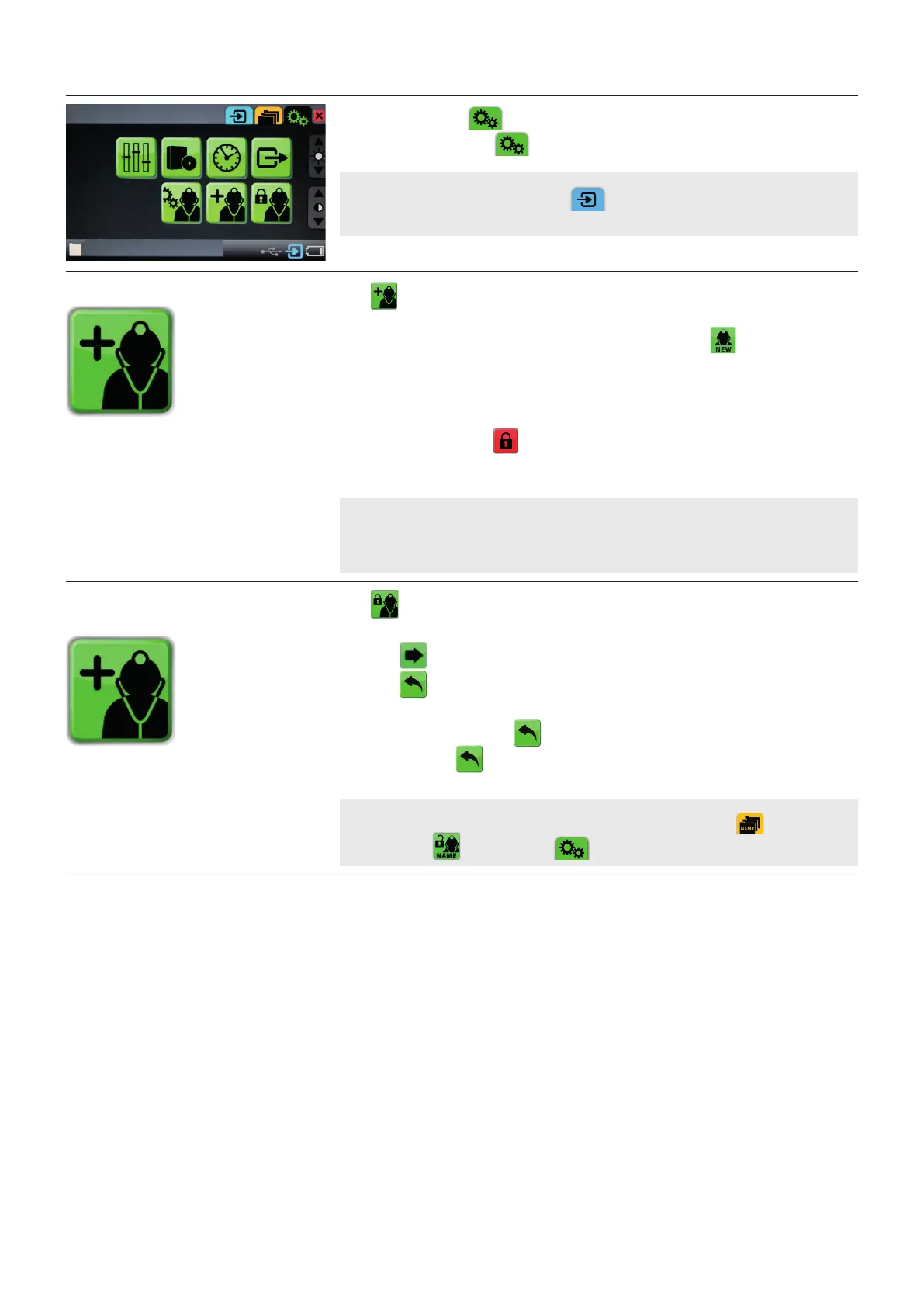
Green tab for Settings :
Press the green Settings tab
to setup system settings and upgrade software.
NOTE: Press the blue Live Image tab to view a live image from a connected
Ambu Visualization Device with just one click.
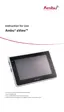
How to CREATE a User Account
Press to create a user account.
- The keyboard appears.
Type the desired User Account name (up to 4 characters) and press
- If the selected User Account name is already in use the typed account name is
automatically deleted and a new one must be selected.
- User Account button turns grey displaying the selected user account name and the PIN
selection button turns red.
Type a 4 digit PIN and press
.
- User Account is created and the user is automatically logged in.
NOTE: Create User Account is also accessible from Edit User Account.
When logged into a User Account device folders and device files are saved inside the
User Account folder structure.
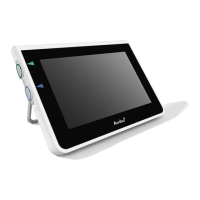
How to LOGIN into
a User Account
Press to login to a user account.
- User Accounts are displayed.
- Press
to display more accounts.
- Press
to return to settings main menu.
Press the User Account to select.
- Press PIN to login or press
to cancel login.
If incorrect PIN press
to type PIN again.
NOTE: During LOGIN the User Name is displayed in the Yellow tab and on the
LOGIN button
in the Green tab .
10



 To Next Page