EasyManua.ls Logo

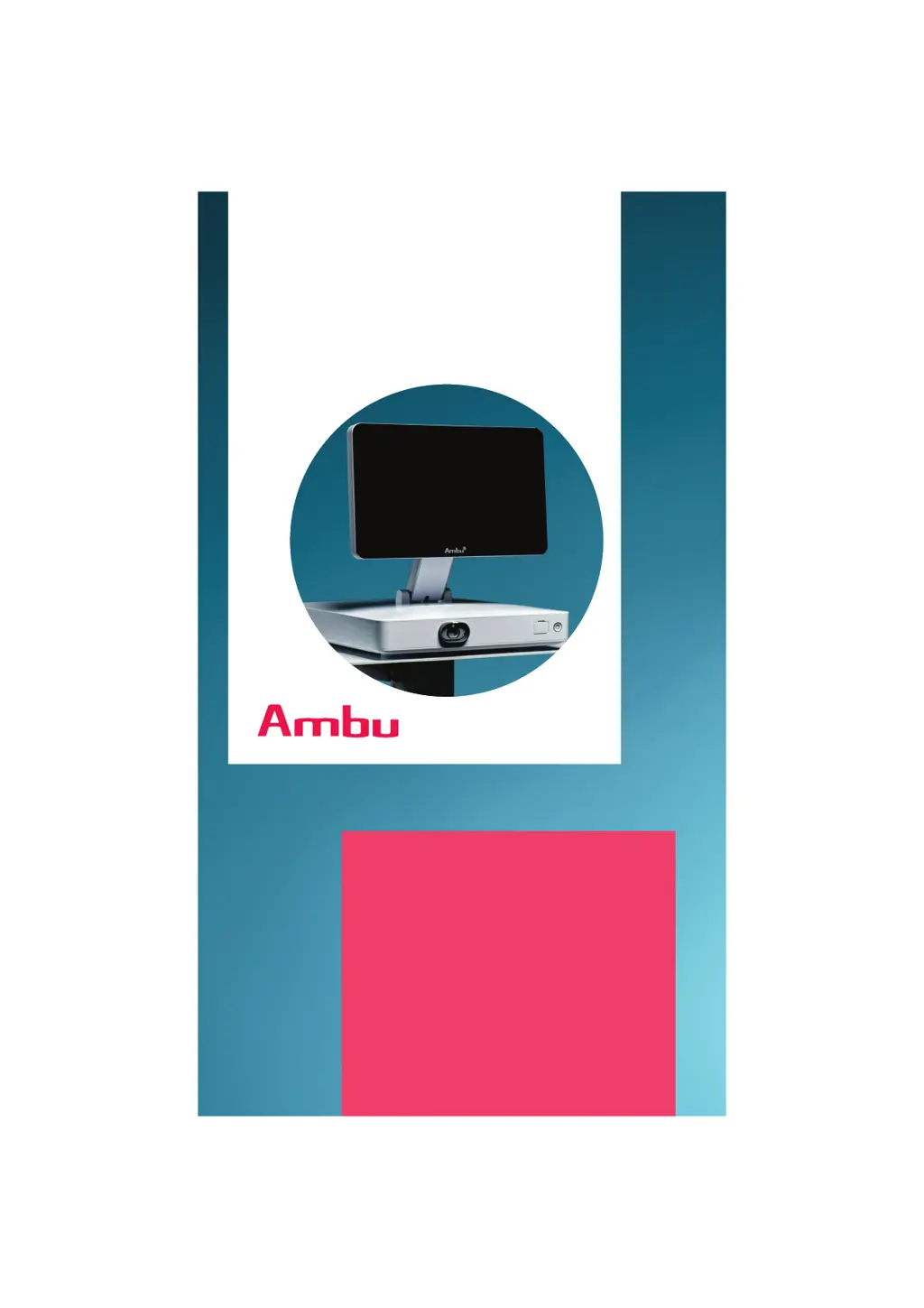
Ambu aBox 2 - User Manual

Ambu aBox 2
59 pages
Print Icon
To Next Page IconTo Next Page
Loading...
For use by trained healthcare professionals only.
For use with Ambu
®
visualization devices.
Ambu
®
aBox
2
INSTRUCTIONS
FOR USE

Table of Contents

Other manuals for Ambu aBox 2

Questions and Answers

  • J
    James MorganAug 15, 2025
    What to do if there is no image on the external monitor of Ambu Medical Equipment?
    • M
      Michelle FarmerAug 15, 2025
      First, ensure the external monitor is turned on. Then, check the SDI or VDI cable and its connection; try a new cable if possible, using an RG6 grade cable with shielding. Confirm that your external monitor supports 3G-SDI (1920 x 1080 p 60 fps). Also, verify that the correct input channel is selected on the external monitor and that the video cable is connected to the appropriate connector port in the video output group configured for external monitors, which defaults to Video Output group 1 on a new device.
  • M
    Mrs. Julie SmithAug 18, 2025
    How to fix Ambu aBox 2 if the displaying unit does not turn on?
    • J
      Joseph MoranAug 18, 2025
      Ensure the power cable is correctly connected to both the displaying unit and a turned-on power outlet. If the unit still doesn't turn on, perform a Power OFF Cycle.
  • L
    Linda FisherAug 21, 2025
    What to do if there is no live image on the Ambu Medical Equipment displaying unit?
    • C
      Christopher BrooksAug 21, 2025
      If you don't see a live image, first check if a recorded image or a menu box is blocking it; return to live image by pressing the Live View tab. If the LED light is off, deactivate the Light off function. Also, check the visualization device connection, and if problems persist, try a Power OFF Cycle. If still not working, connect a new visualization device to check for a damaged VDI-port.
  • F
    frenchbrendaAug 25, 2025
    Why Ambu aBox 2 displaying unit cannot identify a connected USB device?
    • M
      mcneiljosephAug 26, 2025
      First, log in as Administrator and enable USB input in Settings - Setup - General settings. If that doesn't work, try a new USB cable or device. If the issue persists, perform a Power OFF Cycle. As a last resort, try a different USB connector port, as the current one may be damaged.
  • J
    john16Aug 28, 2025
    Why buttons on endoscope is not registered by the Ambu displaying unit?
    • K
      Kimberly MorenoAug 28, 2025
      First, check the configuration of the endoscope buttons. If no buttons activate a function, unplug and reconnect the endoscope, or try a new one, as the VDI-port may be damaged. If problems continue, perform a Power OFF Cycle. Also, ensure the trigger outputs are correctly configured.
  • W
    William SalinasAug 31, 2025
    What to do if live image on Ambu aBox 2 displaying unit is ONLY working while booting?
    • S
      Samantha KingAug 31, 2025
      If the live image only works during booting, perform a Power OFF Cycle.
  • L
    Lisa WilsonSep 4, 2025
    What to do if the touch interface does not respond on Ambu aBox 2?
    • B
      bryantkellySep 4, 2025
      If the touch interface is unresponsive, perform a Power OFF Cycle.
  • S
    Shawn ChanSep 7, 2025
    How to improve low picture quality on Ambu aBox 2 Medical Equipment?
    • R
      robert20Sep 7, 2025
      If the picture quality is low, start by wiping the screen with a clean cloth. If the issue persists, adjust the color, contrast, sharpness, and brightness in the Image adjustment menu. You may also need to refer to the Instructions for Use of the visualization device to clean the distal end.
  • P
    ptorresSep 10, 2025
    What to do if Wi-Fi signal cannot be obtained on Ambu aBox 2 Medical Equipment?
    • J
      John RoseSep 12, 2025
      If you cannot obtain a Wi-Fi signal, try repositioning the displaying unit. Also, ensure that the external Wi-Fi antenna is connected and optimally oriented.

Summary

Important Safety Information

Intended Use, Patient Population, and Benefits

Specifies intended use, patient groups, and clinical advantages of the Ambu aBox 2.

User Profile, Contraindications, and Adverse Events

Outlines user qualifications, situations to avoid, and potential adverse effects.

Warnings and Cautions

Highlights critical safety information, potential hazards, and precautions for operating the Ambu aBox 2.

Device Description and Components

Displaying Unit Parts, Compatibility, and Spare Parts

Identifies components, lists compatible devices, and details available spare parts.

System Overview and Component Details

Illustrates the system configuration and provides detailed descriptions of components.

Setup and Configuration

First-Time Setup Procedure

Provides step-by-step instructions for the initial setup of the Ambu aBox 2.

Software Installation and User Login

Guides on logging in, creating user profiles, and setting up software functionalities.

User Profile Management and Password Requirements

Explains creating, editing, and managing user profiles with password criteria.

System Settings and Network Configuration

Language, Date, Time, and Network Setup

Guides on configuring language, date, time, and Wi-Fi/LAN network settings.

PACS and Worklist Setup

Guides on configuring PACS and Worklist settings for data transfer.

General Settings and Output Configuration

Covers system-wide settings including communication, archive, and output configuration.

Operating the Ambu aBox 2

Connecting External Equipment

Details how to connect external monitors, USB drives, and imaging recorders.

Live View and Procedure Functions

Explains the Live View screen, taking photos, recording videos, and managing current procedures.

File Management and Export Procedures

Guides on exporting photos and videos in different formats to USB or PACS.

Advanced Operations and Data Handling

Worklist, Image Adjustments, and Functions

Explains using the Worklist, adjusting image parameters, and using stopwatch/ARC.

Archive Access and File Deletion

Guides on accessing the archive, viewing files, and deleting data.

System Information and Maintenance

System Information and Software Updates

Provides access to device information and guides on software update procedures.

Cleaning, Disinfection, and Disposal Procedures

Outlines procedures for cleaning, disinfection, and proper disposal of the Ambu aBox 2.

Technical Specifications and Troubleshooting

Technical Specifications and Standards

Lists detailed technical specifications, standards applied, and connectivity details.

Troubleshooting Common Issues and Solutions

Provides solutions for common problems encountered with the displaying unit.

Warranty and Compliance

Warranty Policy and Electromagnetic Compatibility

Outlines warranty terms and provides guidance on the system's electromagnetic compatibility.

Regulatory Compliance and RF Information

Details radio frequency compliance, FCC statements, and radiation exposure information.

Cybersecurity and Data Management

Cybersecurity, Network Setup, and Data Handling

Covers IT network security, setup considerations, and data storage/transmission.

Software Bill of Materials (SBOM)

Lists software components used in the displaying unit and their known vulnerabilities.

Ambu aBox 2 Specifications

General IconGeneral
BrandAmbu
ModelaBox 2
CategoryMedical Equipment
LanguageEnglish

Related product manuals