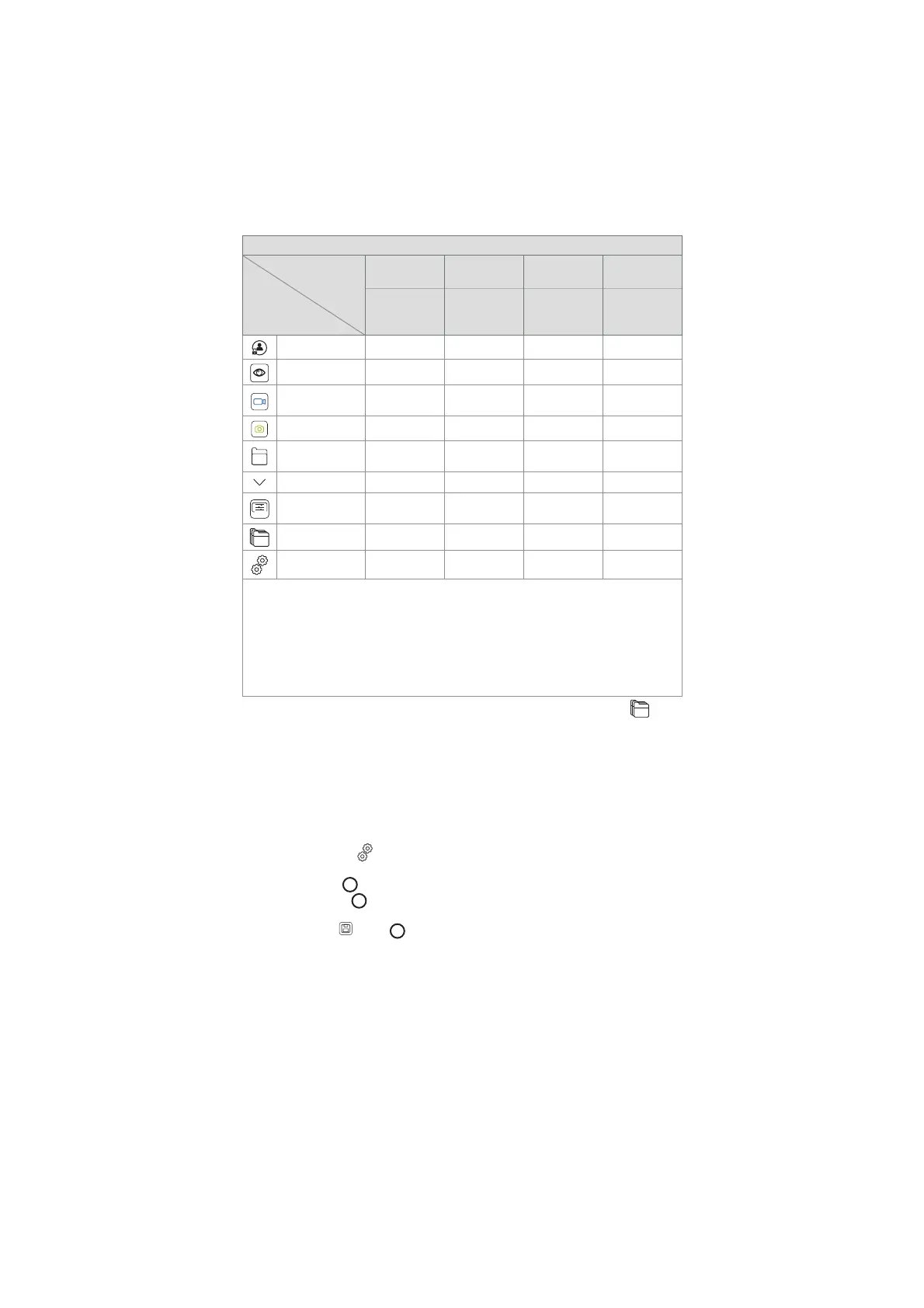
User Profile Types and System Access
User Profile Type
Function Access
Default User Advanced
User
Administrator Service User
Instant access
without login
Daily
operation
Administrator
with full
access
Service
related tasks
Login Required x x x
Live Viewxxxx
Video
Recording
xxxx
Photo x x x x
Current
Procedure
xxxx
Worklist x* x x x
+ARC
Image
adjustments
xxxx
Archive x** x x
Settings x*** x*** x**** x*****
*The Administrator can enable or disable worklist for the Default users.
**Access to Archive without login can be enabled by Administrator in Settings. By default, the current
procedure folder and the bin can be accessed without logging in.
***In the Settings menu, Default and Advanced users only have access to view device information and
the current configurations of trigger output channels and visualization device buttons. Log in as
Administrator to change settings and reconfigure trigger output channels and visualization device
buttons.
****Administrators are also able to reset passwords for all other user profiles.
*****Service users does not have permission to add and change user profiles.
An Advanced user profile provides daily users the privileges to access the Archive and
to export recorded files to a USB flash drive or a PACS server via DICOM. It is recommended to
create at least one Advanced user profile (e.g. department login), or individual Advanced
user profiles for each user of the displaying unit. It is not possible to create additional
Administrator and Service user profiles. The Administrator has privileges to change
settings for all users. All users can change their own passwords. If the Administrator password
is lost and a new one is required, please contact your local Ambu representative.
5.3.2 Create a new Advanced user profile:
To access the User profiles menu:
• Press the Settings
tab in the tool bar on the left.
• Press User profiles.
• Press Add user
5
.
• Enter User name
6
, Password and Repeat password. For information on password
requirements, please refer to section 5.3.4.
• Press the Save
button
7
.
12



 To Next Page