en
Downloading the newest Ambu software requires an internet connection using Wi-Fi or
Ethernet. The update/upgrade can only be performed by an Administrator. Before starting the
download ensure that the network you connect to can reach the address
https://api.services.
ambu.com
ensuring that the displaying unit can retrieve any available update/upgrade.
How to download a software update/upgrade:
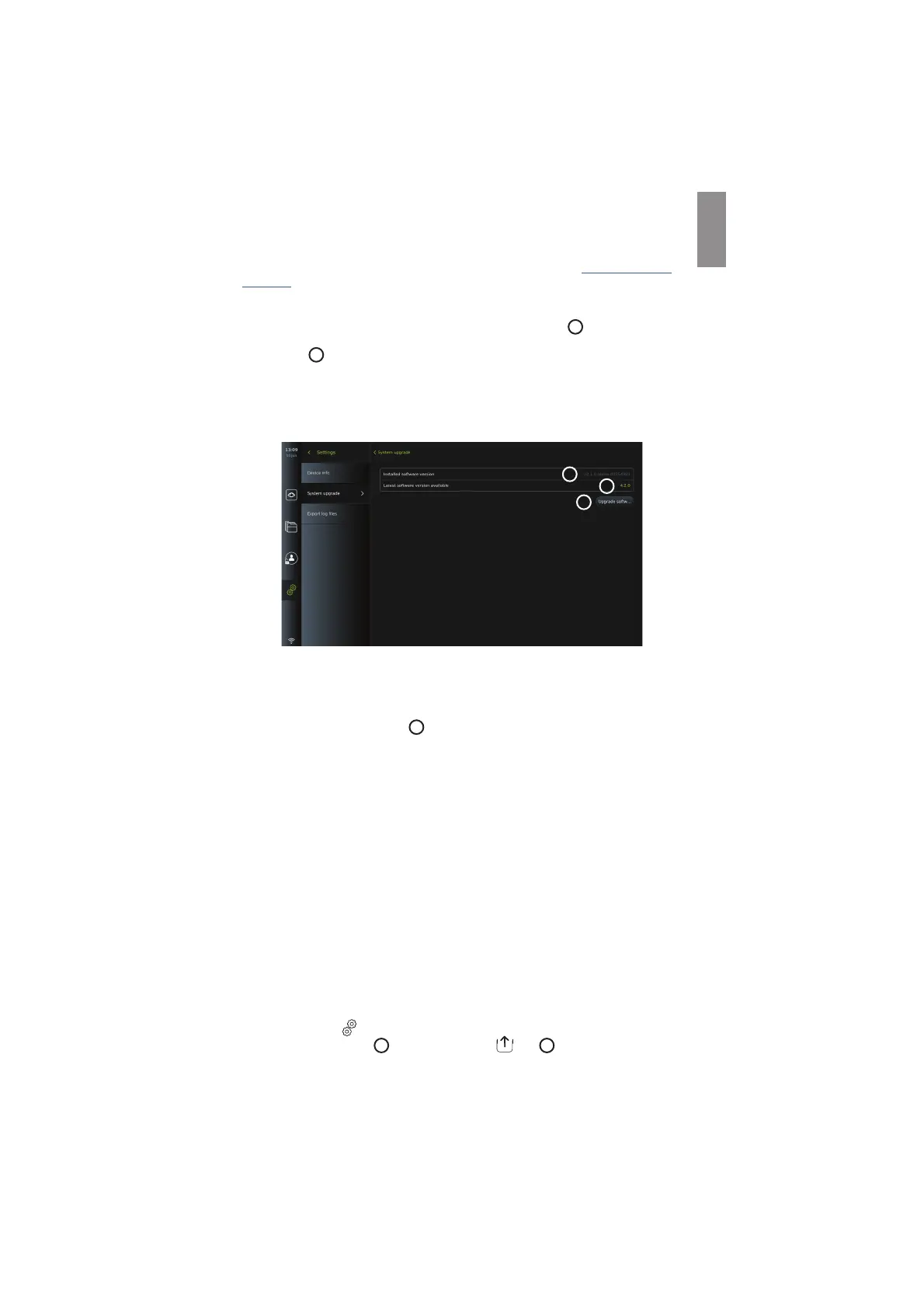
1. If a newer software version is available, click Upgrade software
5
(If you do not have
the option to choose Upgrade software your system is running on the latest available
version)
6
.
2. The download will start. During the download you can monitor the progress and can at
any time cancel the download with no effect on your current software version.
3. When the download has completed you have the options to install or press OK and
install it later. It is recommended to stay on the network while installing, but it is not a
prerequisite.
7
6
5
How to install the downloaded software update/upgrade:
1. During the installation ensure there are no interruptions.
2. After the installation has finished, the system will automatically reboot and an
Installation successfully completed message will appear to confirm a new version update/
upgrade has been performed
7
.
NOTES:
• The internet access must be enabled in the General settings tab (see section 5.8.).
• An Administrator can grant other users e.g. a Service user to perform updates/upgrades.
• Downloading or installing updates/upgrades cannot be run in parallel with other
procedures.
• A scope cannot be connected during update/upgrade.
8.3. Reporting a Problem
In case you are experiencing problems with the displaying unit, please follow the
troubleshooting guidelines in chapter 13 to find a solution. If this does not help, please contact
your local Ambu representative.
8.3.1. Export log files
Log files can be used by Ambu for troubleshooting purposes. This require the log files to be
exported from the displaying unit. A log file consists of compressed text files containing
information about the displaying unit system.
Please follow these steps to export a log file to a USB device:
• Connect a portable USB flash drive (see section 6.2.).
• Go to Settings
and open the About menu.
• Press Export log files
8
, and press the Export
icon
9
.
A pop-up window will inform you if the export was successful.
39



 To Next Page