visualization device, refer to the Instructions for Use of the specific device.
I
2. Press the power button to switch to STANDBY mode. A confirmation dialog box appears
on the screen. Press OK to confirm STANDBY. Allow the displaying unit to go into
STANDBY mode (orange light in power button) before continuing.
J
3. Clean and disinfect the displaying unit (see chapter 9).
K
8. System Information and Upgrade
You can find system information and get access to the software upgrade menu in About
under the Settings
tab in the tool bar on the left.
8.1. Device Information Page
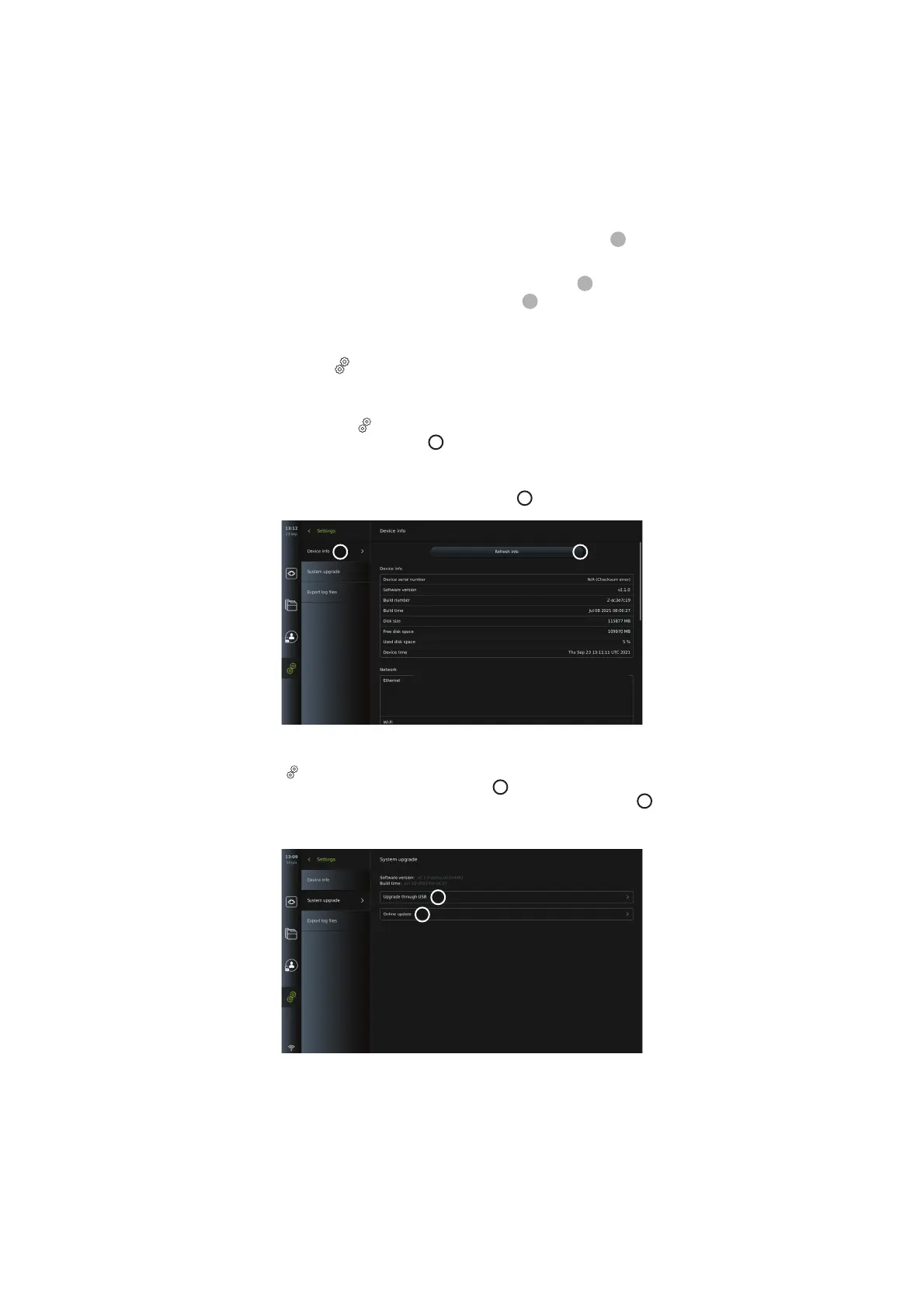
The Device info content provides an overview of the systems information and conditions.
• Press the Settings
tab in the tool bar on the left.
• Press About, and the Device Info
1
menu will be open.
Here you can view information such as serial number, software (SW) version, build time and
disk size. This menu also provides an overview of the current system conditions such as used
disk space and device temperature. Ensure to Refresh info
2
to receive the most updated
information.
1 2
8.2. Software Update/Upgrade
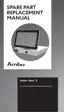
The software upgrade function is located in System upgrade in the About menu under the
Settings
tab. A software upgrade can be supplied and installed either by using a USB flash
drive (please contact your local Ambu representative)
3
or downloaded and installed by an
Administrator, if the displaying unit is connected to the Internet via Wi-Fi or Ethernet
4
.
NOTE: In General Settings, USB input or online update must be enabled to allow software
update/upgrade (see section 5.8.).
3
4
8.2.1. How to update/upgrade Ambu display unit software via the Internet
38



 To Next Page