Connecting to Wi-Fi network
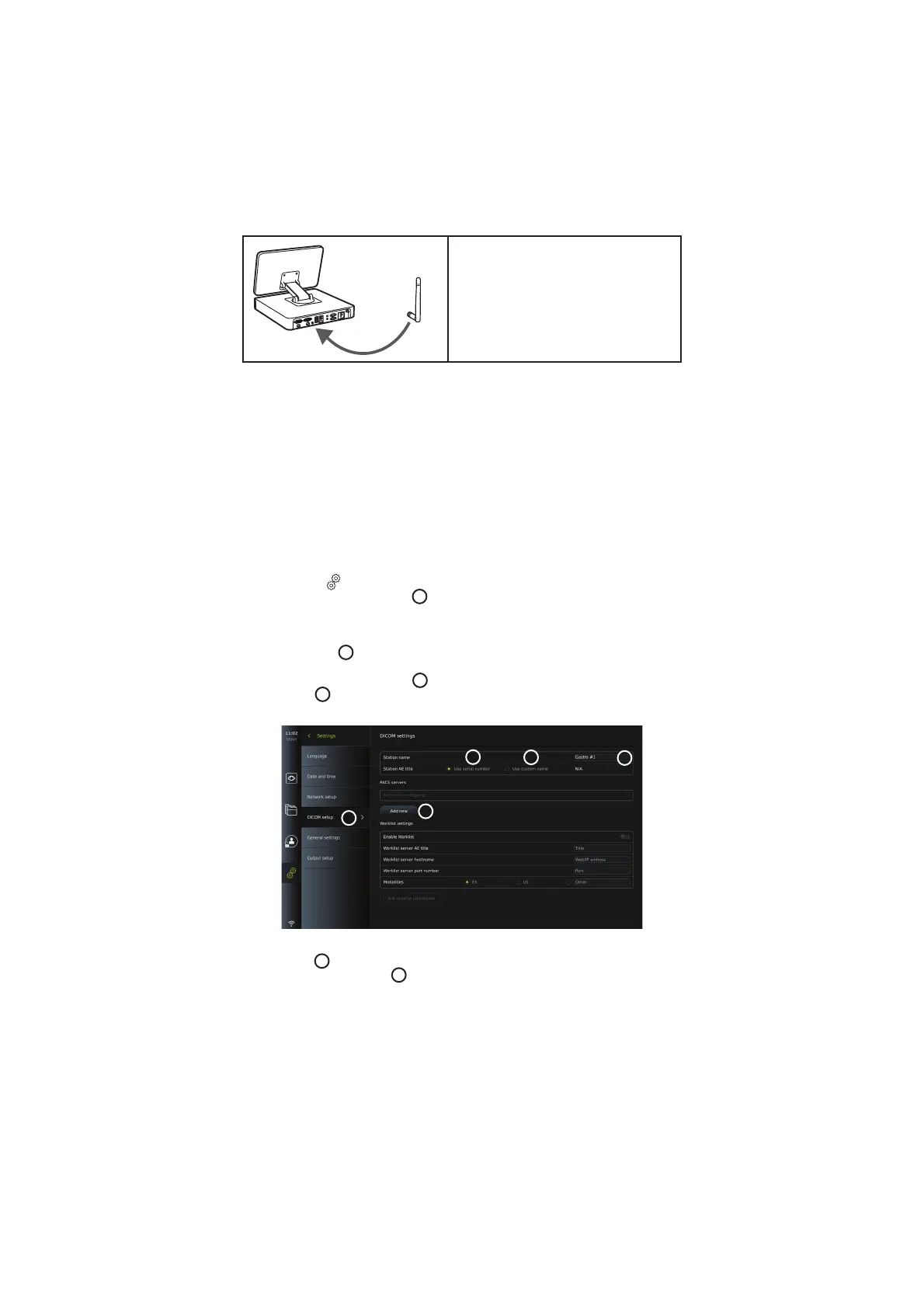
The supplied Wi-Fi antenna can be connected
for better reception.
Connect the antenna to the Wi-Fi antenna
connection on the back of the displaying unit.
Orient the antenna to ensure optimal
connection to the Wi-Fi signal.
If a network error occurs in your organization, the displaying unit has full functionality while
being off-line except for exportation to a PACS server. Imaging data is stored on the local
storage of the displaying unit until manually exported to a USB flash drive or a PACS server.
5.7. PACS and Worklist Setup
In DICOM Setup under the Setup menu, you can configure connection to a PACS (Picture
Archiving and Communication System) server to be able to transfer photos and recorded
videos in DICOM (Digital Imaging and Communications in Medicine) format over an
established Wi-Fi or LAN network (see section 5.6 for network setup).
To set up a PACS server, you may need to involve your IT department or PACS manager of the
hospital.
See technical details about establishing connection to a PACS server in Appendix 3
.
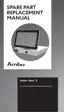
5.7.1. To access the DICOM setup page:
Press the Settings
tab in the toolbar on the left.
Press Setup and select DICOM setup
37
. Administrator login is required (see section 5.2).
An overview of already configured PACS servers, if any, is shown.
Choose Device AE (Application Entity) title to enter the name of the displaying unit. The
default name is AmbuMon. This name will allow the PACS to recognize the displaying unit.
Press the name field
38
to change the name. The maximum length of the name is 16
characters.
Choose if the device "serial number"
39
should be assigned as the Station name or create a
"custom name"
40
. The Station name is an optional attribute in DICOM used by PACS to
identify the displaying unit.
37
41
38
39
40
5.7.2. Set up connection to PACS server:
Press Add new
41
, and the Configure new PACS server menu will appear.
Press the first field (PACS name)
42
and type to add the details.
18



 To Next Page