en
42
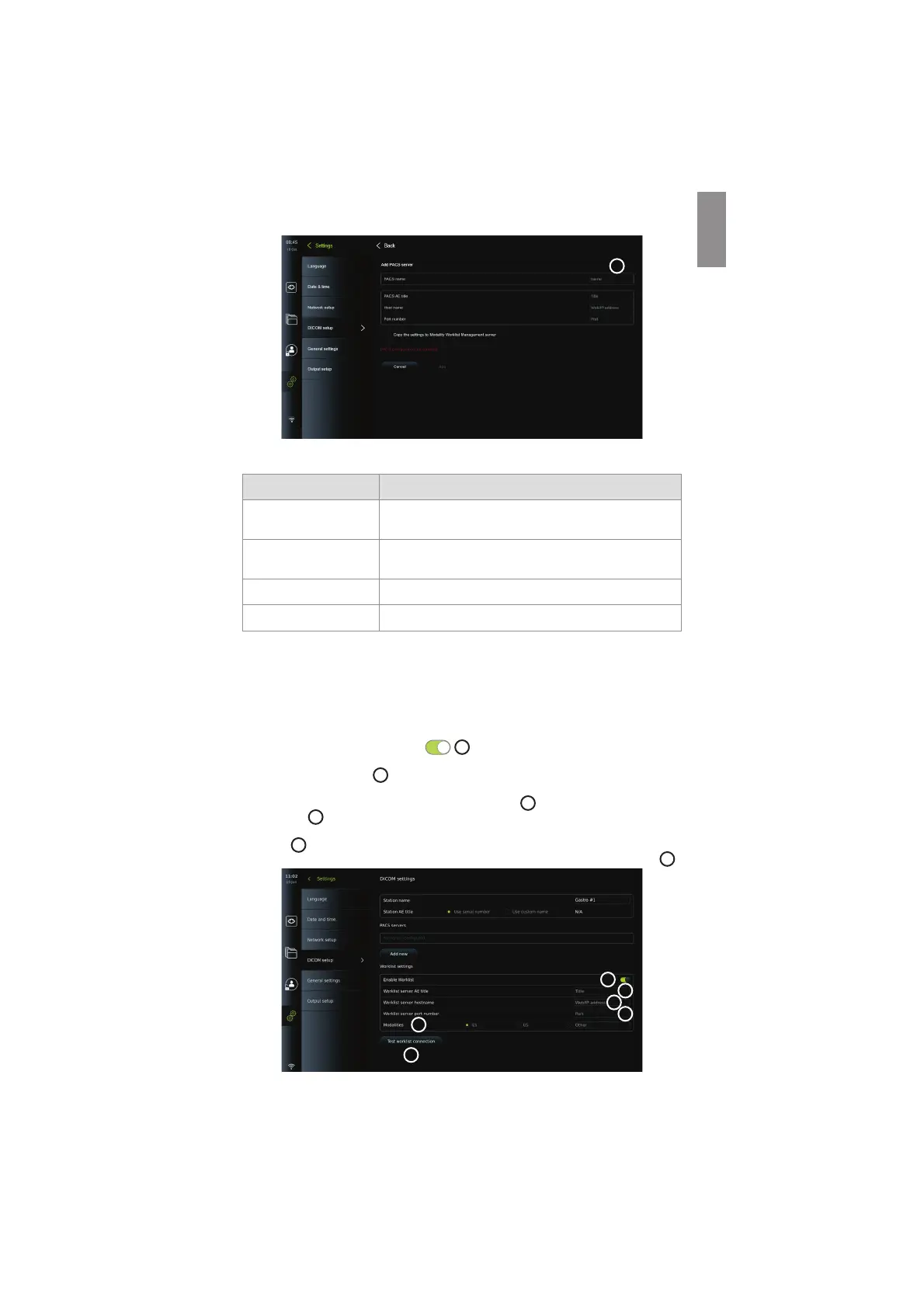
The table below shows the information that must be filled. Please contact your hospital IT or
department PACS manager if you do not have this information.
Information needed Explanation
PACS name This is the name of the PACS. Used in the export menu to
select the PACS when transferring photos and videos.
PACS AE Title PACS Application Entity Title.
The maximum length of the AE Title is 16 characters.
Host name IP-address, MAC address or full web address for the PACS.
Port number Network port no. for the PACS.
When all the fields have been filled press Create to save the PACS configuration. In the
following window you can test the PACS connectivity by pressing the "Test connection"
button. If the test fails, check if the entered information is correct and try again. For further
assistance please contact your local PACS manager.
5.7.3. Worklist settings
Administrators or Service Users can enable/disable the user’s ability to use the Worklist
function by pressing the ON/OFF slider
43
.
Use the Worklist server AE (application entity) title to uniquely identify the device on the
network. Press the Titel box
44
and use the keyboard to type the specific name for the device.
The Worklist server hostname is used to store patient information on a specific server. Find
the server by typing the server’s Web/IP address in the field
45
. Type the Worklist server
port number
46
to store patient data on a specific file path of the server. If the server is
configured to use different Modalities, this can be changed by picking the Modalities used by
the server
47
.
To test if the device is successfully connected, press the Test worklist connection button
48
.
43
44
45
46
47
48
19



 To Next Page