en
• To access the current procedure overview in the Archive , press the arrow
6
(see section 7.4.).
• Press < Back
6
or press the Live view tab to return to the live image.
Ending the Current procedure:
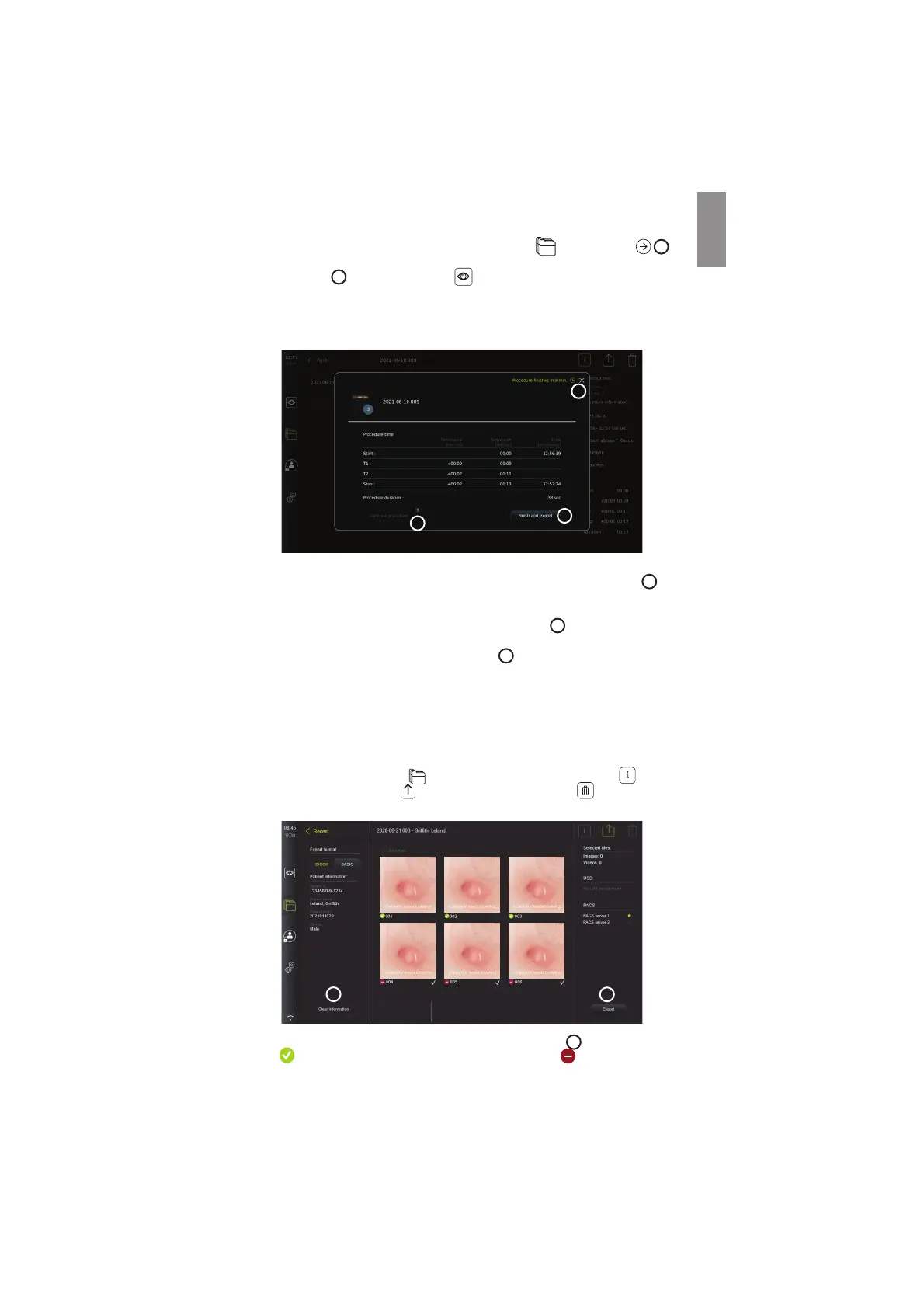
When the visualization device is disconnected, a pop-up box will show information on the
procedure folder, recorded timestamps, and procedure duration before ending the Current
procedure.
8
9
7
The user can now choose between the following:
1. End the procedure and export the recorded files by pressing Finish and export
7
.
(This will allow the user (regardless of user type) to enter the export menu of the Current
procedure and export the files.)
2. End the procedure without exporting files by pressing the X
8
.
3. Continue procedure by reconnecting the visualization device (or connecting a
replacement) and pressing Continue procedure
9
. The displaying unit will return to
live view mode.
NOTE: The user are given a certain amount of time to decide an action before the Current
procedure is ended automatically. The default Finish procedure information inactivity
timeout is set at 10 minutes, but can be reconfigured by Administrator in General settings (see
section 5.8).
7.3.4. File export
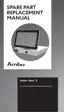
Export photos in the Archive folder
. Select the photo(s) or video(s) and press
i
to view
photo or video information, press
to enter the export menu or press to delete photo(s)
or video(s) from the displaying unit.
11
10
Export the selected photos and videos by pressing the Export button
10
. After export the
symbol
will indicate if the export was successful and the symbol will indicate if it
27



 To Next Page