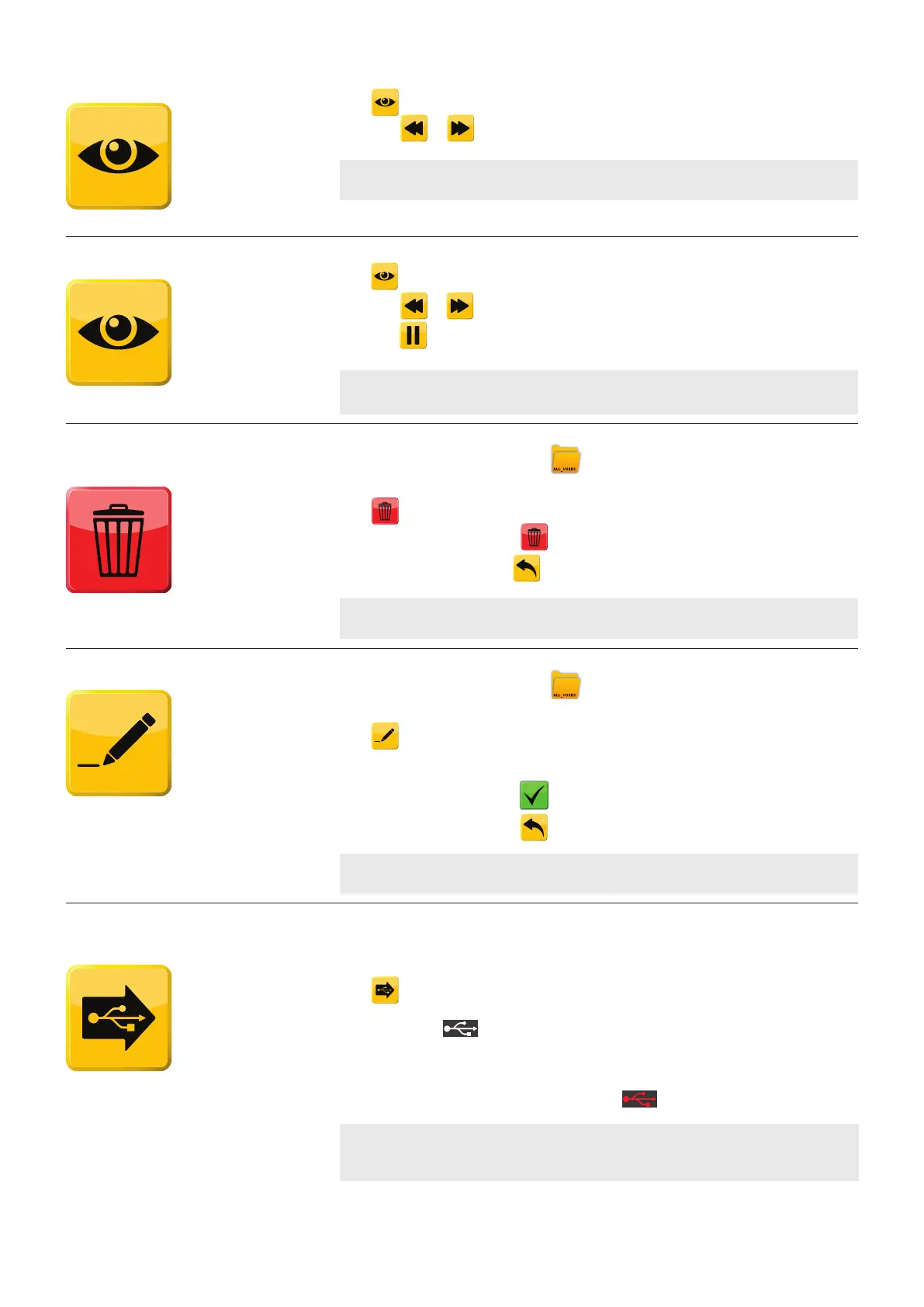
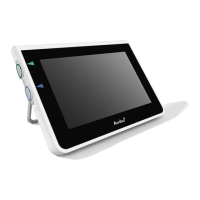
How to view snapshot
(Assumption: Snapshot has already been located.)
Press the snapshot to select.
Press
to view the snapshot.
- Press
or to toggle between snapshots in the folder.
NOTE: Double click to Select and View.
How to view a video
(Assumption: Video has already been located.)
Press the video file to select.
Press
to view the file.
- Press
or to jump 10 seconds backward or forward in the video.
- Press
to pause video.
NOTE: Double click to Select and View.
How to delete a recorded
file or folder
(Assumption: The file or folder have been located)
Press the file or folder to select.
- The folder icon will appear open
when selected.
- File is highlighted when selected.
Press
to delete the file or folder.
- Confirm delete by pressing
.
- Cancel delete by pressing
.
NOTE: More files or folders can be selected simultaneously.
How to rename a file or folder
(Assumption: The folder, snapshot or
video file has been located)
Press the file or folder to select
- The folder icon will appear open
when selected.
- File is highlighted when selected.
Press
to rename the folder or file.
- Foldername/filename and keyboard appears
- Enter new filename
- Confirm name by pressing
- Cancel rename by pressing
NOTE: Renaming is also possible when a selected file is being viewed.
How to transfer a file or
folder to a USB stick
(Assumption: The folder or file has been located
and a USB stick has been plugged in)
Plug in a standard USB stick in the USB port.
Select the file or folder to be exported by pressing the file or folder. The folder icon will appear
open when selected and a file is highlighted when selected. A file can also be
exported directly while viewing it.
Press
to copy the file or folder to the USB stick.
- The button will turn red while USB port is active.
- The USB icon
will turn white while copying.
- The button will turn grey with a green check mark for one second when the copy
process has ended successfully and then go back to yellow.
- The button will turn grey with a red cross for 4 seconds and the go back to yellow if the
copying process is unsuccessful. The USB icon
will turn red.
NOTE: Files are not deleted from aView in the copy process. More files or folders can
be selected simultaneously.
8



 To Next Page