44
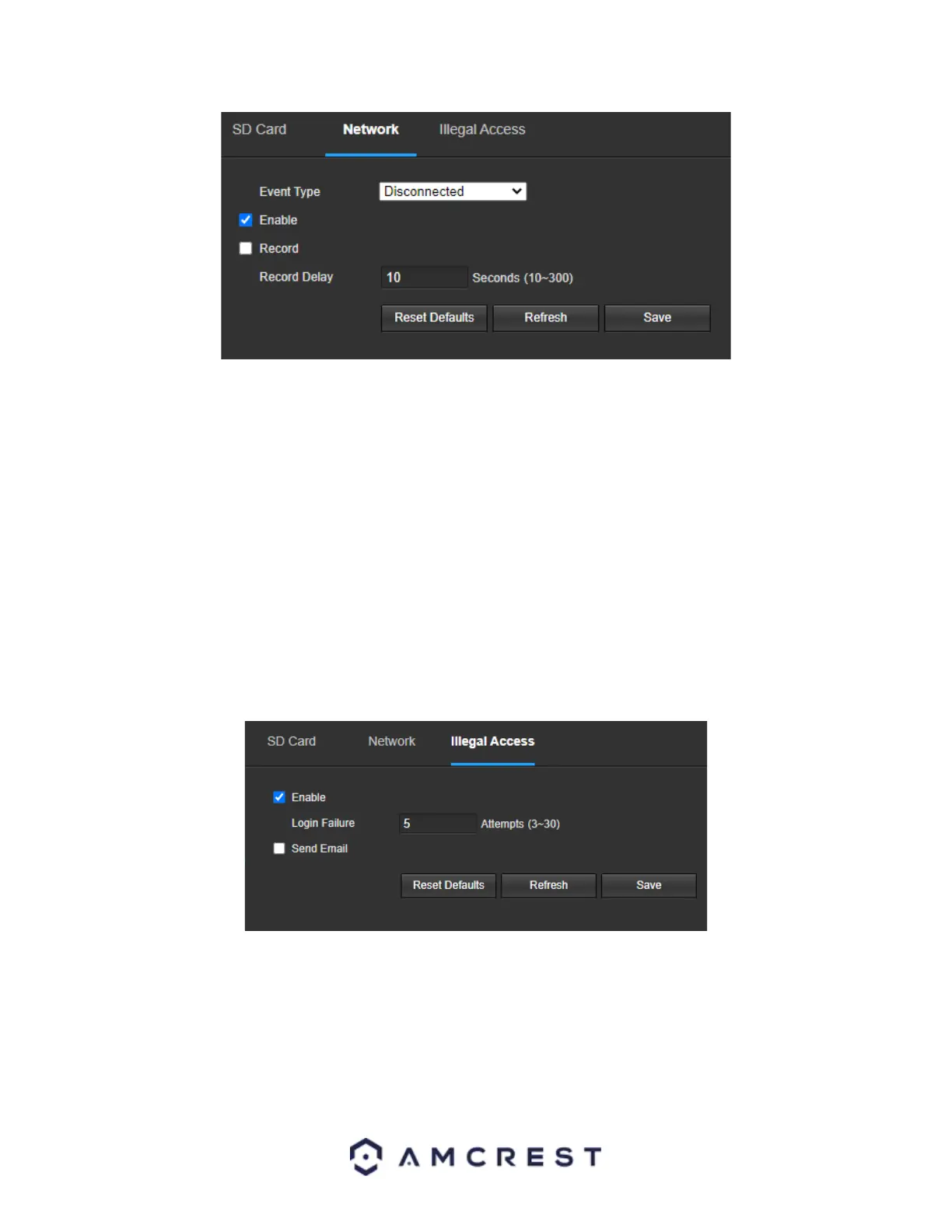
Below is an explanation of the fields on the Network settings tab:
• Event Type: This dropdown box allows the user to select which Network abnormality to set event triggers for. The
2 options are Disconnection and IP Conflict.
• Enable: This checkbox enables the Network abnormality trigger for the camera.
• Record: This checkbox allows the user to enable the camera to record video when a network abnormality is
detected.
• Record Delay: This field specifies in seconds how long the delay between alarm activation and recording should be.
To reset to default settings, click the Reset Defaults button. To refresh the page, click the Refresh button. To save
the settings, click the Save button.
Illegal Access
This tab allows the user to set the camera’s response to an Illegal Access related abnormality. Below is a
screenshot of the Illegal Access tab screen:
Below is an explanation of the fields on the Illegal Access settings tab:
• Enable: This checkbox enables the Illegal Access abnormality trigger for the camera.
• Login Failure: This field allows the user to specify how many failed login attempts must be attempted to trigger an
Illegal Access abnormality event.
• Send Email: This checkbox allows the user to enable the camera to send an email when illegal access is attempted.










 To Next Page