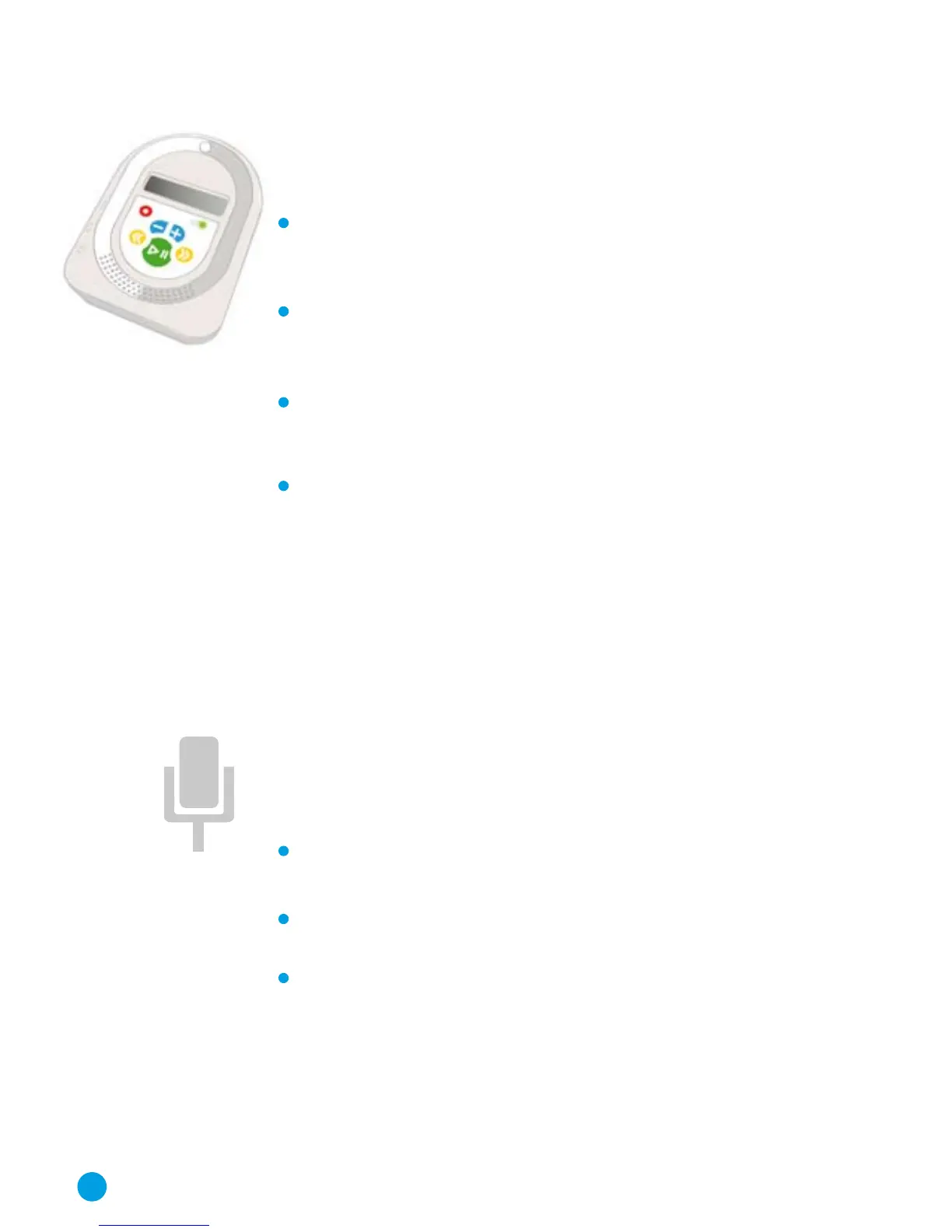
How to use the Remote Console
MP3 Player
The function buttons control play/pause, skip forward and
back, adjust volume, and record (see diagram on the inside
back cover of the manual).
The Remote Console is controlled in the same way as the
Headsets but it is also possible to skip back to the previous
track.
If the Headsets have been set into Remote Control mode using
BookShelf, pressing the function buttons on the Remote
Console will cause them all to play, pause or stop together.
The loud speaker can be muted if the Console is being used
as a remote control and you do not want to hear the audio.
The speaker is muted by holding down the red button and
pressing volume down (‘-’) and is un-muted by holding down
the red button and pressing volume up (‘+’). Note that the
headphones output is not muted allowing a set of wired head-
phones to be plugged in for private listening or for the audio
to be played through an amplified system such as interactive
white board speakers.
Recording
How to Record using the Built-in
Microphone
Hold down the red button and then press the play button to
start the recording process.
A red light will appear and the display will indicate that the
Remote Console is in record mode.
Pressing the Play/Pause button stops the recording.
6



 To Next Page