Programming
114
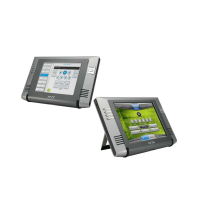
MVP-5200i Modero® ViewPoint® Touch Panel with Intercom - Instruction Manual
Input Commands
These Send Commands are case insensitive.
Panel Runtime Operation Commands (Cont.)
@VKB Popup the virtual keyboard.
Syntax:
"'@VKB'"
Example:
SEND COMMAND Panel,"'@VKB'"
Pops-up the virtual keyboard.
WAKE Force the panel out of screen saver mode.
Syntax:
"'WAKE'"
Example:
SEND COMMAND Panel,"'WAKE'"
Forces the panel out of the screen saver mode.
Input Commands
^CAL Put panel in calibration mode.
Syntax:
"'^CAL'"
Example:
SEND COMMAND Panel,"'^CAL'"
Puts the panel in calibration mode.
^KPS Set the keyboard passthru.
Syntax:
"'^KPS-<pass data>'"
Variable:
pass data:
<blank/empty> = Disables the keyboard.
0 = Pass data to G4 application (default). This can be used with VPC or text areas.
1 - 4 = Not used.
5 = Sends out data to the Master.
Example:
SEND COMMAND Panel,"'^KPS-5'"
Sets the keyboard passthru to the Master. Option 5 sends keystrokes directly to the Master via the Send Output String
mechanism. This process sends a virtual keystroke command (^VKS) to the Master.
Example 2:
SEND COMMAND Panel,"'^KPS-0'"
Disables the keyboard passthru to the Master.
Note: The parameters within this command accept keystrokes from any of these sources: attached USB keyboard or Virtual
keyboard.
^VKS Send one or more virtual key strokes to the G4 application. Key presses and key releases are not distinguished except in the
case o f C TR L , A LT, a n d SH I F T.
Refer to theEmbedded Codes table on page 115 that defines special characters which can be included with the string but may
not be represented by the ASCII character set.
Syntax:
"'^VKS-<string>'"
Variable:
string = Only 1 string per command/only one stroke per command.
Example:
SEND COMMAND Panel,"'^VKS-'8"
Sends out the keystroke 'backspace' to the G4 application.


 To Next Page
 Loading...