46
8.1.1 Menu navigaon
8. OPERATING THROUGH THE FRONT PANEL
8.1
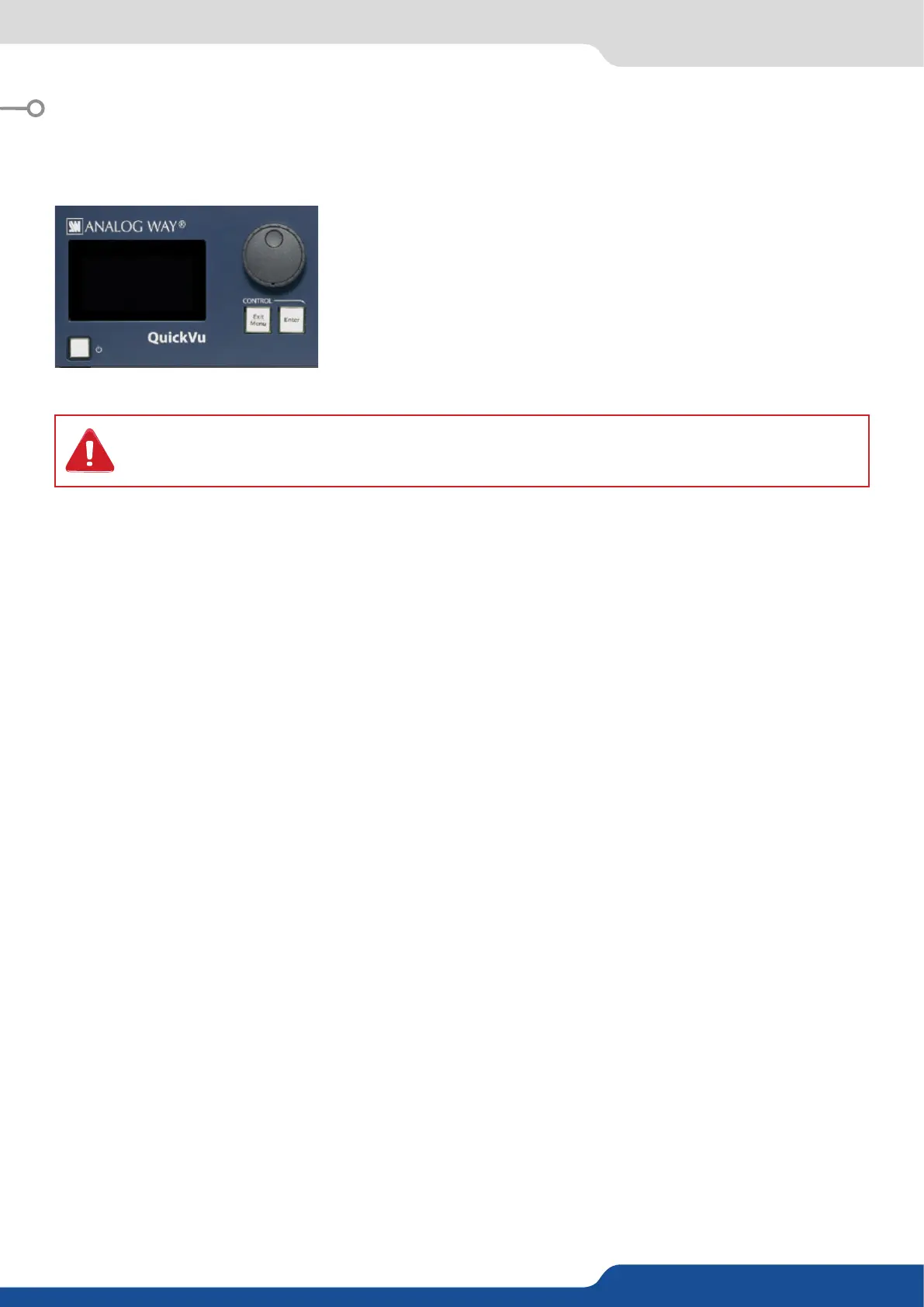
To access the QuickVu menu, press the EXIT/MENU buon in the
control secon. To highlight items in the menu which will appear on
the VFD screen, turn the scroll knob le or right to the desired menu
item. When you have reached the desired menu item, press the ENTER
buon in the control secon to access that menu funcon. Pressing the
ENTER buon when a selecon has been made sets the value to that
selecon in the QuickVu memory. When all sengs have been made,
press the EXIT/MENU buon to exit sub-menus and return to the main
menu.
Pressing the MENU buon in the menu secon of the QuickVu, will display and give you access to the
following items on the menu VFD screen:
select to set the output types and resoluons of Output #1,
select to set the output types and resoluons of Output #2,
select to congure the 8 individual input types and resoluons,
select to store and use presets,
select to change source image sengs of an input,
select to access keying and tling controls and parameters when video layer is selected,
setup your background color and your Quick Frame,
select to adjust layer size, posion, transparency or transions,
select to store (record), use and manage frames into the QuickVu,
select to access all audio input and output parameters,
select to access device soware informaon, LAN sengs, reset factory sengs, and other user
oriented funcons.
* These items are only displayed if a valid input is assigned to the current layer.
The QuickVu oers 1 mode to work from: the Mixer mode.
Simply selecng a menu item will not set it to that value. Be sure to press the ENTER buon when
parametering the menu items or to push the scroll knob.


 To Next Page