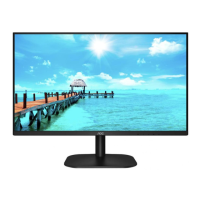
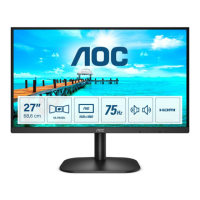
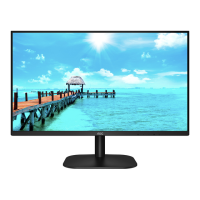
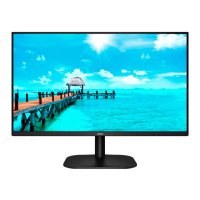
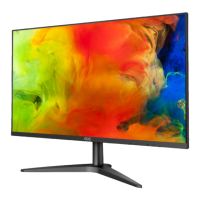
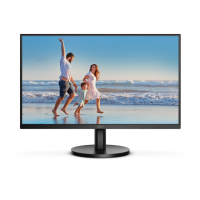
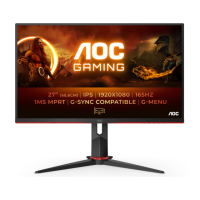
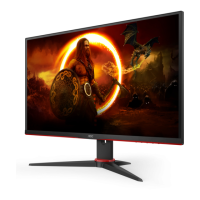
This document serves as the user manual for the AOC 27B2HM LCD Monitor, providing comprehensive instructions for its setup, adjustment, maintenance, and troubleshooting.
Function Description
The AOC 27B2HM is an LCD monitor designed for general computing use. Its primary function is to display visual output from a connected computer or other video sources. The monitor supports various display modes and resolutions, including Full HD (1920x1080) at refresh rates up to 75Hz via HDMI. It features Adaptive-Sync technology, which helps to synchronize the monitor's refresh rate with the graphics card's frame rate, reducing screen tearing and stuttering for a smoother visual experience, particularly in gaming. The monitor includes multiple input options, such as HDMI and D-Sub (VGA), allowing for connectivity with a wide range of devices. An earphone output is also provided for audio connectivity.
Usage Features
The monitor offers several features to enhance the user experience:
- Setup and Installation: The manual details how to set up the monitor stand and base, as well as instructions for wall mounting using a VESA-compatible arm (purchased separately). It emphasizes safety precautions during installation, such as maintaining adequate ventilation space around the monitor and avoiding tilting the screen downward by more than -5 degrees to prevent damage.
- Connectivity: The monitor provides HDMI and D-Sub (VGA) inputs for video signals, along with an earphone jack for audio output. The manual guides users on how to connect the monitor to a PC, stressing the importance of secure connections and powering off devices before connecting cables.
- Adjusting Viewing Angle: Users can adjust the monitor's tilt angle from -5 to 20 degrees for optimal viewing comfort. It is recommended to hold the stand firmly and avoid touching the LCD screen directly during adjustment to prevent damage.
- On-Screen Display (OSD) Settings: The monitor features an intuitive OSD menu accessible via hotkeys. This menu allows users to customize various display parameters:
- Luminance: Adjusts contrast, brightness, and offers several "Eco modes" (Standard, Text, Internet, Game, Movie, Sports, Reading) to optimize settings for different content types. It also includes Dynamic Contrast Ratio (DCR) and HDR Mode settings (HDR Picture, HDR Movie, HDR Game) for enhanced visual quality. Note that when HDR Mode is active, certain luminance settings like Contrast, ECO, and Gamma cannot be adjusted.
- Image Setup: Provides controls for Clock, Phase, Sharpness, H. Position, and V. Position to fine-tune image clarity and alignment, especially useful for analog (VGA) connections to reduce noise and stabilize the picture.
- Color Setup: Allows users to select different color temperatures (Warm, Normal, Cool, sRGB, User) and adjust individual RGB gains. It also includes DCB (Dynamic Color Boost) modes (Full Enhance, Nature Skin, Green Field, Sky-blue, AutoDetect, Off) and a DCB Demo to enhance color vibrancy and accuracy. Similar to HDR Mode, when HDR Mode is active, all Color Setup items are locked.
- Picture Boost: This feature allows users to define a specific area on the screen (Bright Frame) and adjust its brightness, contrast, and position independently. This can be useful for highlighting specific content or improving visibility in certain areas.
- OSD Setup: Configures the OSD menu itself, including language, timeout duration, horizontal and vertical position, transparency, and a "Break Reminder" to prompt users to take breaks during prolonged use.
- Game Setting: Offers specialized settings for gamers, including "Game Mode" presets (Off, FPS, RTS, Racing, Gamer 1, Gamer 2, Gamer 3) that optimize display characteristics for different game genres. "Shadow Control" allows adjustment of dark area visibility, "Dial Point" provides an on-screen aiming indicator, and "Game Color" enhances color saturation. "LowBlue Mode" helps reduce blue light emission to minimize eye strain. The "Adaptive-Sync" setting enables or disables the adaptive synchronization feature, and "Frame Counter" displays the V frequency.
- Extra: Contains additional settings such as "Input Select" to manually choose the video input, "Auto Config." for automatic image adjustment (D-Sub only), "Off Timer" to set a power-off delay, "Image Ratio" to switch between Wide and 4:3 aspect ratios, "DDC/CI" support, and "Reset" options to restore factory defaults.
- Clear Vision: A hotkey-activated feature that converts low-resolution and blurry images into clearer and more vivid visuals, with settings for Weak, Medium, Strong, or Off. A "Clear Vision Demo" mode is also available.
- Hotkeys: Dedicated buttons provide quick access to Source/Auto/Exit, Clear Vision, Volume/Image Ratio, Menu/Enter, and Power functions.
Maintenance Features
The manual provides essential guidelines for maintaining the monitor:
- Cleaning: It advises regular cleaning of the cabinet with a soft cloth and mild detergent, cautioning against strong detergents that could damage the cabinet. When cleaning the screen, users are warned to use a soft cloth and ensure no detergent leaks into the product, as rough cloths can scratch the screen. Crucially, the power cord must be disconnected before cleaning.
- Safety Precautions: The document outlines several safety measures to ensure the longevity and safe operation of the monitor:
- Power: Emphasizes using the correct power source, unplugging during lightning storms or extended periods of non-use, avoiding overloaded power strips, and using only the provided power adapter.
- Installation: Warns against placing the monitor on unstable surfaces, pushing objects into cabinet slots, spilling liquids, or placing the front of the product on the floor. It also highlights the importance of proper ventilation to prevent overheating.
- Other: Instructs users to immediately disconnect power and contact a service center if the product emits strange smells, sounds, or smoke. It also advises against blocking ventilation openings, subjecting the monitor to severe vibration or impact, and using non-safety-approved power cords. A warning about excessive sound pressure from earphones causing hearing loss is also included.
- Troubleshooting: A dedicated section helps users diagnose and resolve common issues, such as the power LED not turning on, no images on the screen, fuzzy pictures, flickering, or color defects. It suggests checking cable connections, power supply, video card settings, and monitor drivers, and provides steps for adjusting display controls.
The AOC 27B2HM is designed to be a user-friendly and versatile display, with features catering to various viewing preferences and applications, while also emphasizing user safety and product care.

 Need help?
 General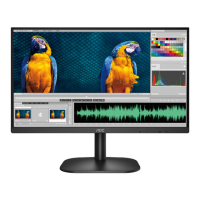

 To Next Page