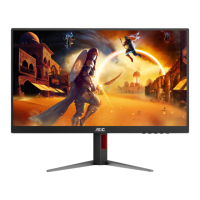
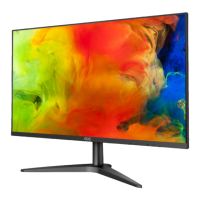
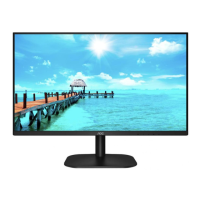
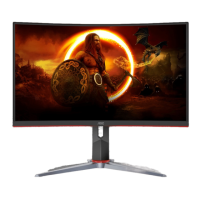
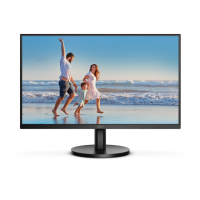
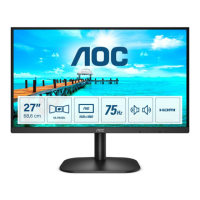
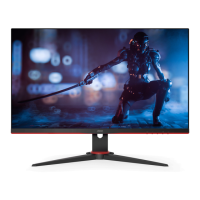
This document serves as the user manual for an AOC LCD Monitor, model 27P2C, providing comprehensive instructions for its setup, adjustment, and maintenance, along with troubleshooting guidance.
Function Description
The AOC 27P2C is an LCD monitor designed to display visual output from a computer or other compatible devices. Its primary function is to provide a clear and vivid visual interface for various tasks, including general computing, gaming, and multimedia consumption. The monitor supports Adaptive-Sync technology, which synchronizes the display's refresh rate with the graphics card's frame rate, reducing screen tearing and stuttering for a smoother visual experience, particularly in gaming. It offers multiple input options, including DisplayPort (DP), HDMI, and USB-C, allowing for versatile connectivity with a wide range of devices. The integrated USB hub (USB3.2 Gen1) provides convenient ports for connecting peripherals and charging devices. An earphone output is also included for audio connectivity.
Usage Features
The monitor is designed for ease of use and offers several features to enhance the user experience.
Setup and Installation:
The manual provides clear steps for setting up the stand and base, ensuring stable placement of the monitor. It emphasizes the importance of proper ventilation, recommending specific clearance around the monitor to prevent overheating. The monitor can be connected to a PC using various signal cables, including DP, HDMI, and USB-C, depending on the user's system and preferences. The manual advises users to turn off both the PC and the LCD monitor before connecting any cables to protect the equipment.
Adjusting Viewing Angle:
The monitor offers ergonomic adjustments to optimize viewing comfort. Users can tilt the screen from -5° to 35° and adjust the height by up to 150mm. The manual advises holding the stand firmly when adjusting the angle to prevent the monitor from toppling and cautions against touching the LCD screen during adjustment to avoid damage.
On-Screen Display (OSD) Settings:
The OSD menu provides extensive control over the monitor's display settings. Users can navigate the OSD using the monitor's control buttons.
- Luminance: This section allows adjustment of Contrast and Brightness, crucial for image clarity and comfort. It also includes "Eco Mode" with presets like Standard, Text, Internet, Game, Movie, Sports, and Reading, each optimized for different content types. The "Gamma" setting offers three options (Gamma1, Gamma2, Gamma3) to fine-tune the display's tonal response. "DCR" (Dynamic Contrast Ratio) can be enabled or disabled to automatically adjust contrast based on screen content. "HDR Effect/Mode" allows users to select between HDR Picture, HDR Movie, and HDR Game modes for enhanced dynamic range.
- Color Setup: This menu provides options to adjust the color temperature, with presets like Warm, Normal, Cool, and sRGB. A "User" mode allows for manual adjustment of Red, Green, and Blue gains. "DCB Mode" (Dynamic Color Boost) offers various enhancements like Full Enhance, Nature Skin, Green Field, Sky-blue, and Auto Detect, which can be enabled or disabled to optimize color reproduction for specific content. A "DCB Demo" feature allows users to preview the effects of DCB modes.
- Picture Boost: This unique feature allows users to highlight a specific area of the screen with enhanced brightness and contrast. Users can adjust the "Bright Frame" (on/off), "Frame Size," "Brightness," "Contrast," and "H./V. Position" of this highlighted area. This can be useful for focusing on details in images or videos.
- OSD Setup: This section controls the OSD itself. Users can select the "Language," set the "Timeout" for how long the OSD remains visible, and configure "USB" power settings (on/off) for power saving. "H./V. Position" allows adjustment of the OSD's placement on the screen. "USB Selection" offers options for Auto, USB C, or USB Upstream, managing how USB inputs are handled. "Transparence" adjusts the OSD's opacity, and "Break Reminder" can be enabled to prompt users to take breaks after continuous use.
- Game Setting: Tailored for gamers, this menu offers "Game Mode" presets like FPS, RTS, Racing, and three customizable Gamer profiles (Gamer 1, 2, 3), along with an "off" option. These modes optimize display settings for different game genres. "Shadow Control" allows adjustment of dark area visibility, helping players spot enemies in dimly lit game environments. "Overdrive" settings (Weak, Medium, Strong, Off) control the response time of the pixels, reducing motion blur. "Game Color" adjusts color saturation, and "LowBlue Mode" reduces blue light emission to minimize eye strain, with presets for Reading, Office, Internet, Multimedia, and Off. "Dial Point" places an aiming indicator on the screen, useful for FPS games. "Adaptive-Sync" can be toggled on/off, and "Frame Counter" displays the refresh rate on the screen.
Hotkeys:
The monitor features dedicated hotkeys for quick access to common functions:
- Source/Exit: Switches input sources or exits the OSD menu.
- Clear Vision/<: Activates Clear Vision mode or navigates left in the OSD.
- Volume/>: Adjusts volume or navigates right in the OSD.
- Menu/Enter: Displays the OSD or confirms selections.
- Power: Turns the monitor on or off.
Clear Vision Function:
This feature enhances image quality by converting low-resolution and blurry images into clear and vivid ones. It can be activated via a hotkey and offers Weak, Medium, Strong, and Off settings. A "Clear Vision Demo" mode is available to showcase the effect.
Adaptive-Sync Function:
The monitor supports Adaptive-Sync when connected via DP or HDMI. This feature works with compatible AMD Radeon™ graphics cards (various RX, R9, and R7 series) to provide tear-free and stutter-free gaming by synchronizing the display's refresh rate with the GPU's frame rate.
Maintenance Features
Proper maintenance is crucial for the longevity and optimal performance of the monitor.
- Cleaning: The manual advises regular cleaning of the cabinet with a soft cloth and mild detergent, cautioning against strong detergents that could damage the product. It also warns against spilling liquids on the monitor and using rough cleaning cloths that could scratch the screen. Crucially, users are instructed to disconnect the power cord before cleaning.
- General Safety: The manual includes several safety warnings. It emphasizes operating the monitor only from the specified power source and using a grounded power outlet. Users are warned to unplug the unit during lightning storms or extended periods of disuse to prevent damage from power surges. Overloading power strips and extension cords is prohibited due to fire and electric shock risks. The manual also advises against placing the monitor on unstable surfaces, pushing objects into slots, or spilling liquids. Adequate space around the monitor is necessary for proper air circulation to prevent overheating. If the product emits strange smells, sounds, or smoke, users should immediately disconnect the power and contact a service center. It also warns against excessive sound pressure from earphones/headphones to prevent hearing loss.
By following these guidelines, users can ensure safe operation, optimal performance, and extended lifespan for their AOC 27P2C LCD monitor.

 Need help?
 General

 To Next Page