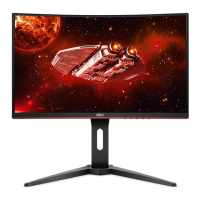
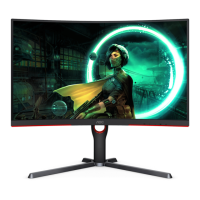
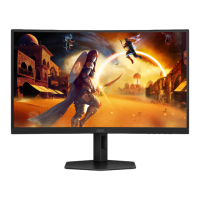
Need help?
Do you have a question about the AOC CQ27G2U and is the answer not in the manual?
Describes notational conventions like Notes, Cautions, and Warnings used in the document.
Provides important safety instructions regarding power sources, plugs, and extension cords.
Details safe practices for installing the monitor, including placement and ventilation.
Provides instructions on how to clean the monitor safely and effectively.
Covers other safety precautions, including handling strange smells, ventilation, and avoiding vibrations.
Lists all the items included in the monitor package.
Step-by-step instructions for assembling or disassembling the monitor stand and base.
Guides on how to adjust the monitor's tilt angle for optimal viewing.
Illustrates cable connections at the back of the monitor and how to connect to a PC.
Details compatibility and requirements for the Adaptive function.
Lists compatible graphics cards for the Freesync function.
Explains the functions of the monitor's physical buttons for quick access.
Provides basic instructions on navigating and using the On-Screen Display (OSD) menu.
Details settings related to brightness, contrast, Gamma, DCR, and HDR.
Explains color temperature, DCB mode, and RGB gain adjustments.
Describes how to adjust Bright Frame, Frame Size, Brightness, Contrast, and Position.
Details OSD settings for Language, Timeout, DP Capability, Volume, Transparence, Break Reminder, and USB Charge.
Explains Game Mode presets, Shadow Control, Low Input Lag, Game Color, Low Blue Mode, Overdrive, and MBR.
Covers Input Select, Auto Config, Off Timer, Image Ratio, DDC/CI, and Reset options.
Instructions on how to exit the main OSD menu.
Explains the meaning of different LED colors for power status.
Troubleshooting steps for when the monitor's power LED is not illuminated.
Solutions for when the screen displays no image or shows 'Input Not Supported'.
Resolving issues with fuzzy pictures, ghosting, or shadowing.
Troubleshooting picture instability like bouncing, flickering, or wave patterns.
Steps to resolve the monitor being stuck in the Active Off-Mode.
Troubleshooting steps when one primary color is missing from the display.
Instructions for centering and sizing the screen image correctly.
Resolving color defects, specifically when white appears incorrectly.
Troubleshooting horizontal or vertical disturbances on the display.
Provides detailed technical specifications for the monitor's panel, physical characteristics, and environmental aspects.
Lists standard resolutions, horizontal, and vertical frequencies for display modes.
Details pin assignments for the HDMI connector and the 20-Pin Color Display Signal Cable.
Explains the Plug & Play DDC2B Feature and its communication capabilities.
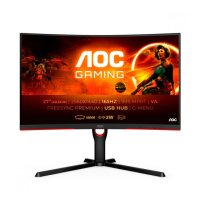
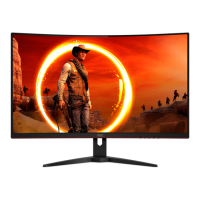
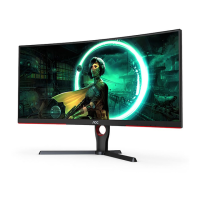
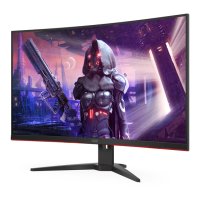
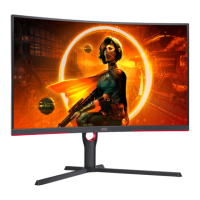
This document serves as the user manual for the AOC LCD Monitor models CQ27G2U and C27G2ZU, which feature LED backlighting. It provides comprehensive instructions for setting up, adjusting, and maintaining the monitor, ensuring users can maximize its functionality and lifespan.
The AOC LCD Monitor is designed to provide a high-quality visual experience for various applications, including gaming, professional work, and general entertainment. It supports multiple input sources, including HDMI and DisplayPort, allowing for flexible connectivity with different devices such as PCs, gaming consoles, and media players. The monitor incorporates adaptive synchronization technologies, such as Adaptive-Sync and FreeSync, which are available for selective models and work with compatible graphics cards to eliminate screen tearing and stuttering, providing a smoother and more fluid visual experience, especially during fast-paced gaming.
The monitor's On-Screen Display (OSD) menu offers extensive customization options, allowing users to fine-tune various display parameters. These include "Luminance" settings like Contrast, Brightness, DCR (Dynamic Contrast Ratio), and different Eco modes (Standard, Text, Internet, Game, Movie, Sports, Reading) to optimize viewing for specific content or environments. The "Color Setup" menu enables adjustments to Color Temperature (Warm, Normal, Cool, sRGB, User-defined RGB gains) and offers DCB (Dynamic Color Boost) modes (Full Enhance, Nature Skin, Green Field, Sky-blue, AutoDetect, OFF) to enhance color vibrancy and accuracy. The "Picture Boost" feature allows users to define a specific area on the screen (Bright Frame) and adjust its brightness, contrast, and position independently, which can be particularly useful for highlighting certain content or improving visibility in specific scenarios.
For gamers, the "Game Setting" menu provides dedicated features to enhance the gaming experience. These include various Game Modes (FPS, RTS, Racing, Gamer 1, Gamer 2, Gamer 3) optimized for different game genres, Shadow Control to adjust dark area visibility, Low Input Lag to reduce display latency, Game Color to fine-tune color saturation, and Low Blue Mode to reduce eye strain during prolonged use. The Overdrive function helps improve response time, while the MBR (Motion Blur Reduction) feature, available when adaptive sync is off and vertical frequency is above 75 Hz, further reduces motion blur for clearer images in fast-moving scenes. A Frame Counter can also be displayed on the screen to show the current refresh rate.
The "OSD Setup" menu allows users to configure the OSD itself, including language, timeout duration, horizontal and vertical position, volume, and transparency. It also includes a "Break Reminder" feature to prompt users to take breaks, and a "USB Charge" option (for CQ27G2U) to enable or disable USB charging. The "Extra" menu provides options for Input Select, Off Timer, Image Ratio (Wide, 4:3, 1:1, and various specific resolutions), DDC/CI (Display Data Channel/Command Interface) support, and a Reset function to restore factory settings.
The monitor is designed for user-friendly operation with intuitive hotkeys and a comprehensive OSD menu. The hotkeys provide quick access to essential functions: "Source/Exit" to switch input sources or exit the OSD, "Game Mode/<" to cycle through game modes, "Dial Point/>" to activate and adjust the Dial Point feature (a crosshair overlay for aiming in games), "Menu/Enter" to open the OSD or confirm selections, and "Power" to turn the monitor on or off.
Physical adjustments include tilting the monitor from -5° to 23° and adjusting the height by 130mm, allowing users to find an optimal viewing angle for comfort and ergonomics. The stand and base are designed for easy setup and removal, as illustrated in the manual.
Connectivity is versatile, with two HDMI ports, one DisplayPort, an earphone jack, a DC-in port for power, and multiple USB 3.2 Gen 1 ports, including an upstream port and one with Quick Charging capability. This allows for convenient connection of peripherals and charging of devices.
The monitor supports Plug and Play DDC2B, meaning it can automatically communicate its display capabilities to the connected host system, simplifying setup and ensuring optimal display settings.
Proper maintenance is crucial for the longevity and performance of the AOC LCD Monitor. The manual provides clear guidelines for cleaning and general care. The cabinet should be cleaned regularly with a soft cloth and a soft-detergent, avoiding strong detergents that could damage the product. When cleaning the screen, it is important to use a soft cloth and ensure no detergent leaks into the product, as rough cloths or liquid ingress can scratch the screen surface or damage internal components. Users are advised to disconnect the power cord before cleaning the monitor to prevent electric shock.
For safety, the manual emphasizes several precautions:
Troubleshooting tips are also provided to address common issues such as the power LED not turning on, no images on the screen, fuzzy pictures, ghosting, flickering, or color defects. These tips guide users through checking power connections, signal cables, display settings, and driver installations, empowering them to resolve minor problems independently.
 General
| Screen Size | 27 inches |
|---|---|
| Resolution | 2560 x 1440 |
| Panel Type | VA |
| Refresh Rate | 144Hz |
| Response Time | 1ms (MPRT) |
| Aspect Ratio | 16:9 |
| Curvature | 1500R |
| Brightness | 250 cd/m² |
| Contrast Ratio | 3000:1 |
| VESA Mount | 100x100mm |
| Ports | 1x DisplayPort 1.2 |
| Adaptive Sync | AMD FreeSync |
| Viewing Angle | 178° (H) / 178° (V) |
| Color Gamut | 120% sRGB |

 To Next Page