Need help?
Do you have a question about the AOC CQ32G2S and is the answer not in the manual?
Describes notational conventions used in this document, including Notes, Cautions, and Warnings.
Electrical safety guidelines, grounding, and power source recommendations for safe operation.
Guidelines for safe monitor placement, ventilation, and avoiding damage during installation.
Instructions on how to safely clean the monitor cabinet and screen surface.
General safety precautions regarding unusual smells, ventilating openings, vibration, and impact.
Lists the items included in the product packaging for initial setup.
Step-by-step instructions for assembling or disassembling the monitor stand and base.
Guidance on how to adjust the monitor's tilt angle for optimal viewing comfort.
Details on cable connections at the back of the monitor and to the PC for setup.
Information about the AMD FreeSync Premium feature and compatible graphics hardware.
Overview of the monitor's physical buttons and their assigned functions.
Basic instructions for navigating and using the On-Screen Display (OSD) menu.
Details on adjusting brightness, contrast, and other luminance-related display settings.
Instructions for configuring color temperature, DCB, and color gain settings.
Explanation of the Picture Boost feature for enhancing image clarity and detail.
Configuration options for OSD language, timeout, transparency, and break reminders.
Settings tailored for gaming, including game modes, shadow control, and input lag.
Additional settings like input selection, off-timer, image ratio, and DDC/CI support.
Instructions on how to exit the main On-Screen Display (OSD) menu.
Explanation of the monitor's LED indicator colors and their corresponding status modes.
Solutions for when the monitor's power LED is not illuminated.
Troubleshooting steps for when the screen displays no image.
Solutions for fuzzy picture and ghosting or shadowing issues.
How to resolve issues when the monitor is stuck in Active Off-Mode.
Technical details and specifications of the monitor, including panel and physical characteristics.
Lists available display resolutions and their corresponding horizontal and vertical frequencies.
Details the pin configurations for the monitor's HDMI and DisplayPort connectors.
Explains the Plug & Play DDC2B feature for automatic monitor identity and capability communication.
This document serves as the user manual for the AOC CQ32G2S LCD Monitor with LED backlight, providing essential information for its safe operation, setup, adjustment, and troubleshooting.
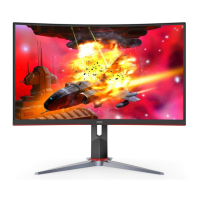
The AOC CQ32G2S is an LCD monitor designed for visual display, featuring an LED backlight for enhanced image quality. It supports various input signals, including HDMI and DisplayPort, making it compatible with a wide range of computer systems. The monitor is equipped with AMD FreeSync Premium technology, which helps to eliminate screen tearing and stuttering by synchronizing the monitor's refresh rate with the graphics card's frame rate, providing a smoother gaming experience. This feature is particularly beneficial for fast-paced games, ensuring fluid motion and reduced input lag. The monitor also offers a variety of display modes and settings to optimize the visual experience for different types of content, such as gaming, movies, and text.
The monitor provides a user-friendly interface for adjustments through its On-Screen Display (OSD) menu, accessible via hotkeys. These hotkeys allow for quick access to functions like Source/Exit, Game Mode, Dial Point, and Menu/Enter. The OSD menu is structured into several categories: Luminance, Color Setup, Picture Boost, OSD Setup, Game Setting, and Extra, each containing a range of customizable options.
Under Luminance, users can adjust Contrast and Brightness, which are fundamental for image clarity and visibility. The Eco mode offers various presets like Standard, Text, Internet, Game, Movie, Sports, and Reading, each tailored to specific viewing environments and designed to optimize power consumption and visual comfort. The Gamma settings (Gamma1, Gamma2, Gamma3) allow for fine-tuning of the image's tonal response. Dynamic Contrast Ratio (DCR) can be enabled or disabled to automatically adjust contrast based on screen content. Additionally, the HDR Mode provides options for HDR Picture, HDR Movie, and HDR Game, enhancing the dynamic range and color vibrancy for compatible content. It's important to note that when HDR Mode is active, Contrast, Brightness, and Gamma settings are locked.
The Color Setup menu allows users to customize color temperature with options like Warm, Normal, Cool, sRGB, and User-defined settings. The DCB Mode (Dynamic Color Boost) offers various enhancements such as Full Enhance, Nature Skin, Green Field, Sky-blue, and AutoDetect, which intelligently adjust colors for a more vivid and natural look. A DCB Demo mode is available to showcase the effect of these enhancements. Individual Red, Green, and Blue gain adjustments are also provided for precise color calibration. Similar to HDR Mode, when HDR Mode is active, all Color Setup items are locked.
Picture Boost is a unique feature that allows users to define a specific "Bright Frame" area on the screen and adjust its brightness, contrast, and position independently. This can be useful for highlighting certain parts of the display, such as a game's mini-map or a specific text area. The Frame Size, Brightness, Contrast, H. position, and V. position of this bright frame can all be adjusted. Again, if HDR Mode is active, Picture Boost settings cannot be adjusted.
The OSD Setup menu provides options for configuring the OSD itself. Users can select the OSD language, set the Timeout for how long the OSD remains on screen, and adjust the H. Position and V. Position of the OSD menu. Volume adjustment for the earphone output is also available here. The Transparence setting allows users to make the OSD menu more or less opaque. A "Break Reminder" can be enabled to prompt users to take breaks after continuous work. The "DP Capability" setting is crucial for DisplayPort connections, allowing users to select between DP1.1 and DP1.2, with DP1.2 being necessary for AMD FreeSync Premium functionality.
Game Setting is a comprehensive section for optimizing the monitor for gaming. It includes various Game Modes such as FPS (First Person Shooter), RTS (Real-Time Strategy), Racing, and three customizable Gamer modes (Gamer 1, Gamer 2, Gamer 3). These modes are pre-configured to enhance specific aspects of different game genres, such as improving dark scene visibility for FPS games or providing faster response times for racing games. "Shadow Control" allows users to adjust the visibility of dark areas without overexposing bright ones. "Game Color" provides saturation adjustments for a more vibrant gaming experience. "Low Blue Mode" helps reduce eye strain by filtering out harmful blue light, with presets like Reading/Office, Internet/Multimedia, and Off. "Low Input Lag" can be toggled on or off to minimize the delay between user input and on-screen action. "Overdrive" offers different levels (Weak, Medium, Strong, Boost, Off) to accelerate pixel response times, reducing ghosting in fast-moving scenes. The "AMD FreeSync" setting enables or disables the FreeSync Premium feature, and a "Frame Counter" can display the current vertical frequency on screen. "MBR" (Motion Blur Reduction) helps to reduce motion blur, with adjustable levels. It's important to note that MBR and Overdrive Boost are only available when AMD FreeSync is off and the vertical frequency is at least 75 Hz, and adjusting MBR or Overdrive to Boost will reduce screen brightness. Also, when HDR Mode is active, Game Setting items like Game Mode, Shadow Control, Game Color, and Low Blue Mode cannot be adjusted.
The Extra menu includes "Input Select" to manually choose the input signal source, "Off Timer" to set a time for the monitor to automatically turn off, and "Image Ratio" to adjust the aspect ratio for different content (e.g., Wide, 4:3, 1:1, and various screen sizes). "DDC/CI" (Display Data Channel/Command Interface) can be turned on or off to allow the computer to communicate with the monitor for automatic configuration. Finally, a "Reset" option is available to restore all OSD settings to their factory defaults.
The monitor's physical adjustments include tilting the screen from -5° to 23° for optimal viewing angles. Users are advised to hold the stand firmly and avoid touching the LCD screen during angle adjustments to prevent damage.
Regular cleaning of the monitor cabinet is recommended using a soft cloth and a mild detergent. Strong detergents should be avoided as they can damage the product cabinet. When cleaning, care must be taken to prevent any liquid from leaking into the product. The cleaning cloth should not be too rough to avoid scratching the screen surface. Crucially, the power cord must be disconnected before cleaning the monitor to ensure safety.
For troubleshooting, the manual provides solutions for common issues such as the power LED not turning on, no images on the screen, fuzzy or ghosting pictures, flickering or wave patterns, the monitor being stuck in "Active Off" mode, missing primary colors, improperly sized or centered images, color defects, and horizontal or vertical disturbances. These solutions often involve checking cable connections, power supply, video card settings, and adjusting monitor controls. For more complex issues or regulatory and service information, users are directed to the AOC website or a service center.
The monitor is designed with safety in mind, requiring operation from the specified power source and proper grounding. It is advised to unplug the unit during lightning storms or prolonged periods of disuse to protect against power surges. Overloading power strips and extension cords should be avoided to prevent fire or electric shock. Proper ventilation is crucial, with recommended distances around the monitor to prevent overheating. The monitor should be placed on a stable surface, and no objects should be pushed into its slots. It is also important to avoid severe vibration, high impact, knocking, or dropping the monitor during operation or transportation.
 General
| HD type | UltraWide Full HD |
|---|---|
| Panel type | VA |
| Color depth | 8 bit |
| Pixel pitch | 0.2724 x 0.2724 mm |
| Backlight type | W-LED |
| Display surface | Matt |
| Display diagonal | 32 \ |
| Screen curvature | 1500 mm |
| Surface hardness | 3H |
| Adobe RGB coverage | 103 % |
| Display resolution | 2560 x 1080 pixels |
| Display technology | LCD |
| Native aspect ratio | 16:9 |
| Vertical scan range | 48 - 165 Hz |
| Horizontal scan range | 30 - 200 kHz |
| Supported video modes | 1080p |
| Screen curvature rating | 1500R |
| Viewable size, vertical | 392.256 mm |
| sRGB coverage (typical) | 120 % |
| Contrast ratio (dynamic) | 80000000:1 |
| Contrast ratio (typical) | 3000:1 |
| Display number of colors | 16.78 million colors |
| Viewable size, horizontal | 697.44 mm |
| Display brightness (typical) | 300 cd/m² |
| Supported graphics resolutions | 2560 x 1080 |
| Feet color | Black/Red |
| Certification | ISO |
| Product color | Black, Red |
| Detachable stand | Yes |
| Front bezel color | Black |
| Market positioning | Gaming |
| DisplayPort version | 1.2 |
| Headphone connectivity | 3.5 mm |
| AC input voltage | 100 - 240 V |
| AC input frequency | 50 - 60 Hz |
| Power consumption (off) | 0.3 W |
| Power consumption (standby) | 0.5 W |
| Power consumption (typical) | 49 W |
| Tilt angle range | 3.5 - 21.5 ° |
| Height adjustment | 110 mm |
| Cable lock slot type | Kensington |
| Number of OSD languages | 16 |
| Panel mounting interface | 100 x 100 mm |
| On Screen Display (OSD) languages | CHI (SIMPL), CHI (TR), CZE, DEU, DUT, ENG, ESP, FIN, FRE, ITA, JPN, KOR, POL, POR, RUS, SWE |
| AMD FreeSync type | FreeSync |
| AMD FreeSync refresh rate range | 48 - 144 Hz |
| Cables included | AC, DisplayPort, HDMI |
| DisplayPort cable length | 1.8 m |
| Package type | Box |
| Package depth | 227 mm |
| Package width | 820 mm |
| Package height | 524 mm |
| Package weight | 16860 g |
 Weight and Dimensions
| Depth (with stand) | 244.86 mm |
|---|---|
| Width (with stand) | 713.11 mm |
| Height (with stand) | 530.34 mm |
| Weight (with stand) | 7650 g |

 To Next Page