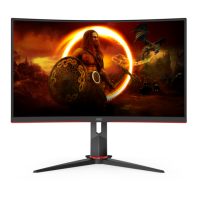
EasyManua.ls Logo

AOC CQ27G3Z - User Manual

AOC CQ27G3Z
29 pages
Print Icon
To Next Page IconTo Next Page
Loading...
1
www.aoc.com
2022 AOC.All Rights Reserved
©
LCD Monitor
User Manual
CQ27G3Z
Question and Answer IconNeed help?

Do you have a question about the AOC CQ27G3Z and is the answer not in the manual?

Summary

Safety

Power

Details safety precautions related to the monitor's power source, plug, and cord usage.

Installation

Provides instructions and warnings for properly installing the monitor, including placement and ventilation.

Setup

Connecting the Monitor

Details the cable connections at the back of the monitor and the steps to connect it to a PC.

Adaptive-Sync Function

Explains the Adaptive-Sync function and lists compatible graphics cards.

AMD FreeSync Premium Function

Details the AMD FreeSync Premium function and lists compatible graphics cards.

G-SYNC Function

Outlines the G-SYNC function and lists compatible graphics cards.

Adjusting

OSD Setting

Provides a general overview on how to navigate and use the On-Screen Display (OSD) menu.

Troubleshooting

Troubleshooting

Provides a list of common problems and their possible solutions for the monitor.

Overview

This document serves as the user manual for an AOC Gaming LCD Monitor, model CQ27G3Z, providing comprehensive instructions for its setup, adjustment, and maintenance.

Function Description

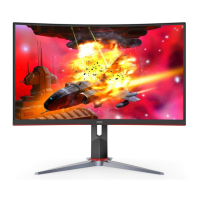
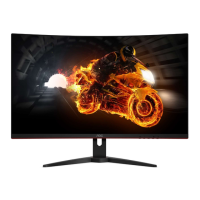
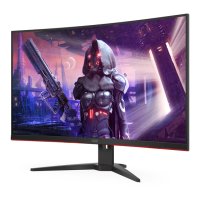
The AOC Gaming LCD Monitor CQ27G3Z is a high-performance display designed for an immersive gaming experience. It functions as a visual output device for computers, offering a range of features to enhance picture quality and user comfort. The monitor supports various display modes and input options, making it versatile for different computing needs, especially gaming.

Key functions include:

  • Displaying Visuals: The primary function is to render images and video from a connected computer or other video sources.
  • Gaming Enhancements: It incorporates specific gaming features such as Adaptive-Sync, AMD FreeSync Premium, and G-SYNC (available on selective models), which synchronize the monitor's refresh rate with the graphics card's frame rate to eliminate screen tearing and stuttering, providing a smoother gaming experience.
  • Picture Customization: Users can adjust various picture settings like contrast, brightness, gamma, and color temperature to suit their preferences and the content being displayed.
  • Multiple Input Support: The monitor is equipped with multiple HDMI and DisplayPort inputs, allowing connection to several devices simultaneously.
  • Audio Output: An earphone jack is provided for audio output, enabling users to connect headphones directly to the monitor.
  • OSD (On-Screen Display) Control: An intuitive OSD menu allows users to navigate and configure all monitor settings easily using physical buttons on the monitor.
  • Power Management: The monitor includes power-saving features and an LED indicator to show its operational status (Full Power Mode or Active-off Mode).

Usage Features

The AOC Gaming LCD Monitor CQ27G3Z offers a user-friendly experience with several features designed for convenience and optimal viewing.

  • Setup and Installation:

    • Stand and Base: The monitor comes with a stand and base that can be easily set up or removed. Instructions are provided for secure assembly.
    • Adjusting Viewing Angle: The monitor allows for tilt adjustments (-5° to 23°) and height adjustments (up to 130mm) to achieve an optimal viewing position. Users are advised to hold the stand firmly and avoid touching the LCD screen during adjustment to prevent damage.
    • Connecting to PC: Clear instructions guide users through connecting the monitor to a PC using power and signal cables (HDMI or DisplayPort). It's crucial to turn off both the PC and monitor before connecting cables to protect the equipment.
    • Wall Mounting: For users who prefer a wall-mounted setup, the manual provides steps for installing an optional wall mounting arm, emphasizing the importance of using manufacturer-approved kits and disconnecting power beforehand.
  • OSD Menu Navigation:

    • Hotkeys: Dedicated hotkeys on the monitor provide quick access to frequently used functions like Source/Exit, Game Mode, Dial Point, and Menu/Enter.
    • Menu/Enter Button: This button activates the OSD menu and confirms selections. Holding it for about 2 seconds turns off the monitor.
    • Game Mode Button: Allows users to quickly select from predefined game modes (FPS, RTS, Racing, Gamer 1, 2, or 3) optimized for different game types.
    • Dial Point Button: Toggles the display of a "Dial Point" on the screen, which can be useful in certain gaming scenarios.
    • Source/Exit Button: Functions as a source hotkey when the OSD is closed and can perform auto-configuration for D-Sub models when pressed continuously for about 2 seconds.
    • OSD Lock Function: A feature to lock the OSD menu, preventing accidental changes to settings.
  • Picture and Color Adjustments:

    • Luminance: Users can adjust Contrast, Brightness, Gamma (Gamma1, Gamma2, Gamma3), and DCR (Dynamic Contrast Ratio). The Eco Mode offers various presets like Standard, Text, Internet, Game, Movie, Sports, and Reading, each optimizing the display for specific content. HDR Mode (Off, DisplayHDR, HDR Picture, HDR Movie, HDR Game) is available when HDR content is detected.
    • Color Setup: This section allows fine-tuning of color temperature (Warm, Normal, Cool, sRGB, User-defined RGB gains) and DCB Mode (Full Enhance, Nature Skin, Green Field, Sky-blue, Auto Detect, OFF) with a DCB Demo option.
    • Picture Boost: Features like Bright Frame, Frame Size, Brightness, Contrast, H. position, and V. position allow users to highlight a specific area of the screen with enhanced brightness and contrast.
  • Gaming-Specific Features:

    • Game Mode: As mentioned, provides quick access to optimized settings for different game genres.
    • Shadow Control: Adjusts the black level details in dark scenes, allowing users to see details more clearly in shadowy areas.
    • Low Input Lag: Reduces the delay between input and display, crucial for competitive gaming.
    • Game Color: Adjusts color saturation for a more vibrant gaming picture.
    • LowBlue Mode: Reduces blue light emission to minimize eye strain during prolonged use.
    • Overdrive: Adjusts the response time of the pixels, reducing motion blur.
    • Adaptive-Sync/AMD FreeSync Premium/G-SYNC: These technologies prevent screen tearing and stuttering by synchronizing the monitor's refresh rate with the GPU's frame rate.
    • Frame Counter: Displays the V frequency on a selected corner of the screen.
    • MBR (Motion Blur Reduction): Adjusts the motion blur reduction for clearer fast-moving images.
  • PIP (Picture-in-Picture) Setting:

    • Allows displaying content from two different sources simultaneously, with options to select main and sub-screen sources, adjust sub-screen size, position, and audio source.
  • OSD Setup:

    • Language: Selects the OSD menu language.
    • Timeout: Sets the duration for which the OSD menu remains visible.
    • DP Capability: Configures the DisplayPort version (1.1, 1.2, or 1.4) to ensure compatibility and support for features like Adaptive-Sync.
    • H. Position / V. Position: Adjusts the horizontal and vertical placement of the OSD menu.
    • Volume: Controls the audio volume.
    • Transparence: Adjusts the transparency of the OSD menu.
    • Break Reminder: An optional reminder for users to take breaks after continuous work.
  • Extra Settings:

    • Input Select: Manually selects the input signal source.
    • Off Timer: Sets a timer for the monitor to turn off automatically.
    • Image Ratio: Adjusts the aspect ratio of the display (Wide, 4:3, 1:1, and various specific screen sizes).
    • DDC/CI: Enables or disables DDC/CI (Display Data Channel/Command Interface) support.
    • Reset: Resets all OSD menu settings to their default values.

Maintenance Features

Proper maintenance ensures the longevity and optimal performance of the AOC Gaming LCD Monitor CQ27G3Z. The manual provides guidelines for cleaning and general care.

  • Cleaning:

    • Cabinet Cleaning: The monitor cabinet should be cleaned regularly with a soft cloth. A soft detergent can be used to remove stains, but strong detergents should be avoided as they can damage the cabinet.
    • Screen Cleaning: When cleaning the screen, ensure no detergent leaks into the product. The cleaning cloth should not be too rough to prevent scratching the screen surface.
    • Power Disconnection: Always disconnect the power cord before cleaning the monitor to prevent electric shock.
  • General Safety and Handling:

    • Power Source: The monitor should only be operated from the type of power source indicated on its label. It is equipped with a three-pronged grounded plug for safety, and users should ensure their power outlet is properly grounded.
    • Power Surges: Unplug the unit during lightning storms or when it will not be used for extended periods to protect it from power surge damage.
    • Overload Prevention: Avoid overloading power strips and extension cords to prevent fire or electric shock.
    • Ventilation: Ensure adequate space around the monitor (as shown in the installation diagrams) to allow for proper air circulation and prevent overheating, which could lead to fire or damage.
    • Placement: Do not place the monitor on unstable surfaces. Use only manufacturer-recommended carts, stands, tripods, brackets, or tables. Avoid pushing objects into the monitor slots or spilling liquids on it. Do not place the front of the product on the floor.
    • Impact and Vibration: Do not subject the LCD monitor to severe vibration or high impact conditions during operation or transportation.
    • Troubleshooting: The manual includes a troubleshooting section with common problems and their possible solutions, such as no image on the screen, fuzzy pictures, flickering, or color defects. This empowers users to resolve minor issues independently before seeking professional help.
    • Service Center Contact: If the product emits strange smells, sounds, or smoke, users are instructed to disconnect the power plug immediately and contact a Service Center.

By following these guidelines, users can ensure the safe and effective operation of their AOC Gaming LCD Monitor CQ27G3Z, maintaining its performance and extending its lifespan.

AOC CQ27G3Z Specifications

General IconGeneral
Panel typeVA
Pixel pitch0.2331 x 0.2331 mm
Display diagonal27 \
Display technologyLCD
Native aspect ratio16:9
Maximum refresh rate240 Hz
Response time (fast)0.5 ms
NTSC coverage (typical)99 %
Screen curvature rating1000R
Viewable size, vertical335.664 mm
sRGB coverage (typical)120 %
Contrast ratio (dynamic)80000000:1
Contrast ratio (typical)3000:1
Display number of colors16.7 million colors
Display diagonal (metric)68.6 cm
Viewable size, horizontal596.736 mm
Display brightness (typical)300 cd/m²
High Dynamic Range (HDR) supportedYes
High Dynamic Range (HDR) technologyHigh Dynamic Range 10 (HDR10)
AMD FreeSync-
CertificationCE, CB, FCC
Product colorBlack, Red
Front bezel colorBlack/Red
Market positioningGaming
Tilt angle range-5 - 23 °
Height adjustment130 mm
Cable lock slot typeKensington
Panel mounting interface100 x 100 mm
On Screen Display (OSD) languagesCHI (SIMPL), CHI (TR), CRO, CZE, DEU, DUT, ENG, ESP, FIN, FRE, ITA, JPN, KOR, POL, POR, RUS, SWE, TUR, UKR
HDCP version2.2
DisplayPort version1.2
Headphone connectivity3.5 mm
Input current1.5 A
AC input voltage100 - 240 V
Power supply typeInternal
AC input frequency50/60 Hz
Power consumption (standby)- W
Power consumption (typical)32 W
Package depth225 mm
Package width690 mm
Package height523 mm
Package weight8600 g
Exterior finish typeTextured
Sustainability certificatesWEEE
Operating altitude0 - 5000 m
Non-operating altitude0 - 12192 m
Storage temperature (T-T)-25 - 55 °C
Operating temperature (T-T)0 - 40 °C
Storage relative humidity (H-H)5 - 93 %
Operating relative humidity (H-H)10 - 85 %
Cables includedAC
HDMI cable length1.8 m
Weight and Dimensions IconWeight and Dimensions
Depth (with stand)258.8 mm
Width (with stand)605.02 mm
Height (with stand)531.9 mm
Weight (with stand)5900 g
Depth (without stand)95.04 mm
Height (without stand)367.5 mm
Weight (without stand)4600 g

Related product manuals