Need help?
Do you have a question about the AOC GAMING CQ27G2S/BK and is the answer not in the manual?
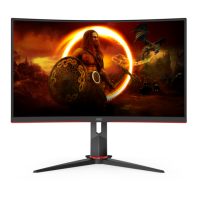
This document serves as the user manual for an AOC Gaming LCD Monitor, model CQ27G2S/BK, providing comprehensive instructions for its setup, adjustment, and maintenance, alongside important safety information and troubleshooting guidance. The manual is designed to ensure users can effectively and safely operate their monitor, maximizing its performance and longevity.
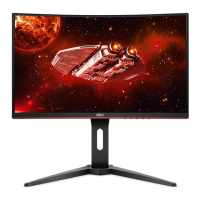
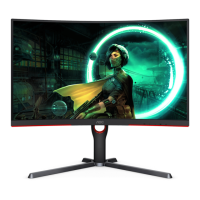
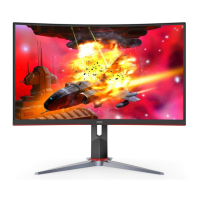
The AOC Gaming LCD Monitor is a high-definition display designed for an immersive visual experience, particularly catering to gaming enthusiasts. It functions as a primary output device for computers, rendering graphics and video content with clarity and vibrant colors. The monitor supports various input signals, including HDMI and DisplayPort, allowing for versatile connectivity with different computing devices.
A key function of this monitor, especially for gaming, is its support for Adaptive-Sync, AMD FreeSync Premium, and G-SYNC Compatible technologies. These features are crucial for synchronizing the monitor's refresh rate with the graphics card's frame rate, thereby eliminating screen tearing and stuttering, and delivering a smoother, more fluid gaming experience. The manual details the compatible graphics cards and system requirements for these advanced synchronization functions, ensuring users can set up their system for optimal performance.
The monitor also incorporates an On-Screen Display (OSD) menu, which is the central control panel for adjusting various display settings. Through the OSD, users can fine-tune aspects such as luminance (contrast, brightness, Eco mode, Gamma, DCR, HDR Mode), color setup (color temperature, color gamut, LowBlue Mode, RGB gain, DCB Mode), picture boost, and game-specific settings (Game Mode, Shadow Control, Low Input Lag, Game Color, Overdrive, Frame Counter, MBR). These extensive adjustment capabilities allow users to customize the display to their personal preferences and specific content requirements, whether for gaming, movie watching, or general productivity.
Furthermore, the monitor includes a "Dial Point" function, which can be shown or hidden via a hotkey, likely providing an on-screen crosshair or aiming aid for enhanced precision in certain game types. The "Low Input Lag" feature is designed to minimize the delay between user input and on-screen action, a critical factor for competitive gaming.
The AOC Gaming LCD Monitor offers several features designed to enhance user experience and flexibility. Its physical design allows for adjustment of the viewing angle, with a tilt range from -5° to 23° and a height adjustment of 130mm. This ergonomic flexibility helps users find a comfortable viewing position, reducing strain during prolonged use. The manual provides clear instructions on how to adjust the stand and base, and how to remove the base for wall mounting, emphasizing the importance of proper handling to prevent damage to the LCD screen.
Connectivity is a strong suit, with multiple HDMI and DisplayPort inputs, along with an earphone jack, making it easy to connect to various devices and audio peripherals. The manual guides users through the process of connecting the monitor to a PC, ensuring all cables are securely attached for proper operation.
The OSD menu is intuitively structured, accessible via dedicated hotkeys on the monitor. These hotkeys provide quick access to frequently used functions such as Source/Exit, Game Mode, Dial Point, and Menu/Enter. The "Game Mode" hotkey, for instance, allows users to quickly switch between predefined display modes optimized for different game genres (FPS, RTS, Racing) or custom "Gamer" profiles. This rapid switching capability is invaluable for gamers who require different visual settings for various titles.
The "Luminance" settings offer granular control over the display's brightness and contrast, including an "Eco mode" with presets like Standard, Text, Internet, Game, Movie, Sports, and Reading, each tailored to different viewing scenarios. The "Color Setup" menu allows for precise calibration of color temperature (Warm, Normal, Cool, User, Panel Native) and color gamut (sRGB), along with a "LowBlue Mode" to reduce blue light emission, which can help alleviate eye strain during extended use. The "DCB Mode" (Dynamic Color Boost) provides options like Full Enhance, Nature Skin, Green Field, Sky-blue, and AutoDetect to dynamically adjust color saturation and hue for a more vivid picture.
For advanced users, the "Picture Boost" feature allows for specific adjustments to a selected frame on the screen, controlling its brightness and contrast independently. This can be useful for highlighting specific areas of the display without affecting the entire image. The "Game Setting" menu offers further gaming-centric adjustments, including "Shadow Control" to brighten dark areas without overexposing bright ones, "Low Input Lag" to minimize response time, and "Overdrive" to reduce motion blur. The "Frame Counter" can display the current refresh rate on screen, and "MBR" (Motion Blur Reduction) further enhances clarity in fast-paced scenes.
The "Extra" menu provides utility functions such as "Input Select" for manually choosing the video input, "Off timer" for automatic shutdown, and "Image Ratio" to adjust the aspect ratio of the display. The "DDC/CI" (Display Data Channel/Command Interface) setting allows for communication between the monitor and the graphics card, enabling automatic configuration and advanced display control.
The manual emphasizes several maintenance practices to ensure the monitor's longevity and safe operation. Regular cleaning of the cabinet with a water-dampened, soft cloth is recommended, with a specific caution against allowing liquid to enter the case. Users are advised to disconnect the power cord before cleaning to prevent electric shock.
Safety guidelines are integrated throughout the manual, covering power, installation, and general usage. Users are instructed to operate the monitor only from the specified power source and to use grounded plugs. Warnings are provided against overloading power strips, spilling liquids on the monitor, and placing it on unstable surfaces. Proper ventilation is crucial, with recommended clearance distances around the monitor to prevent overheating.
Troubleshooting information is provided to help users diagnose and resolve common issues such as the power LED not turning on, no images on the screen, fuzzy pictures, or color defects. This section offers practical solutions, from checking cable connections and power supply to adjusting display settings and rebooting the computer. For more complex issues, users are directed to contact a Service Center or refer to the AOC website for further support.
The "Plug and Play DDC2B Feature" highlights the monitor's ability to communicate its display capabilities to the host system, simplifying setup and configuration. This feature, based on the I2C protocol, allows the host to request EDID (Extended Display Identification Data) information, ensuring optimal display settings are automatically applied.
Overall, the AOC Gaming LCD Monitor is designed with a strong focus on performance, user customization, and ease of maintenance, making it a robust choice for demanding users.
 General
| Screen Size | 27 inch |
|---|---|
| Resolution | 2560 x 1440 |
| Refresh Rate | 165 Hz |
| Panel Type | VA |
| Aspect Ratio | 16:9 |
| Brightness | 250 cd/m² |
| Contrast Ratio | 3000:1 |
| Curvature | 1500R |
| Color Gamut | 120% sRGB, 90% DCI-P3 |
| VESA Mount | 100x100 mm |
| Response Time | 1ms (MPRT) |
| Adaptive Sync | FreeSync Premium |
| Connectivity | DisplayPort, HDMI |
| Viewing Angle | 178° |


 To Next Page