Need help?
Do you have a question about the AOC Q2790PQE and is the answer not in the manual?
Explains notational conventions like notes, cautions, and warnings used in the manual.
Lists all items included in the monitor packaging.
Explains the functions of various hotkeys for quick adjustments and OSD navigation.
Explains the status and color of the monitor's LED indicator light.
Technical details of the monitor, including panel, resolution, power, and environmental specifications.
Explains the Plug & Play capabilities and DDC2B feature for monitor-host communication.
This document serves as the user manual for the AOC Q2790PQE LCD Monitor, which features LED backlighting. It provides comprehensive instructions for setting up, adjusting, and maintaining the monitor, along with troubleshooting tips and safety guidelines.
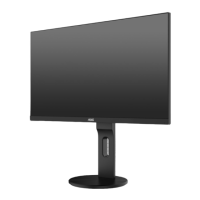
The AOC Q2790PQE is an LCD monitor designed to display visual information from a connected computer or other video sources. Its primary function is to provide a clear and vivid visual output for various applications, including office work, internet browsing, gaming, and multimedia consumption. The monitor utilizes LED backlighting for efficient and bright display. It supports multiple input signal types, including HDMI, DisplayPort (DP), and D-Sub (VGA), allowing for broad compatibility with different systems. The monitor is equipped with USB ports, including a fast-charging USB port, to enhance connectivity and convenience for peripheral devices. An earphone out port is also available for audio output.
The monitor offers a range of features to optimize the user experience.
The manual details the process of setting up the monitor stand and base, ensuring a stable foundation for the display. It also provides instructions for connecting the monitor to a PC using various signal cables (HDMI, DP, VGA, USB, Audio), emphasizing the importance of proper connections for optimal performance. Users are advised to turn off both the PC and the LCD monitor before connecting cables to protect the equipment.
For ergonomic comfort and optimal viewing, the monitor allows for adjustment of its viewing angle. Users can tilt the monitor from -5° to 21° to suit their preference. The manual cautions against touching the LCD screen during angle adjustments to prevent damage.
The monitor features several hotkeys for quick access to common functions without navigating through the full On-Screen Display (OSD) menu:
The OSD menu provides extensive control over the monitor's display settings, organized into several categories:
The Clear Vision function, activated via a hotkey, enhances image viewing by converting low-resolution and blurry images into clear and vivid ones. Users can select between weak, medium, strong, or off settings. A Clear Vision Demo mode can also be activated to showcase the effect.
The monitor's LED indicator provides visual feedback on its power status:
The manual includes a comprehensive troubleshooting section to help users resolve common issues such as the power LED not being on, no images on the screen, fuzzy or ghosting pictures, bouncing or flickering images, the monitor being stuck in "Active Off-Mode," missing primary colors, improperly centered or sized images, color defects, and horizontal or vertical disturbances. Solutions range from checking cable connections and power supply to adjusting monitor settings and rebooting the computer.
The monitor supports VESA DDC2B capabilities, allowing it to communicate its identity and display capabilities to the host system. This bi-directional data channel, based on the I2C protocol, enables the host to request EDID (Extended Display Identification Data) information, simplifying setup and ensuring optimal display configuration.
Proper maintenance is crucial for the longevity and performance of the AOC Q2790PQE monitor.
By following these guidelines, users can ensure the safe and effective operation and maintenance of their AOC Q2790PQE LCD monitor.
 General
| Pixel pitch | 0.233 x 0.233 mm |
|---|---|
| Screen shape | Flat |
| Backlight type | W-LED |
| Pixel frequency | 170 MHz |
| Display diagonal | 27 \ |
| Surface hardness | 3H |
| Adobe RGB coverage | 92 % |
| Display technology | LED |
| Native aspect ratio | 16:9 |
| Vertical scan range | 50 - 76 Hz |
| Maximum refresh rate | 60 Hz |
| Horizontal scan range | 30 - 83 kHz |
| NTSC coverage (typical) | 85 % |
| Viewable size, vertical | 336.31 mm |
| sRGB coverage (typical) | 125 % |
| Contrast ratio (dynamic) | 100000000:1 |
| Contrast ratio (typical) | 1000:1 |
| Display number of colors | 16.7 million colors |
| Display diagonal (metric) | 68.6 cm |
| Viewable size, horizontal | 597.88 mm |
| Display brightness (typical) | 350 cd/m² |
| Supported graphics resolutions | 2560 x 1440 |
| Pivot | Yes |
| Tilt angle range | -5 - 21 ° |
| Cable lock slot type | Kensington |
| Panel mounting interface | 100 x 100 mm |
| On Screen Display (OSD) languages | CHI (SIMPL), CHI (TR), CRO, CZE, DEU, DUT, ENG, ESP, FIN, FRE, ITA, JPN, KOR, POL, POR, RUS, SWE, TUR, UKR |
| HDMI version | 1.4 |
| USB hub version | 3.2 Gen 1 (3.1 Gen 1) |
| DisplayPort version | 1.2 |
| Headphone connectivity | 3.5 mm |
| Certification | True |
| Product color | Black |
| Front bezel color | Gray |
| Heavy metals free | Hg (mercury) |
| Market positioning | Business |
| AC input voltage | 100 - 240 V |
| AC input frequency | 50 - 60 Hz |
| Energy efficiency scale | A to G |
| Power consumption (standby) | 0.5 W |
| Power consumption (typical) | 40 W |
| Sustainability certificates | RoHS |
| Package depth | 226 mm |
| Package width | 703 mm |
| Package height | 468 mm |
| Package weight | 9900 g |
| VGA cable length | 1.8 m |
| Exterior finish type | Textured |
| Recyclable packaging material | 100 % |
| Mean time between failures (MTBF) | 50000 h |
| Cables included | DisplayPort, HDMI, VGA |
| Compatibility | VESA-P1 |
| Harmonized System (HS) code | 85285210 |
 Weight and Dimensions
| Depth (with stand) | 199.5 mm |
|---|---|
| Width (with stand) | 614.9 mm |
| Height (with stand) | 535 mm |
| Weight (with stand) | 6200 g |
| Depth (without stand) | 43.5 mm |
| Height (without stand) | 364.1 mm |
| Weight (without stand) | 4400 g |


 To Next Page