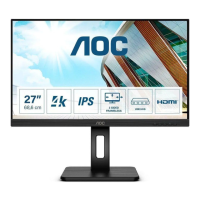
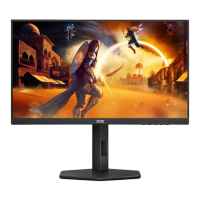
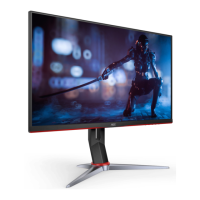
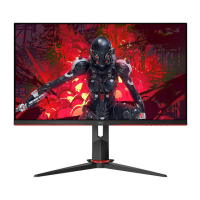
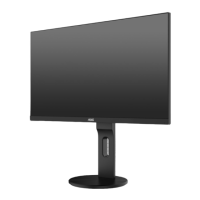
This document serves as the user manual for the AOC Q27P3QW LCD Monitor, providing comprehensive instructions for its setup, adjustment, and maintenance, along with important safety guidelines.
Function Description
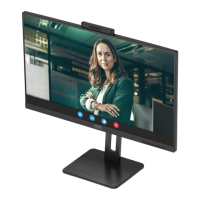
The AOC Q27P3QW is an LCD monitor designed for various computing tasks, offering a visual display interface for personal computers and other compatible devices. Its primary function is to render images and video content from a connected source, providing a clear and vibrant viewing experience. A notable feature of this monitor is its integrated webcam with Windows Hello facial recognition capabilities. This allows users to log into their Windows devices quickly and securely using biometric authentication, offering a faster and more convenient alternative to traditional passwords. The webcam is equipped with advanced sensors for facial recognition and can be physically adjusted to block the lens for privacy. The monitor also includes a microphone, enhancing its utility for video conferencing and other audio-visual communication needs.
The monitor supports Adaptive-Sync technology, which synchronizes the display's refresh rate with the graphics card's frame rate. This feature is particularly beneficial for gaming, as it helps eliminate screen tearing and stuttering, resulting in a smoother and more fluid visual experience. The manual provides a list of compatible AMD Radeon graphics cards and processors that support this function, ensuring users can optimize their setup for Adaptive-Sync.
Connectivity options are extensive, including HDMI and DisplayPort inputs for video signals, an earphone jack for audio output, and multiple USB 3.2 Gen1 ports. These USB ports include an upstream port for connecting the monitor to the PC, downstream ports for connecting peripherals, and one port with fast charging capabilities, adding convenience for charging mobile devices.
Usage Features
The AOC Q27P3QW monitor is designed for ease of use and offers several adjustable features to optimize the viewing experience.
- Setup and Installation: The manual provides clear instructions for setting up the stand and base, including steps for both assembly and removal. For users who prefer a wall-mounted setup, the monitor is VESA compliant, and instructions are provided for attaching a wall mounting arm (purchased separately). It emphasizes the importance of maintaining adequate ventilation space around the monitor to prevent overheating.
- Adjusting Viewing Angle: Users can adjust the monitor's tilt angle from -5° to 35° and its height by up to 150mm to achieve an optimal viewing position. The manual cautions against touching the LCD screen during adjustment and advises grasping only the bezel to prevent damage.
- Connecting to PC: Detailed steps are provided for connecting the monitor to a PC, including connecting the power cord, signal cables (HDMI or DisplayPort), and USB cables for the webcam and USB hub functionality. Users are advised to turn off both the PC and monitor before making connections to protect the equipment.
- On-Screen Display (OSD) Settings: The monitor features an intuitive OSD menu, accessible via hotkeys, allowing users to customize various display parameters.
- Hotkeys: Dedicated hotkeys provide quick access to functions such as Source/Exit, MIC/Clear Vision Demo, Volume, Menu/Enter, and Power. The MIC/Clear Vision Demo hotkey allows users to activate or deactivate the Clear Vision Demo mode, which enhances image clarity.
- Luminance Settings: This section allows adjustment of Contrast, Brightness, and Eco Mode. Eco Mode offers several presets like Standard, Text, Internet, Game, Movie, Sports, and Reading, each optimizing the display for specific content types. The Dynamic Contrast Ratio (DCR) can be enabled or disabled to adjust the contrast dynamically. HDR Mode settings (Picture, Movie, Game) are also available, though some luminance settings are restricted when HDR is active.
- Color Setup: Users can fine-tune color temperature with presets like Warm, Normal, Cool, and sRGB, or customize RGB gain in User mode. DCB (Dynamic Color Boost) Mode offers various enhancements such as Full Enhance, Nature Skin, Green Field, Sky-blue, and Auto Detect, allowing for richer and more vibrant colors. DCB Demo can be toggled on or off to preview the effects.
- Picture Boost: This feature allows users to enhance specific areas of the screen. Bright Frame can be enabled or disabled, and its size, brightness, contrast, and position (horizontal and vertical) can be adjusted. Clear Vision offers Strong, Medium, Weak, and Off settings to improve the clarity of low-resolution or blurry images.
- OSD Setup: This section provides options for OSD language, timeout duration, horizontal and vertical position, and transparency. It also includes settings for DP Capability (1.1 or 1.2) and a USB power setting for power saving. A "Break Reminder" can be activated to prompt users to take breaks after continuous work.
- Game Setting: Tailored for gamers, this section offers various game modes (FPS, RTS, Racing, Gamer 1, 2, 3) that optimize display settings for different game genres. Shadow Control allows users to adjust dark and bright areas for better visibility in games. Overdrive settings (Off, Weak, Medium, Strong) improve response time, reducing motion blur. Game Color adjusts color saturation, and Low Blue Mode reduces blue light emission to minimize eye strain. The "Dial Point" function places an aiming indicator on the screen, which can be helpful in FPS games. Adaptive-Sync can be enabled or disabled to prevent screen tearing. A Frame Counter can also be displayed on the screen.
- Extra Settings: This section includes Input Select (Auto, HDMI1, HDMI2, DP), Off Timer, Image Ratio (Wide, 4:3), DDC/CI (on/off), and Reset to default settings.
- LED Indicator: The monitor's LED indicator shows its status: white for full power mode and orange for active-off mode.
- Troubleshooting: A dedicated section provides solutions for common issues such as no image on the screen, fuzzy pictures, flickering, or color defects, guiding users through basic diagnostic steps.
Maintenance Features
Proper maintenance ensures the longevity and optimal performance of the AOC Q27P3QW monitor.
- Cleaning: The manual advises regular cleaning of the cabinet with a water-dampened, soft cloth. For the screen, a soft cotton or microfiber cloth should be used, damp and almost dry, to prevent liquid from entering the case. Crucially, users are instructed to disconnect the power cord before cleaning the product to prevent electrical hazards.
- General Safety: The manual outlines several safety precautions, including operating the monitor only from the specified power source, using a grounded plug, unplugging during lightning storms or prolonged non-use, and avoiding overloading power strips. It also warns against pushing objects into slots, spilling liquids, or placing the product face down.
- Environmental Considerations: The monitor is designed to operate within specific temperature and humidity ranges, and these conditions should be observed to ensure proper functioning.
- Product Care: Users are advised to avoid severe vibration or high impact conditions during operation or transportation and to contact a Service Center immediately if the product emits strange smells, sounds, or smoke. The power cords should be safety approved, and excessive sound pressure from earphones/headphones should be avoided to prevent hearing loss.
By following these guidelines, users can ensure safe, efficient, and long-lasting operation of their AOC Q27P3QW LCD Monitor.

 Need help?
 General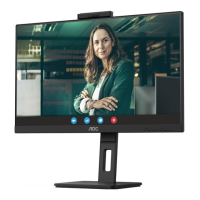

 To Next Page