Need help?
Do you have a question about the AOC Q27P2CA and is the answer not in the manual?
Instructions and warnings regarding safe monitor power connection and usage.
Guidelines for safe monitor installation, placement, and ventilation requirements.
Lists all items included in the product packaging for user verification.
Step-by-step guide for assembling and disassembling the monitor stand and base.
Guidance on connecting the monitor to a computer using various cable types.
Explanation of the monitor's physical control buttons and their functions.
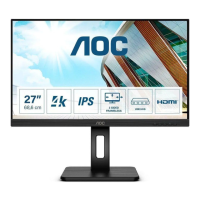
This document serves as the user manual for the AOC Q27P2CA LCD Monitor, providing comprehensive instructions for its setup, operation, and maintenance. The monitor is designed to offer a high-quality visual experience, suitable for various applications from general computing to more demanding tasks like gaming and professional work.
The AOC Q27P2CA is an LCD monitor that provides a visual display for computers and other compatible devices. Its primary function is to render images and video content with clarity and precision. The monitor supports multiple input types, including DisplayPort (DP), High-Definition Multimedia Interface (HDMI), and USB-C, allowing for versatile connectivity with a wide range of systems. The USB-C connection is particularly notable as it can carry display signals, data, and power, simplifying cable management for compatible devices.
The monitor features an On-Screen Display (OSD) menu, accessible via physical buttons, which allows users to customize various display settings. These settings include adjustments for luminance (contrast, brightness, Eco mode, Gamma, DCR, and HDR Mode), color (color temperature, DCB Mode, and individual RGB gains), and game-specific enhancements (Game Mode, Shadow Control, Overdrive, Game Color, LowBlue Mode, Dial Point, Adaptive-Sync, and Frame Counter). The OSD also provides options for language selection, OSD timeout, DP Capability, OSD position, USB power settings, transparency, and a break reminder.
A notable feature is "Clear Vision," which enhances image viewing by converting low-resolution and blurry images into clearer and more vivid ones. This function can be activated and adjusted via hotkeys, offering different levels of enhancement (weak, medium, strong) or a demo mode to showcase its effects.
The monitor is equipped with multiple USB 3.2 Gen1 ports, including one for upstream connection to the PC and several downstream ports, one of which supports charging. An earphone output is also available for audio connectivity.
The AOC Q27P2CA monitor is designed for ease of use and adaptability to individual preferences.
Adjusting Viewing Angle: The monitor allows for significant adjustment of its viewing angle to ensure optimal comfort and visibility. Users can tilt the screen from -5 degrees to 35 degrees and adjust the height by up to 150mm. This flexibility helps in achieving an ergonomic setup, reducing strain during prolonged use. When adjusting the angle, it is important to hold the stand to prevent the monitor from toppling and to avoid touching the LCD screen directly, as this could cause damage.
Hotkeys: Dedicated hotkeys provide quick access to frequently used functions without navigating the full OSD menu. These include:
OSD Settings: The OSD menu is structured into several categories:
Connectivity: The monitor offers a robust set of connection options:
Plug and Play: The monitor is VESA DDC2B compliant, meaning it can automatically communicate its display capabilities to the connected host system, simplifying setup and configuration.
Maintaining the AOC Q27P2CA monitor involves simple, routine care to ensure its longevity and optimal performance.
Cleaning: Regular cleaning of the cabinet with a soft cloth is recommended. For stains, a soft detergent can be used, but strong detergents should be avoided as they may damage the product cabinet. When cleaning the screen, ensure no detergent leaks into the product, and use a soft cloth that will not scratch the screen surface. It is crucial to disconnect the power cord before cleaning the monitor to prevent electrical hazards.
Safety Precautions: The manual emphasizes several safety guidelines:
OSD Lock Function: The OSD can be locked and unlocked to prevent accidental changes to settings. This is done by pressing and holding the MENU button while the monitor is off, then pressing the power button.
By following these guidelines, users can ensure the safe and effective operation of their AOC Q27P2CA monitor, maintaining its performance and extending its lifespan.
 General
| HD type | 2K Ultra HD |
|---|---|
| Color depth | 8 bit |
| Pixel pitch | 0.2331 x 0.2331 mm |
| Aspect ratio | 4:3, 16:9 |
| Screen shape | Flat |
| Pixel density | 10879 ppi |
| Backlight type | W-LED |
| Display surface | Matt |
| Display diagonal | 27 \ |
| Surface hardness | 3H |
| Anti-glare screen | Yes |
| Display technology | LED |
| Native aspect ratio | 16:9 |
| Maximum refresh rate | 75 Hz |
| NTSC coverage (typical) | 92 % |
| Viewable size, vertical | 335.664 mm |
| sRGB coverage (typical) | 104 % |
| Contrast ratio (dynamic) | 50000000:1 |
| Contrast ratio (typical) | 1000:1 |
| Display number of colors | 16.7 million colors |
| Display diagonal (metric) | 68.6 cm |
| Viewable size, horizontal | 596.736 mm |
| Display brightness (typical) | 300 cd/m² |
| HDMI version | 1.4 |
| USB hub version | 3.2 Gen 1 (3.1 Gen 1) |
| DisplayPort version | 1.2 |
| Headphone connectivity | 3.5 mm |
| USB Power Delivery up to | 65 W |
| VGA (D-Sub) ports quantity | 0 |
| USB Type-A downstream ports quantity | 4 |
| Tilt angle range | -5 - 35 ° |
| Height adjustment | 150 mm |
| Cable lock slot type | Kensington |
| Panel mounting interface | 100 x 100 mm |
| On Screen Display (OSD) languages | CHI (SIMPL), CHI (TR), CRO, CZE, DEU, DUT, ENG, ESP, FIN, FRE, ITA, JPN, KOR, POL, POR, RUS, SWE, TUR, UKR |
| Package type | Box |
| Package depth | 160 mm |
| Package width | 690 mm |
| Package height | 595 mm |
| Package weight | 8800 g |
| AC input voltage | 100 - 240 V |
| AC input frequency | 50 - 60 Hz |
| Energy efficiency scale | A to G |
| Power consumption (off) | 0.3 W |
| Power consumption (standby) | 0.5 W |
| Power consumption (typical) | 37 W |
| RMS rated power | 2 W |
| Certification | ISO |
| Product color | Black |
| Market positioning | Business |
| Compatibility | VESA-P2 |
| Storage temperature (T-T) | -25 - 55 °C |
| Operating temperature (T-T) | 0 - 40 °C |
| Storage relative humidity (H-H) | 5 - 93 % |
| Operating relative humidity (H-H) | 10 - 85 % |
| Cables included | DisplayPort, HDMI |
| DisplayPort cable length | 1.8 m |
| Exterior finish type | Textured |
| Harmonized System (HS) code | 85285210 |
| Sustainability certificates | WEEE |
 Weight and Dimensions
| Depth (with stand) | 200.1 mm |
|---|---|
| Width (with stand) | 613.6 mm |
| Height (with stand) | 544.5 mm |
| Weight (with stand) | 6300 g |
| Depth (without stand) | 51.1 mm |
| Height (without stand) | 369.5 mm |
| Weight (without stand) | 4570 g |

 To Next Page