Need help?
Do you have a question about the AOC U27U2S and is the answer not in the manual?
Explains icons and text formatting for notes, cautions, and warnings.
Details safe power source usage, grounded plugs, and overload prevention.
Covers placement, ventilation, and tilt angle restrictions for safe installation.
Provides guidelines on cleaning the cabinet and screen safely, including disconnecting power.
Covers unusual smells, ventilation, vibration, dropping, power cord safety, and audio warnings.
Details all components provided in the monitor's packaging.
Step-by-step guide for attaching or removing the monitor stand and base.
Explains how to adjust the monitor's tilt angle for optimal viewing and safety.
Details cable connections at the back of the monitor and the steps to connect to a PC.
Guides on attaching the monitor to a wall mount arm, including VESA compatibility.
Describes how to use the KVM function to control multiple PCs with one set of peripherals.
Explains the functions of the monitor's hotkeys for power, volume, and menu navigation.
Explains the Clear Vision function for image enhancement and how to use its demo mode.
Provides basic instructions on using the OSD menu for monitor settings adjustment.
Explains settings for Contrast, Brightness, Eco mode, Gamma, DCR, and HDR modes.
Covers settings for Color Temperature, DCB Mode, DCB Demo, and LowBlue Mode.
Explains Picture Boost settings like Bright Frame, Frame Size, Brightness, and Contrast.
Details OSD settings including language, timeout, DP capability, USB selection, and OSD transparency.
Explains settings for PIP/PBP modes, including main/sub source, size, position, and audio.
Covers game-specific settings like Game Mode (FPS, RTS, Racing), Shadow Control, Overdrive, and Game Color.
Details extra settings such as Input Select, Off Timer, Image Ratio, DDC/CI, and Reset options.
Explains how to exit the main On-Screen Display menu.
Describes the LED indicator colors for different power modes.
Provides solutions for common issues like no image, fuzzy picture, and connectivity problems.
Lists general specifications like model name, display size, resolution, power, and connectors.
Details standard, IBM, and MAC display modes with their resolutions and frequencies.
Shows pin assignments for the 19-pin and 20-pin display signal cables.
Explains the monitor's Plug & Play DDC2B capabilities for host communication.
This document serves as a user manual for the AOC U27U2S/U27U2DS LCD Monitor, providing comprehensive instructions for setup, operation, and maintenance.
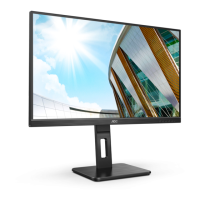
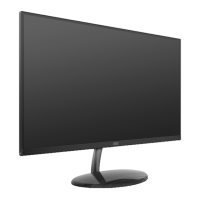
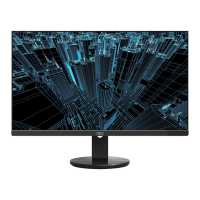
The AOC U27U2S/U27U2DS is an LCD monitor designed for various computing tasks, offering a range of features to enhance user experience. Its primary function is to display visual output from connected devices, such as PCs and notebooks. The monitor supports multiple input sources, including HDMI, DisplayPort, and USB-C, allowing for flexible connectivity with different systems.
A key feature of this monitor is its KVM (Keyboard, Video, Mouse) function. This allows users to connect two different devices (e.g., two PCs, two notebooks, or one PC and one notebook) to the monitor and control both using a single set of keyboard and mouse connected to the monitor's USB ports. The KVM function simplifies the workspace by eliminating the need for separate peripherals for each connected device. Users can switch control between the devices by selecting the appropriate input signal source through the On-Screen Display (OSD) menu. The USB Selection option in the OSD setup allows users to choose between "Auto," "USB C," or "USB UP" to determine how the USB hub function operates based on the input source. "Auto" automatically selects USB C or USB Up depending on the input source, while "USB C" and "USB Up" provide USB Hub functionality through the respective cables.
The monitor also includes a Picture-in-Picture (PIP) and Picture-by-Picture (PBP) function, enabling the display of content from multiple sources simultaneously. Users can select the main and sub-screen sources, adjust the screen size (Small, Middle, Large), and set the position of the sub-screen (Right-up, Right-down, Left-up, Left-down). Audio settings for PIP can also be configured, allowing users to choose between PIP audio or main audio. A "Swap" function is available to interchange the main and sub-screen sources.
For visual enhancement, the monitor features "Clear Vision" technology, which converts low-resolution and blurry images into clear and vivid ones. This function can be activated via a hotkey and offers different settings (Weak, Medium, Strong, Off) to adjust the level of enhancement. A "Clear Vision Demo" mode is also available to showcase the effect.
The monitor supports various display modes, including Eco Mode (Standard, Text, Internet, Game, Movie, Sports, Reading, Uniformity), which optimizes display settings for different content types. It also includes Gamma adjustments (Gamma1, Gamma2, Gamma3) and Dynamic Contrast Ratio (DCR) to fine-tune image quality. HDR (High Dynamic Range) support is provided, with options like DisplayHDR, HDR Picture, HDR Movie, and HDR Game, which set the HDR profile according to usage requirements. When HDR is detected, these options become available for adjustment. If HDR is not detected, an "HDR Mode" option is displayed, which simulates the HDR effect.
Color Setup options allow users to adjust color temperature (Warm, Normal, Cool, sRGB, User-defined RGB gains), and utilize DCB (Dynamic Color Boost) modes (Full Enhance, Nature Skin, Green Field, Sky-blue, Auto Detect, OFF) to enhance specific color ranges. A "LowBlue Mode" is also available to decrease blue light emission, which can be beneficial for eye comfort during extended use.
For gaming, the monitor offers a "Game Setting" menu with various modes like FPS (First Person Shooter), RTS (Real Time Strategy), Racing, and three customizable Gamer modes. These modes optimize dark level details, image quality, response time, and color saturation for specific game genres. "Shadow Control" allows users to adjust contrast in dark areas for better visibility. "Overdrive" adjusts the response time, and "Low Input Lag" turns off the frame buffer to decrease input lag. The "Dial Point" function places an aiming indicator in the center of the screen, aiding in FPS games. "Adaptive-Sync" adjusts the V-frequency, and a "Frame Counter" can display the V-frequency on a selected corner of the screen.
The "Extra" menu provides additional settings such as "Input Select" for choosing the signal source, "Off Timer" to set a DC off time, and "Image Ratio" to select display aspect ratios (Wide, 4:3, 1:1). "DDC/CI" (Display Data Channel/Command Interface) support can be turned ON or OFF, and a "Reset" option allows users to revert all menu settings to default.
The monitor is designed for ease of use with an intuitive OSD menu and hotkeys. The OSD menu is accessed via the MENU-button, and navigation is done using the "V" and "Λ" buttons. Settings can be adjusted by pressing the MENU-button again and using the "V" or "Λ" buttons. The AUTO-button serves as an exit key.
Hotkeys provide quick access to frequently used functions:
The OSD Lock Function prevents accidental changes to settings. It can be activated by pressing and holding the MENU-button while the monitor is off, then pressing the power button. To unlock, the same procedure is followed.
The monitor offers adjustable viewing angles, including tilt (-6.5° to 23°) and height adjustment (150mm), to ensure optimal viewing comfort. It also supports wall mounting using a VESA-compatible mounting arm (purchased separately).
The LED indicator provides visual feedback on the monitor's status: white for full power mode and orange for active-off mode.
The manual provides clear guidelines for the safe installation and maintenance of the monitor.
The manual also includes a "Troubleshoot" section that lists common problems and their possible solutions, such as issues with the power LED, no image on the screen, fuzzy pictures, screen flickering, missing colors, or improper screen centering. This section guides users through basic diagnostic steps, including checking cable connections, power supply, video card settings, and monitor drivers, before recommending contacting a service center if the problem persists.
 General
| Screen Size | 27 inches |
|---|---|
| Resolution | 3840x2160 (4K UHD) |
| Panel Type | IPS |
| Refresh Rate | 60 Hz |
| Brightness | 350 cd/m² |
| Contrast Ratio | 1000:1 |
| VESA Mount | 100 x 100 mm |
| Viewing Angle | 178° (H) / 178° (V) |
| Color Depth | 10-bit (8-bit + FRC) |
| HDR | HDR10 |
| Ports | 1x DisplayPort, 1x USB-C, 4x USB 3.2 |
| Weight | 6.4 kg |

 To Next Page